February 23rd, 2026
Profitability reporting, Cmd+K, Lightweight Invoicing and much more
Profitability reporting
The Project Portfolio now includes a dedicated Gross Margin report, giving you a portfolio-level view of profitability across all your projects. Previously, understanding gross margin required digging into individual project details — now you can see it at a glance in the Portfolio view, grouped and filtered the same way you already analyze revenue and utilization.
This is especially useful for leadership and finance teams who need to monitor which clients, business units, or project types are delivering healthy margins and which ones need attention.
A new "Revenue per Hour" metric is now available in the Project Portfolio reports. This gives you a single, comparable performance indicator across projects, clients, and business units — regardless of whether they're time-and-materials or fixed-price. The metric works both as a backward-looking measure (using actual tracked hours and recognized revenue) and as a forward-looking one (using planned allocations and expected revenue).
You can also display "Planned Revenue per Hour" and "Earned Revenue per Hour" as columns directly in the Projects list.
We've added a range of profitability-related columns to list views across the app. In the Projects list, you can now display columns for actual revenue, actual costs, actual margin %, actual gross margin, total tracked hours, total planned hours, to-date planned hours, invoiced amount, and budget-spent percentage for T&M projects.

The Positions list now has many more columns to choose from: these make it possible to do quick financial health checks directly from list views without opening individual project or position detail pages.
You can now enable a view option on the Timeline that displays the gross margin percentage directly on each allocation bar. When turned on, every allocation shows its financial performance right alongside the allocation percentage — for example, "100% – GM 25.4%". This lets project managers who primarily work in the Timeline view keep profitability front and center without having to switch to the project detail page.
Grouping by Tag Category
You can now group projects and positions by an entire tag category — for example, "Staffing Process", or “Offering Area”. This means a staffing manager or director can open the Projects or Positions list, choose "Group by [Tag Category]" from the Display menu, and instantly see all items organized by their current status within that workflow.
Cmd+K launcher improved

The Cmd+K quick launcher has been significantly upgraded to make navigation faster and more discoverable. Bottom-of-list options like "Go to Settings" are now more prominently displayed so users actually notice them. You can now type "Add" or "New" to quickly create a project, person, or position; type "Permissions" to jump to permission settings; type "HiBob" to go straight to that integration; or type "help" to open the support site. When no results are found, a link to the help widget is shown. We've also added @me as a search option and you can now search projects by their unique ID.
Progress Determination for Revenue Recognition
Project managers can now formally set a project's completion % at any point in time using a new "Set Progress" dialog. You choose a date, see the current revenue and progress percentage, then specify the project's actual completion in currency or percentage. The system recognizes the budget accordingly over time and shows the recognized revenue.
This is critical for fixed-price projects where revenue recognition needs to reflect actual project progress rather than just the passage of time.
Lightweight invoicing workflow with Active Projects report
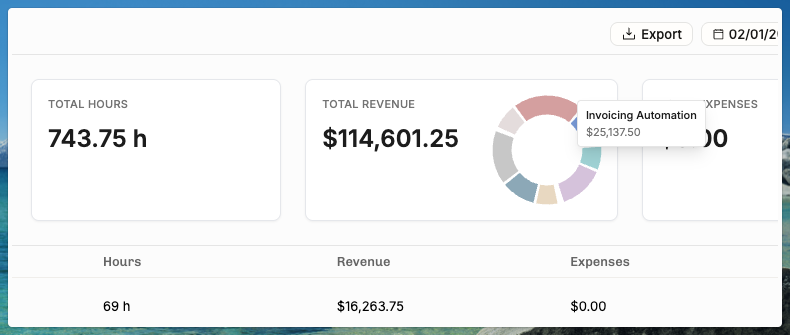
A new Active Projects report provides a simple, filterable table showing all projects with tracked hours during a selected time period — grouped by client with hours and revenue columns that distinguish between invoiced and uninvoiced amounts. You can filter by billability (billable, non-billable, or both), apply standard project filters, and choose your grouping. An export button lets you download time entries as CSV or generate a work breakdown PDF with configurable grouping and optional expense inclusion.

This is designed for teams that need a quick monthly overview of what's been worked and what needs to be billed, without going through the full invoice creation workflow.
Things that feel small but are still worthy of a mention
User-Selected Date Locale: In "View Options," each user can now choose their preferred locale for how dates are displayed throughout the app, independent of their browser settings.
The margin KPI displayed on project cards and the timeline now shows the "projected" margin by default — a blended figure that uses actuals up to today and planned figures from today forward — instead of showing "Actual margin: N/A" for projects that haven't completed yet.
"Project Completion %" column is now available in the Projects list for fixed-price projects. When enabled from the Display menu, it shows how far along each project is based on the progress determination / revenue recognition data.
Revenue Added to Reporting APIs, e.g.
https://operating.readme.io/reference/reports-projects-actual
Several calculation and display issues in the project detail page's financial status section have been resolved.
Every tracked time entry now has an associated cost calculated automatically based on the person's cost card, site, role, seniority, and external/internal status. Costs are computed in the actual currency, the project currency, and the tenant's default currency.
You can now select and delete multiple time entries at once from the Time Entries list view. Previously, deleting time entries in bulk required reaching out to support — a common request, especially from trial customers cleaning up test data.
We’re building a MCP server for LLM-powered use of Operating. Would you like to test it out?
Drop us a line at support@operating.app and we’ll add you to the waitlist. It’s pretty cool to prompt for custom reports, ask who could help with a particular topic, and so on.