Sites, Groups, Tags
Introduction to the organizational structure
Written By Matti Parviainen
Last updated 15 days ago
Video - 2 minutes - Organizational settings, overview
Sites
This is the top level of organizational structure. Sites represent the locations your people work in.
Video - 1 minute - Organizational settings: Sites
From the Site, Operating knows how many hours per week all Site members work – unless there are individual exceptions, see How to set individual and part-time working hours . That’s where you also decide which Holiday calendars (public holidays) is used.
If you only have one office in one location, you’ll be fine with the default Site – make sure the working hours and holiday calendars are in place and you’re done.
Each Site can also cap personnel costs at its people's working hours — see How cost capping works.
Groups
Video - 1 minute - introduction to Groups
Operating allows you to replicate your organization structure to the extent that it matters. You don’t have to add all teams, hierarchies and reporting structures, but if you want to see the reports in that way, please do so.
An example: Groups as cross-border business units
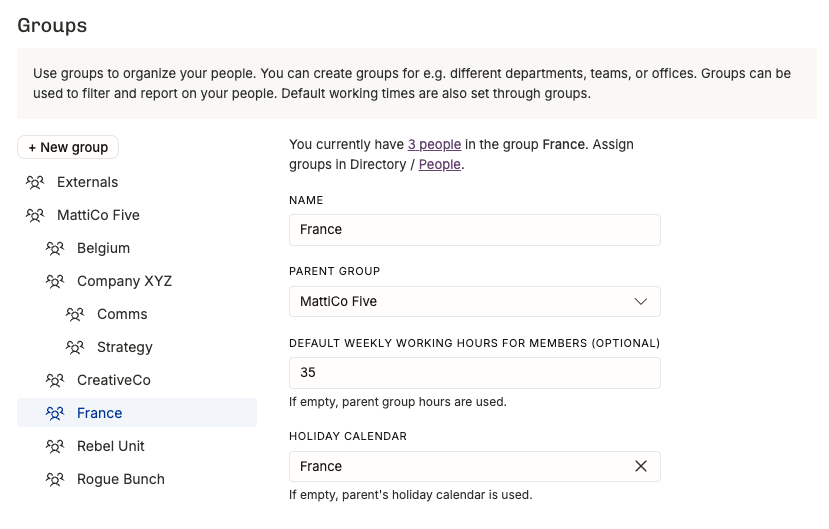
Here you can see an example of a company called MattiCo Five that has been formed after a merger of multiple agencies that continue to work as separated business units (CreativeCo, Rebel Unit, Rogue Bunch, and Company XYZ with two units inside of it). Their people are located across Belgium and France. They also work with Externals, which they have put in a group outside of the MattiCo Five hierarchy.
This allows:
reporting by unit or by country
filtering and grouping people and projects by business unit across the whole organization
Project and Client Tags
Video - 2 minutes - introduction to Tags
When you feel that the Groups aren’t granular enough for your reporting purposes, add Project and Client Tags.

For an IT consulting company, these might be nice project tag categories and example tags inside each category:
project tag category: Project Type
Discovery
Implementation
Continuous Services
project tag category: Service Offering
Design
Software Development
Strategy
You probably want to set the client tags to filter for specific industries and company characteristics, such as:
client tag category: Industry
FMCG
Manufacturing
Energy
client tag category: Location
EMEA
APAC
client tag category: Size
Startup
SME
Enterprise
Filtering for groups, tags and roles
When you’ve added project groups, project or client tags, and roles in the project teams, the filtering panel will start showing up all possible combinations (that would give you any results). this crazy filtering example highlights that:
Projects that match the following criteria:
Project Tag has either: Cloud or Web Development
Client Tag is E-commerce
Site is EEA
…and you could still narrow it further down, but we can already see that only the rand Strategy & Website project for Greenleaf Retail is the only match.

We can’t wait to hear what kind of reporting solutions you build with these tools! Remember that you don’t want to over-complicate your fundamentally simple business. Add the metadata you will actually use, not more.