How to interpret the project details page
In project details, you can make sense of the Project Details Page. It contains multitudes!
Written By Matti Parviainen
Last updated 4 months ago
Project Overview
Here’s a project in progress. In the Overview, we can already see some interesting things:
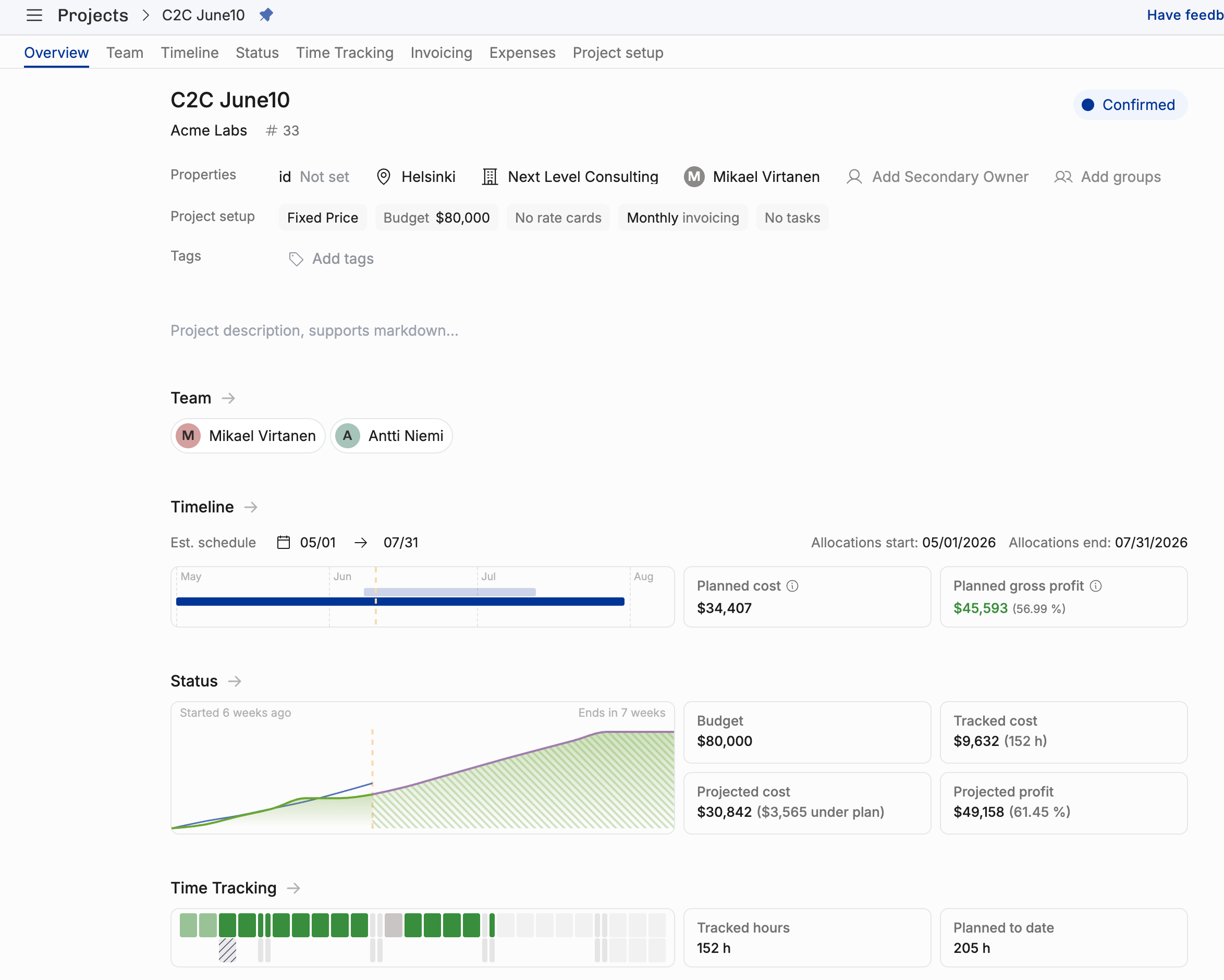
Looking at the Timeline, we can see that the yellow Today-marker is roughly 40% down the project. It’s mostly been 1 person working, but another allocation has been added recently.
The Status graph shows the burnup but there’s a slump in with the green line – the tracked time seems to be lagging behind.
That’s exactly what the Time Tracking visualization shows: the green blocks are solid until they’re not.
Let’s click on each of these status indicators to learn more…
Team
What’s the resource plan? Who are in the team, are there any open positions?
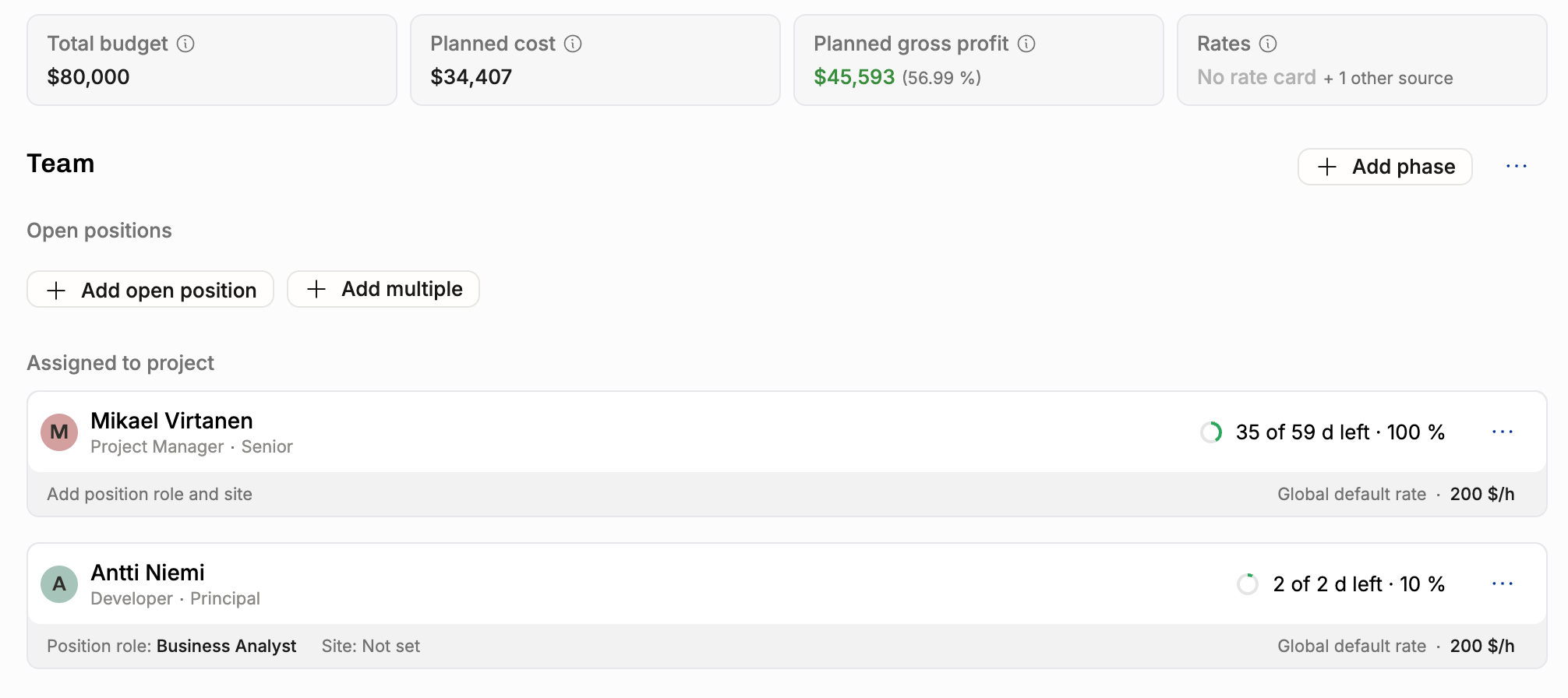
This shows you the team composition on a high level:
Total budget $80k, planned gross profit healthy 56.99%. No rate cards set, but that’s OK, because this is a fixed price engagement.
Two people, Mikael and Antti.
Mikael the project manager working 100%, total of 59 days, 35 days left
Antti, with the role of a business analyst, working 10%, 2 days total
Timeline
Here we’re still looking at the plans (allocations) exclusively:
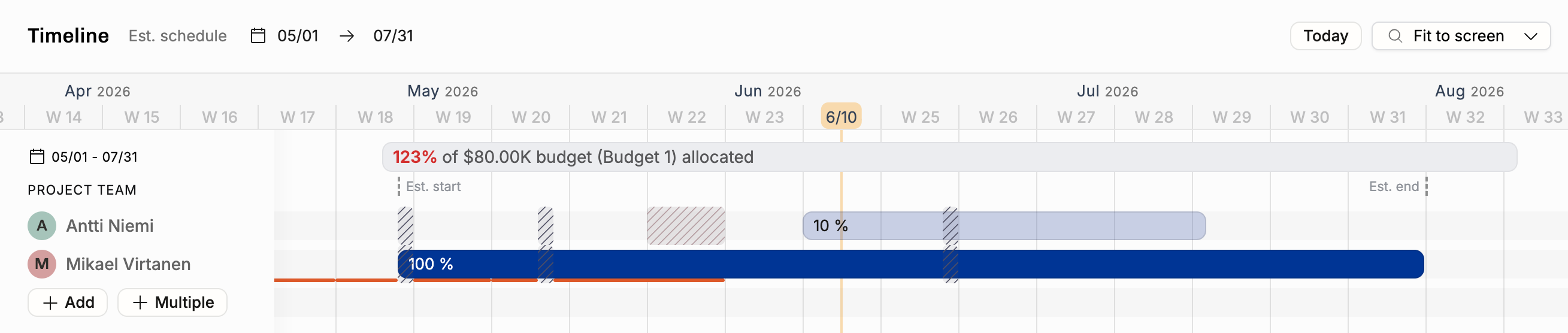
The timeline shows you that indeed Mikael is the person doing most of the work. Antti recently joined and will do the 10% effort for 2+ weeks. According to the global default rate, each hour is worth $200, and based on that, 123% of the $80k budget has been allocated.
Status
Finally we arrive at the burnup graph that ties it all together: planned and tracked work.
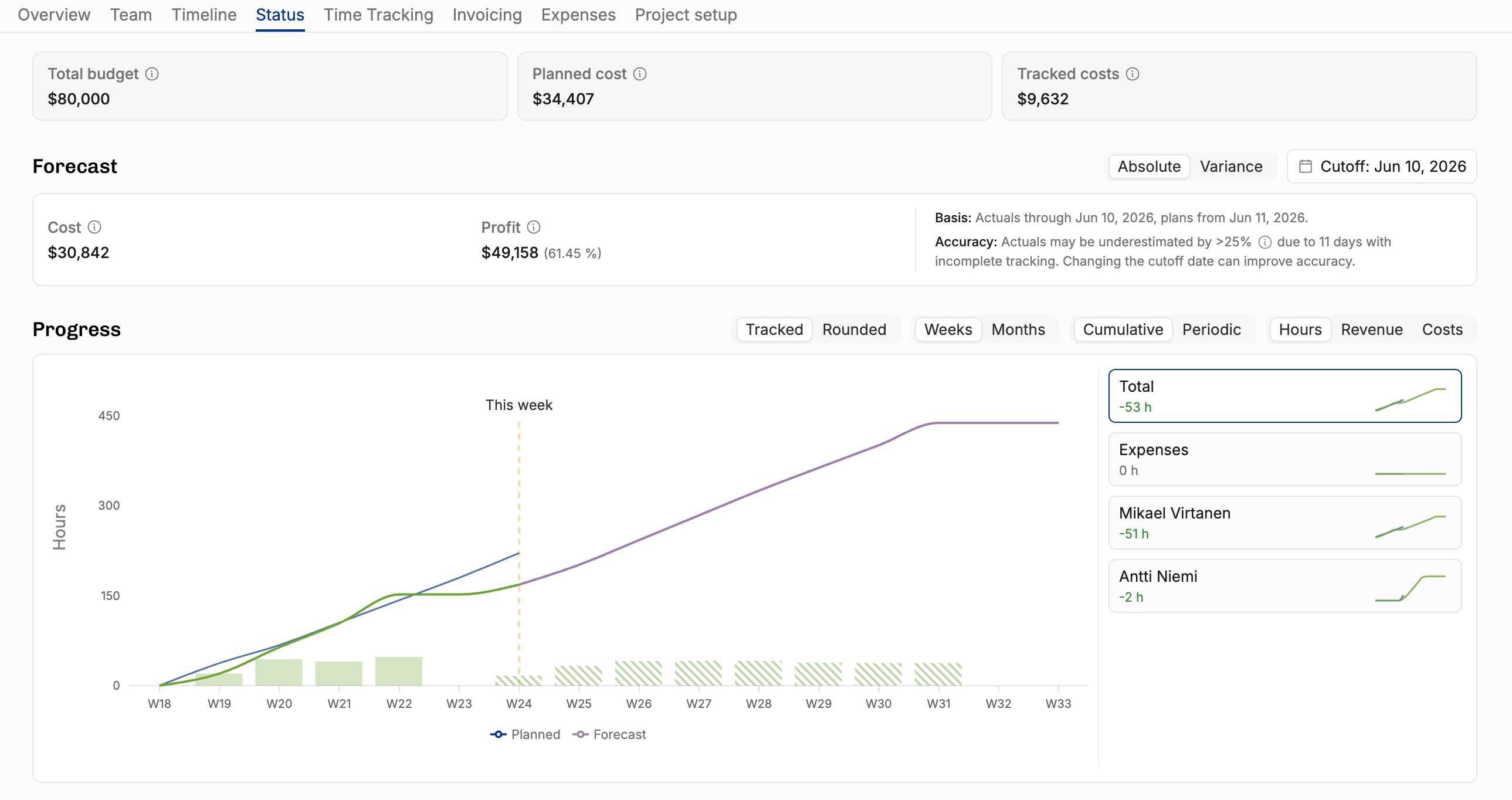
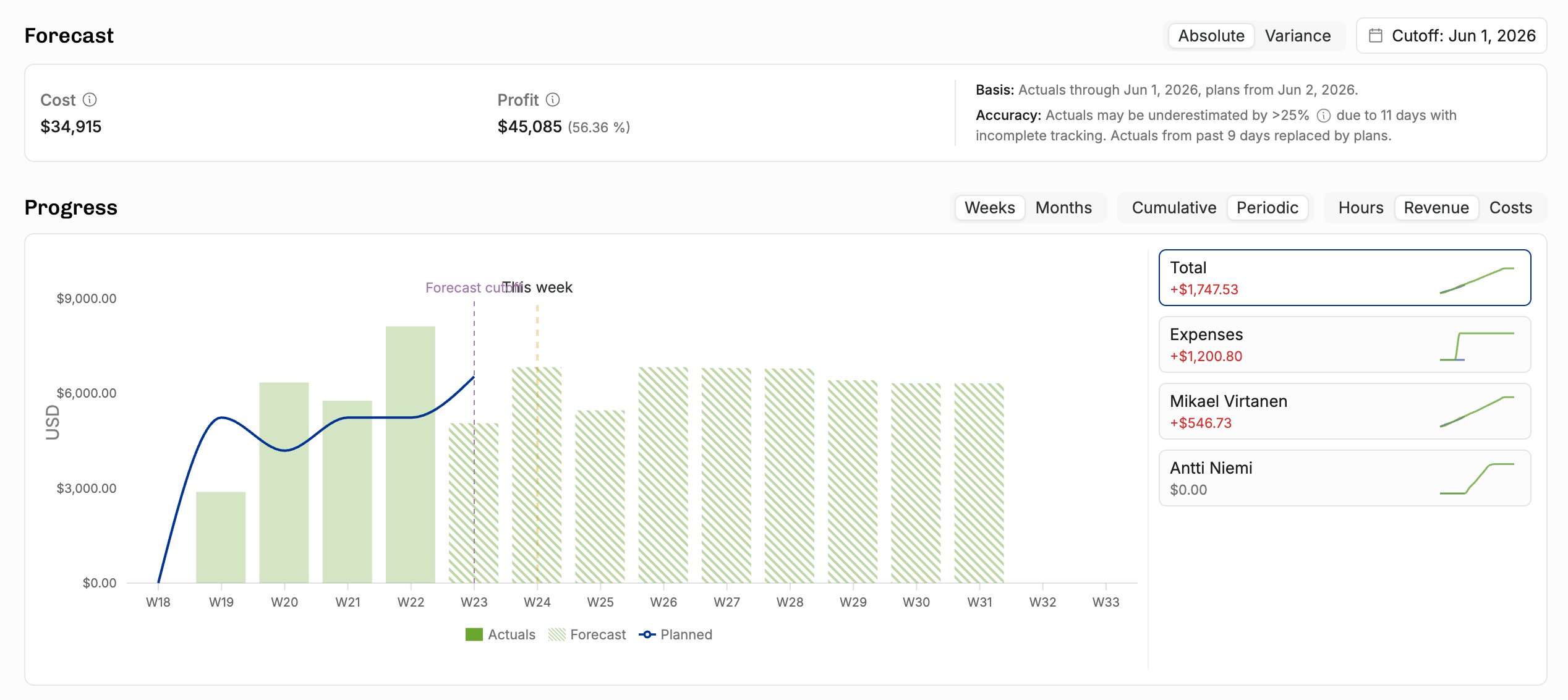
With the cutoff date, you can choose where the forecast begins. That means that the graph uses tracked actuals until the cutoff date, and forecasts using the plans from that day onward.
Remember the slump in the green line from the overview? Here it is again. Let’s take a look at the Time Tracking tab just to be sure:
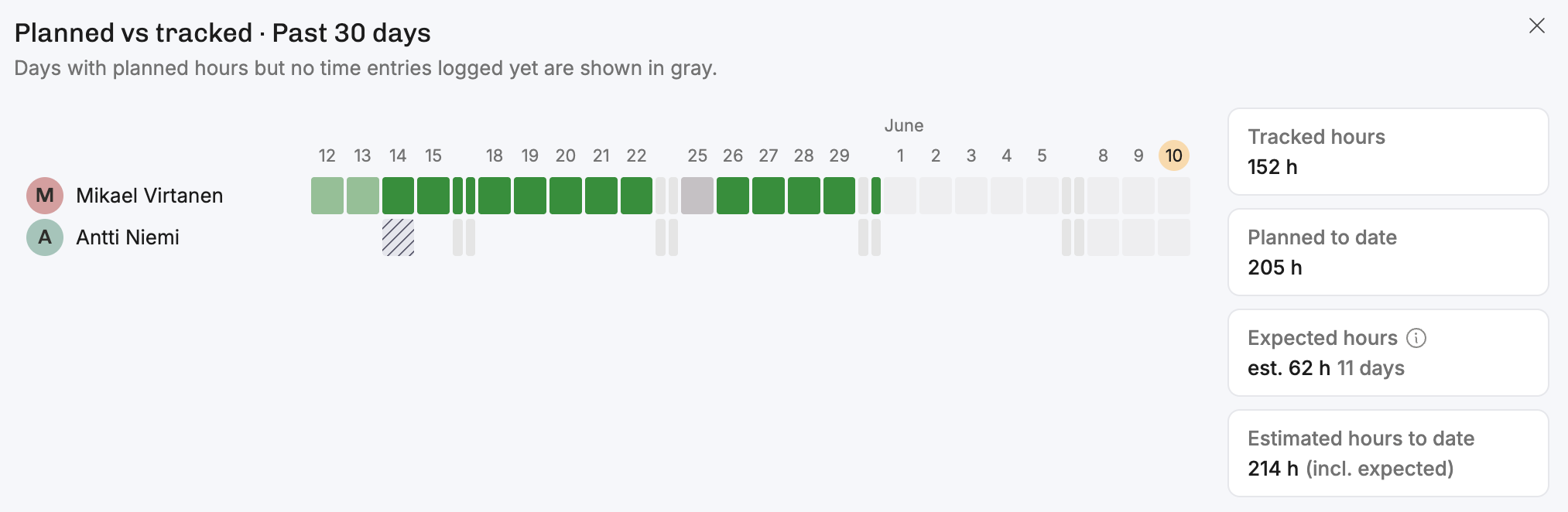
Mikael has time entries until the end of May, but nothing in June. Antti hasn’t tracked anything yet. If we want to understand where the project is likely going to land, let’s move the cutoff date to June 1st to see a smooth curve from actuals to plans.
Cutoff date adjusted
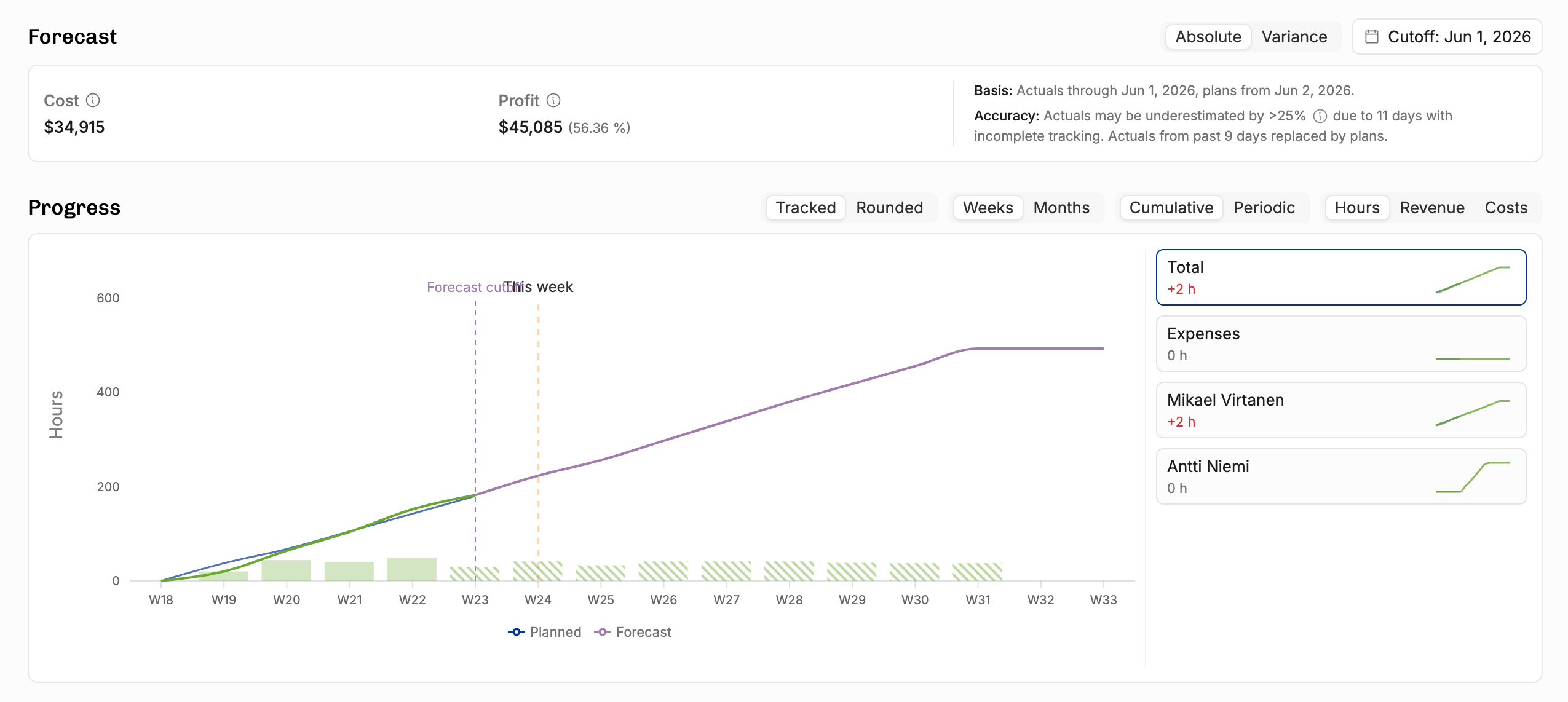
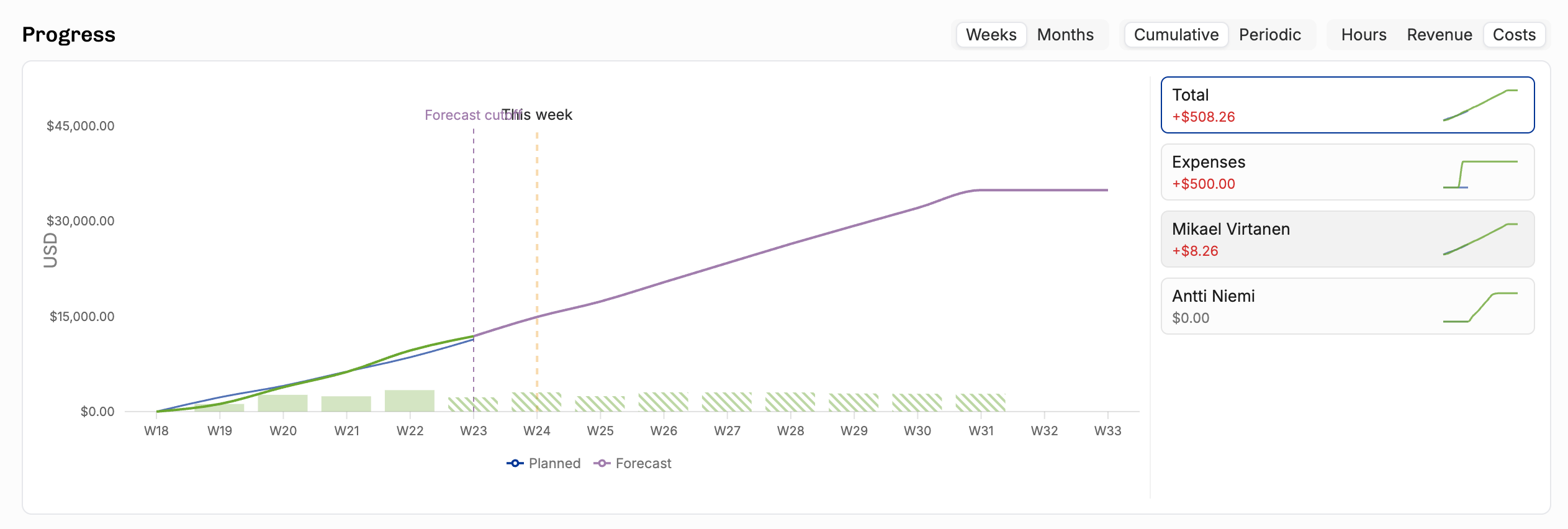
OK, so that’s what’s going on with hours. Let’s change the unit to Costs to see the $500 expense and how it affects the project:
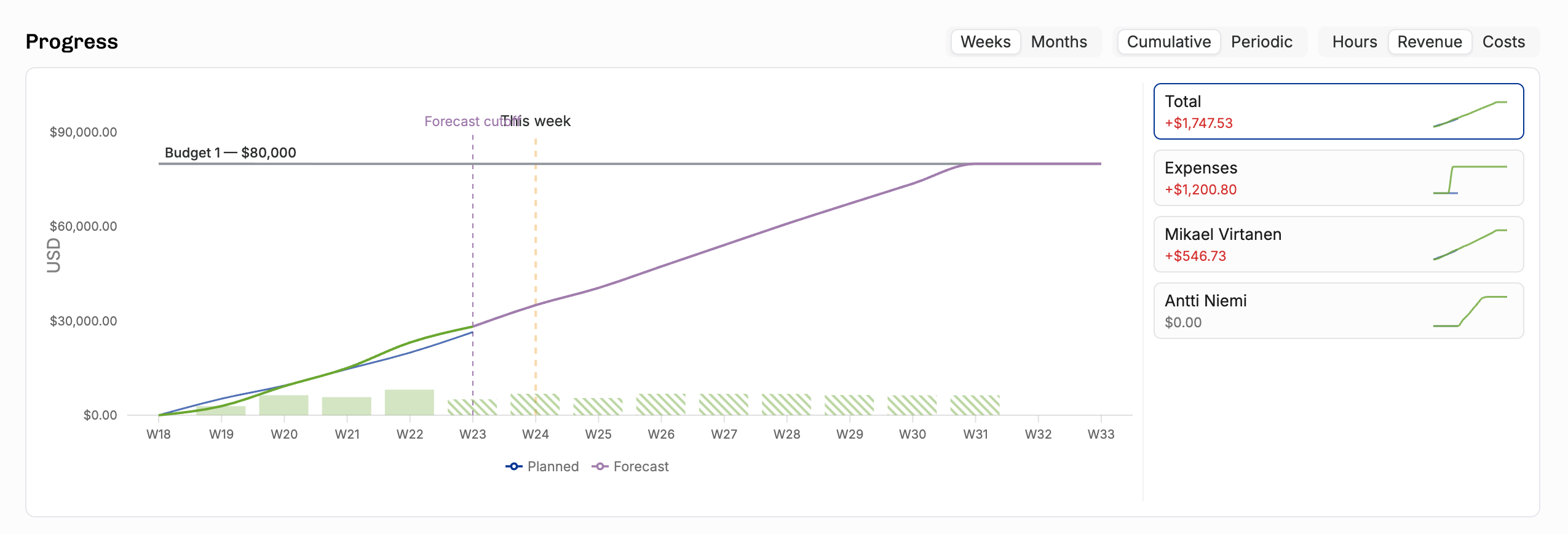
When we change to Revenue, we see the cost-to-cost revenue recognition method in action. The Revenue is attributed to all of the project costs (work or expenses). It’s slightly weird to see the $500 expense be worth $1,200.80, but that’s intentional:
Week by week planned vs tracked
Here’s the same thing periodically week-by-week instead of a cumulative burnup:
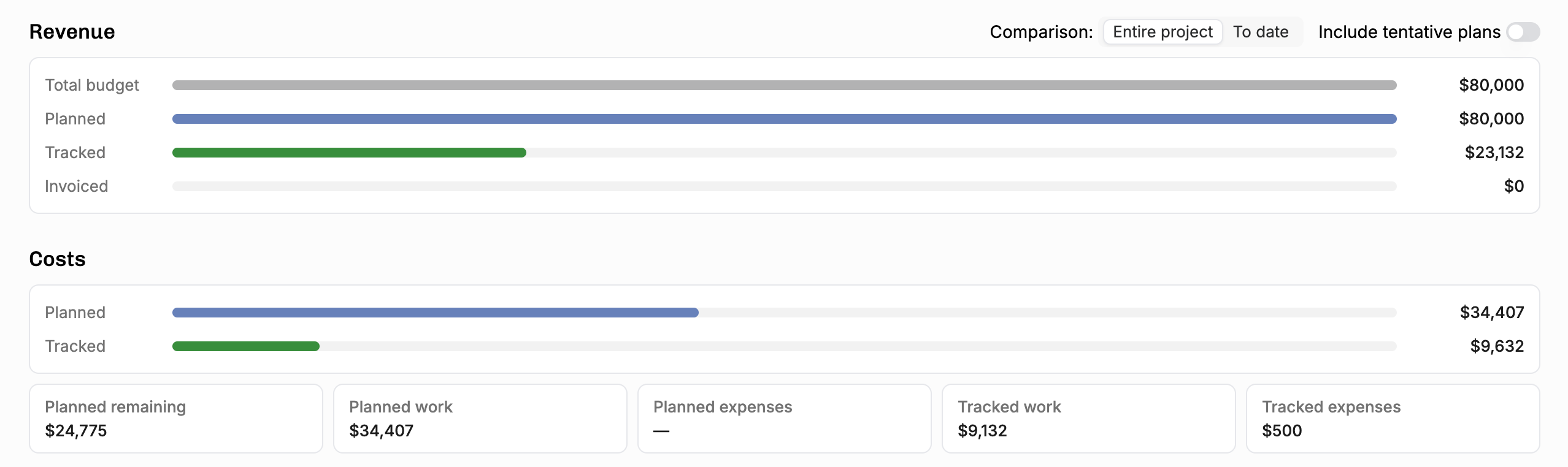
Below the status graphs, you can see the raw numbers used to draw it:
Time tracking
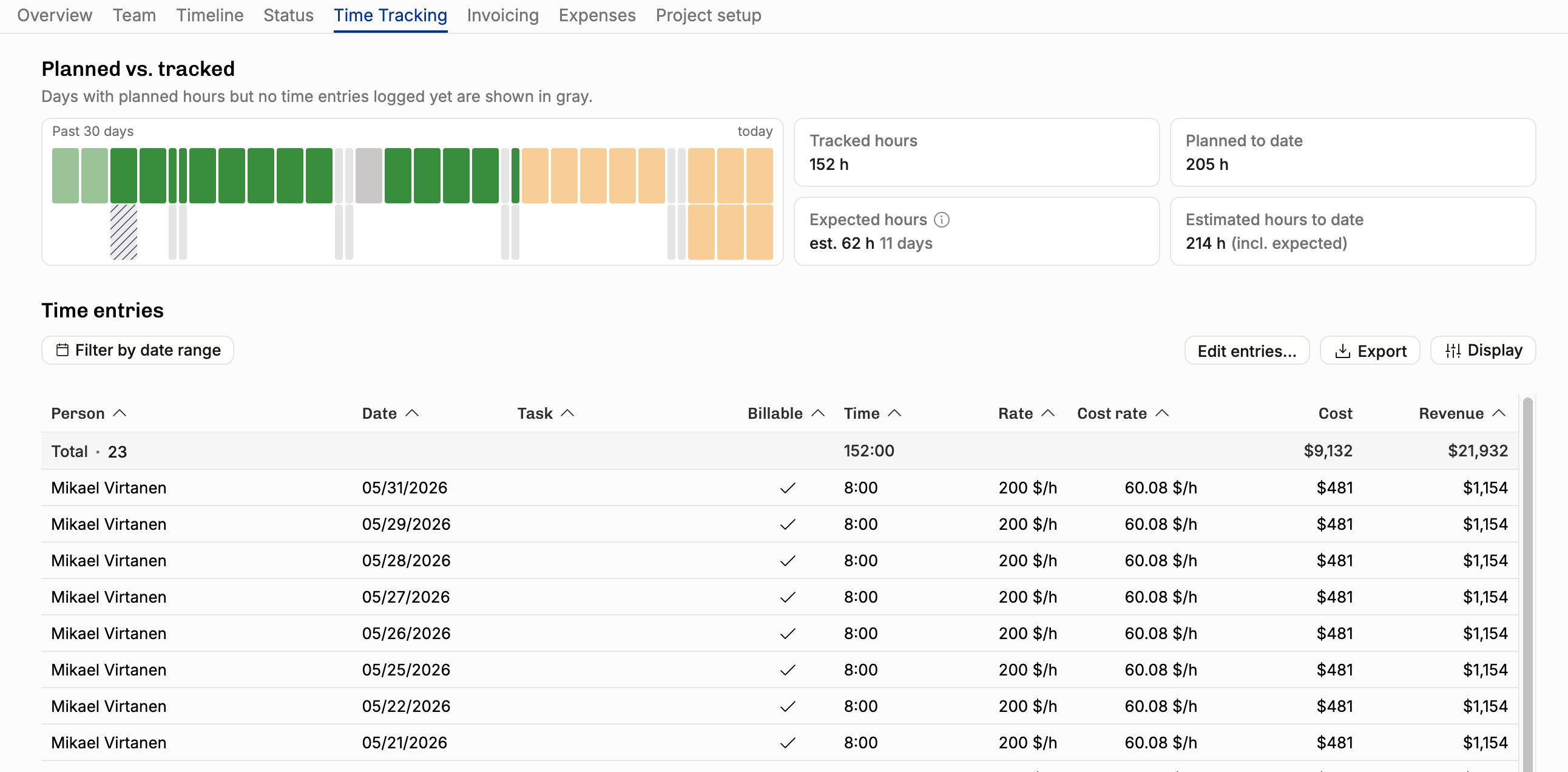
Hovering over the Expected hours, we see the yellow highlight on the days where the team has plans but nothing tracked yet.
Below, you can see a table of all of the time entries tracked in this project, all time. Filter by date range to see e.g. monthly totals. Use the Display menu to group the data as you like!
Was this helpful?
Still need help? Ask the team