Currencies
Written By Lauri Eurén
Last updated 2 months ago
Operating supports working in multiple currencies. You define the currencies your organization uses and their exchange rate to your base currency, and Operating converts between them so financials can be reported together. This article is for admins setting up currencies.
Before you begin
Financials are enabled for your organization.
You have permission to manage financial settings.
Your base currency
Your organization has a base (default) currency — the currency everything is ultimately converted to for reporting. Every other currency you add has an exchange rate to the base currency (for example, 1 USD = 0.92 EUR). You set these rates yourself, and they are not live market rates. Each rate applies from a date you choose, and Operating keeps the full history, so every amount is converted with the rate that applied on its own date.
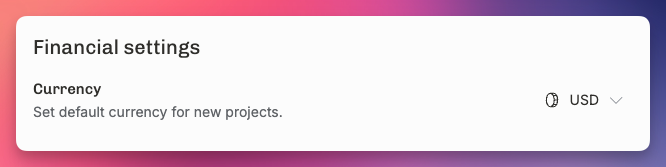
Where you find the default currency
Go to Settings → Financials → Currencies. The default currency has its own card at the top of the page, under Default currency. The card names the currency and reads "Exchange rates are expressed relative to this currency." To change it, follow the Change default currency from Financials settings link on the card.
All your other currencies sit below, under Other currencies, as one card each.
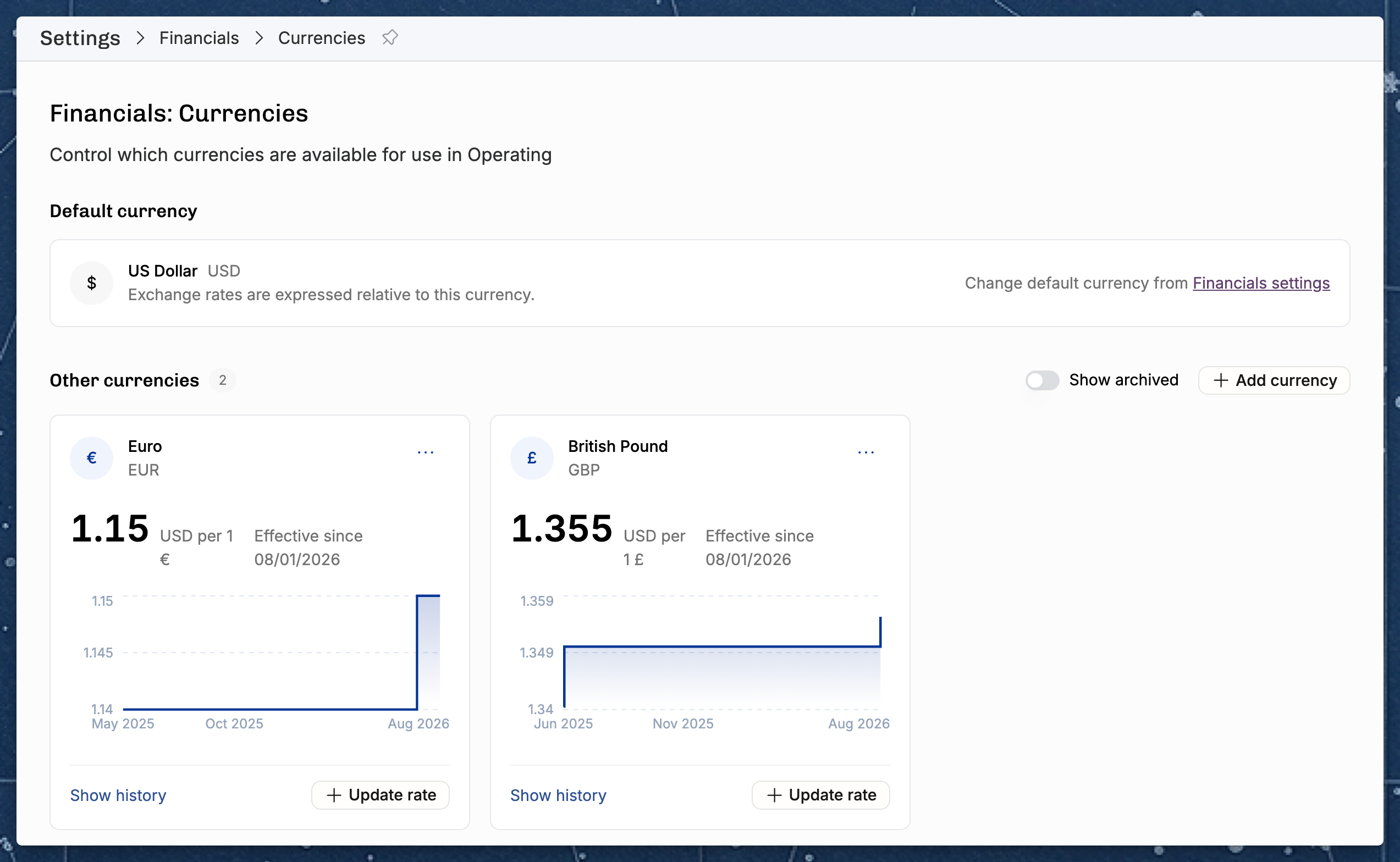
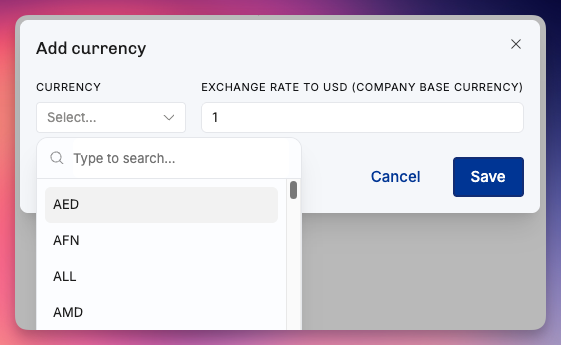
Adding and editing currencies
Go to Settings → Financials → Currencies.
Add a currency and set its exchange rate to the base currency.
Save.
Each currency keeps a history of exchange rates, and every rate has the date it takes effect. A rate applies from that date until the next rate starts, so a rate is available for any date. When you update a rate, it applies from the date you pick onward. Dates before it keep the rate that applied then, so past reports, invoices, and expenses keep the amounts they already have. Operating recalculates conversions in the background, and this can take a few minutes to apply everywhere. Every rate change is recorded in the audit log.
Setting a new exchange rate
Each currency card shows the current rate as a large figure, captioned with the default currency code — for example "EUR per 1 $". Below it, the card tells you when that rate took effect: Effective since and the date, Effective for all dates when the rate covers every date, or No effective rate when no rate applies today. A small chart on the card plots the rate over time.
To set a new rate:
Select Update rate on the currency card. The Update exchange rate dialog opens, with the currency name in the title.
Enter the new Exchange rate against your default currency.
Pick the Effective since date. Today is filled in for you, and you can pick a date in the future.
Select Save.
The new rate applies from that date onward. Each amount is converted with the rate in effect on its own date: an expense uses its expense date, tracked time uses the date of the entry, an invoice uses its invoice date, and a report figure uses the dates it covers.
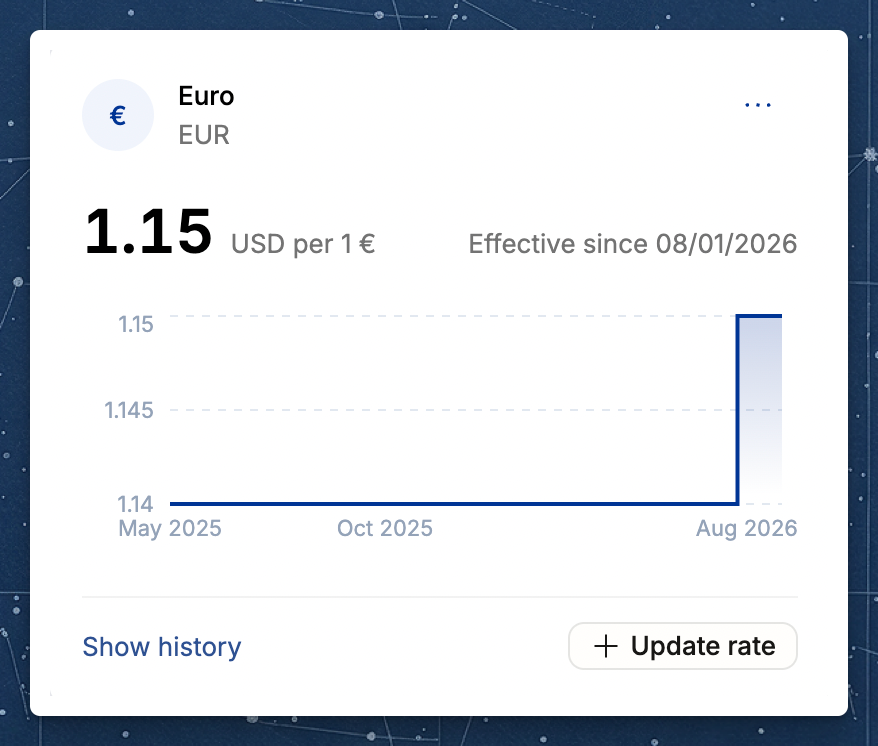
Viewing and editing rate history
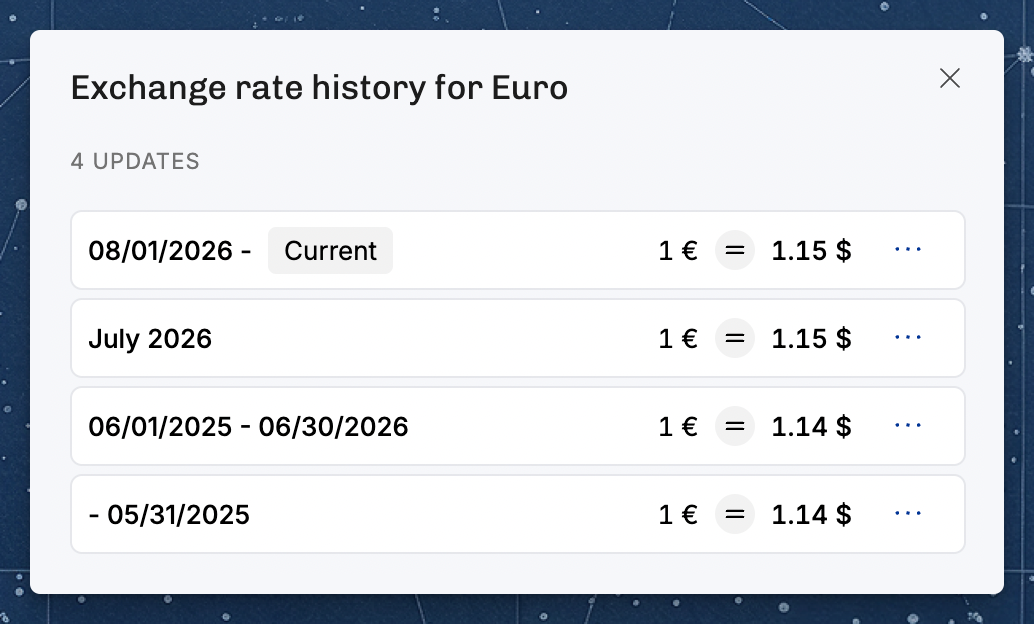
Select Show history on a currency card to open its exchange rate history. Each row is one rate: the period it covers, the rate itself, and a Current badge on the rate in effect today. A rate that starts in the future is marked with how far away it is.
A period that covers exactly one calendar month reads as that month, for example "June 2026". Other periods read as a date range, and an open start or end is left blank. A rate that covers every date reads "All dates".
Every row has Edit and Delete:
Edit opens the Edit exchange rate dialog, where you change the rate, the Effective since date, or both. Moving the start date moves the boundary with the rate before it. The oldest rate covers everything up to its end, so it has no start date to edit.
Delete removes the rate, and the neighboring rate expands to cover the dates it held.
Two rules apply:
A currency always keeps at least one rate. Delete is unavailable when one rate is left, and Operating stops the deletion if it reaches the server another way.
Two rates cannot start on the same date. Dates that already start a rate are marked in the calendar, with the note "This date already has an update". Pick another date, or edit the rate that already starts then.
Where currencies are used
Project currency — every project has a currency; its budgets, revenue, and costs are stored in it.
Invoicing currency — a project can be invoiced in a different currency from its project currency (see How to create and send an invoice).
Rate cards and cost rates — billing and cost rates are defined in a currency; Operating converts them to the project currency using your exchange rates.
Reporting — organization-wide reports convert everything to your base currency, so figures are comparable across projects and clients.
®.
Related articles
Was this helpful?
Still need help? Ask the team