Holiday calendars (public holidays)
Site-based public holidays that are non-working days for everyone
Written By Matti Parviainen
Last updated 14 days ago
Overview
In Operating, you can assign holiday calendars to entire Sites, ensuring that country- and state-specific public holidays are automatically reflected in everyone’s schedules. This helps you manage time off accurately across different locations.
When to Use
Use holiday calendars when:
You want to apply official public holidays across an entire site.
Your teams operate in different regions with different holiday schedules.
You want to add or remove team-wide non-working days (e.g. company offsites).
How to Set Up Holiday Calendars
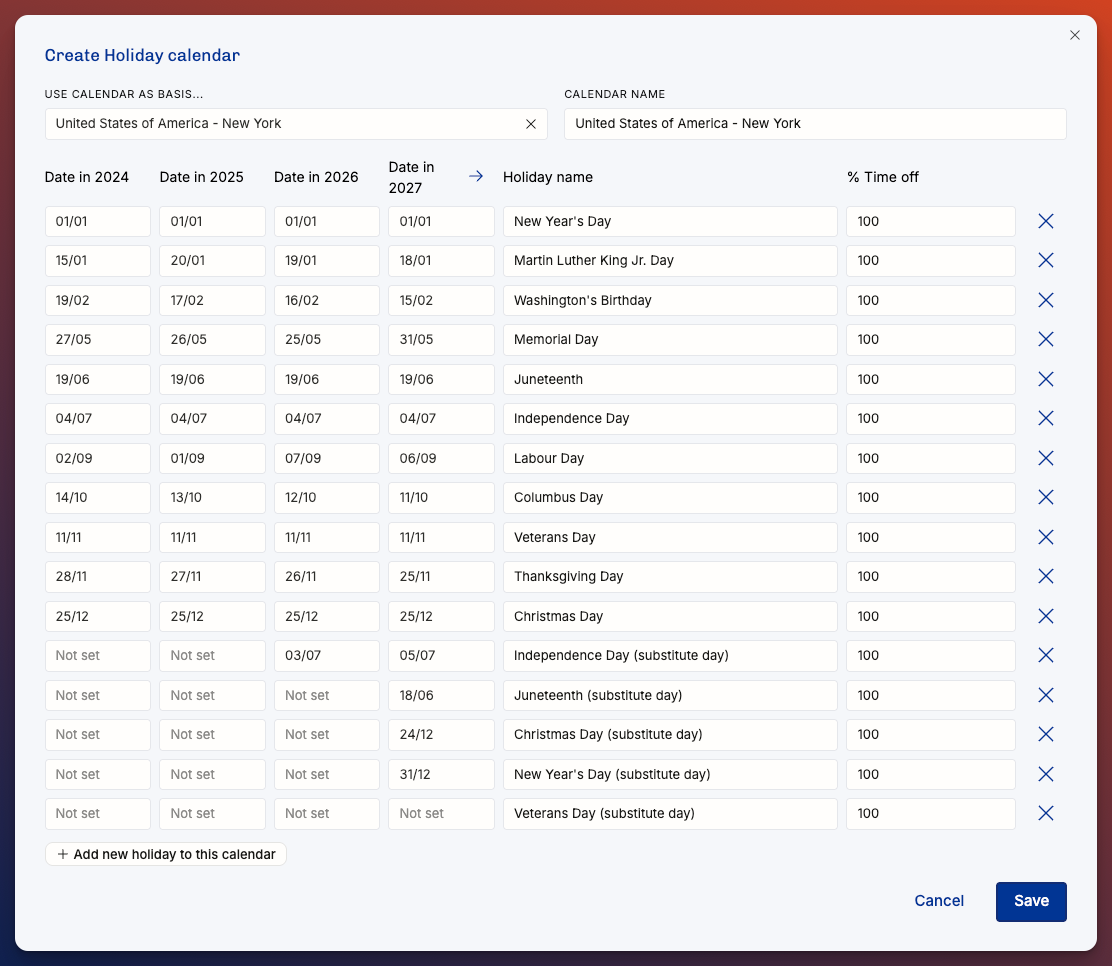
1. Navigate to Holiday Calendars
Go to: Settings → Organization → Holiday Calendars
2. Add a Holiday Calendar
Select the appropriate country and state/region.
The calendar will auto-populate with recognized public holidays for that location.
3. Assign the Calendar to a Site
Go to: Settings → Organization → Sites
Add the holiday calendar that you created to the site.
4. Customize If Needed
You can:
Remove any holiday that doesn’t apply to your team.
Add new days off like internal offsites or company-wide closures.
Everyone at the Site will have these days automatically added to their schedule.
When a Person moves to another Site, the new Site's calendar applies from the move date and the old one applies before it. See Sites.
5. Automatically create time entries on public holidays
If your team tracks time in Operating, you can have public holidays appear as time entries automatically, so people don't have to log them by hand.
Go to Settings → Time tracking → Time off and turn on Fills timesheets for the public holidays time off category (by default, "Public holidays"). Operating then creates a time entry in that category on each public holiday, based on the holiday calendars assigned to people's Sites. Operating creates entries for active people only, and none for holidays that fall on a weekend. The same Fills timesheets setting on any other time off category fills timesheets from confirmed time off in that category. Operating runs this every day for any organization where at least one active time off category has Fills timesheets on.
To fill in time off from before you turned this on, select Add missing time off entries under Time off automation on the same page. Operating adds time entries for public holidays from your holiday calendars and for confirmed time off in categories that fill timesheets. Existing time entries are not duplicated.
Public holidays vs. time off
Keep in mind that a public holiday is not the same as individual time off. Everyone in the Operating team is part of a single time off project, which is used to manage and allocate individual time off (e.g. paid time off or unpaid leave).
Was this helpful?
Still need help? Ask the team