How to export data from Operating
Written By Lauri Eurén
Last updated 23 days ago
In Operating, you can export data into CSV format for further analysis, reporting, or use in external systems.
Exports are available from several parts of the platform, each giving you a different view of your company’s data:
Exporting Time Entry Data
From the Time Entries page (under More in the sidebar), you can export detailed time entry data for the entire company.
From a project’s details page, you can export time entries just for that project.
This export includes all recorded hours and is useful for payroll, invoicing, or auditing.
Exporting Expenses
Expenses can be exported as CSV from two places: the Expenses section on a Project page, or the org-wide Expenses page in the sidebar.
The flow is the same on both. First, filter the list to what you want to export — date range, Project, status, or anything else available in the page filters — since the export reflects the currently filtered view. Then click Export to open a dialog listing every available column, grouped by entity (Expense, Vendor, Project, and so on). Toggle the columns you want individually, or use Select all / Clear to switch them on or off in bulk, then confirm to download the CSV. The export respects the access you already have: you can only export Expenses you can see.
Exporting the Projects list
From the Projects list, click Export in the top bar. The Export Projects CSV dialog opens, and you choose which columns to include, grouped as Project, Client, Task, Deal, External Project, and Financials. The CSV covers the projects your current filters show, with project, client, task and deal details plus financial figures — planned, tracked, and forecasted. The export always carries a forecast cutoff date: the date you set in the display dropdown, or your account's default cutoff date, so the Forecasted columns have values.
Project Portfolio Report
From Reports → Project portfolio, you can export booked hours and revenue data for projects.
Unit: Hours booked gives you a breakdown of all projects per person, showing how much work has been planned.
Unit: Revenue booked lets you export revenue data in the same way, which is useful for financial forecasting.
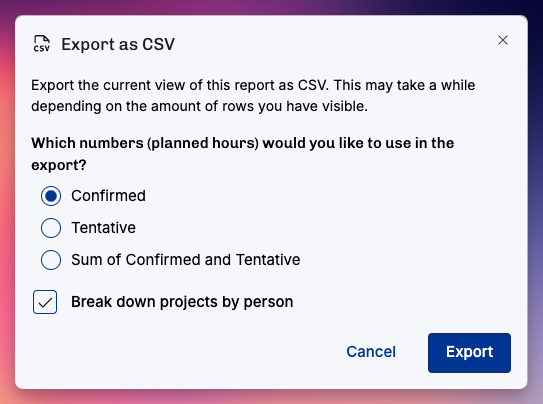
When you choose one of the forecast units — Forecasted revenue, Forecasted costs, Forecasted gross profit, or Forecasted margin % — the report combines actuals up to the forecast cutoff date with planned work after that date. The cutoff date starts at your account's default from Settings, and you can pick a different date for the report in the Units dropdown.
Capacity Report
From Capacity, you can export utilization and booked hours.This view can be exported per person, team, or site, instead of only by project. This makes it easy to see how work is distributed across your organization and helps with utilization or demand forecasting.
Exporting Planned vs. Actual reports
The Planned vs. Actual People and Projects reports each have an Export button in the toolbar. It opens the Export as CSV dialog, which exports the current view of the report.
The dialog gives you one breakdown checkbox. On the Projects report it is Include person breakdown, which adds a row per person under each project. On the People report it is Include project breakdown, which adds a row per project under each person.
A second checkbox, Include task breakdown, appears only for display units that support tasks. It stays unavailable while the breakdown checkbox above it is off, and it turns itself off if you clear that checkbox.
Export positions (e.g. upcoming unassigned work)
From the Positions list, you can export the list of all positions and related metadata. Filter the list of positions to your liking, adjust the display options if you wish, and then hit the “…” button on top right to export. You still have the chance to select which columns to include in the CSV file download.
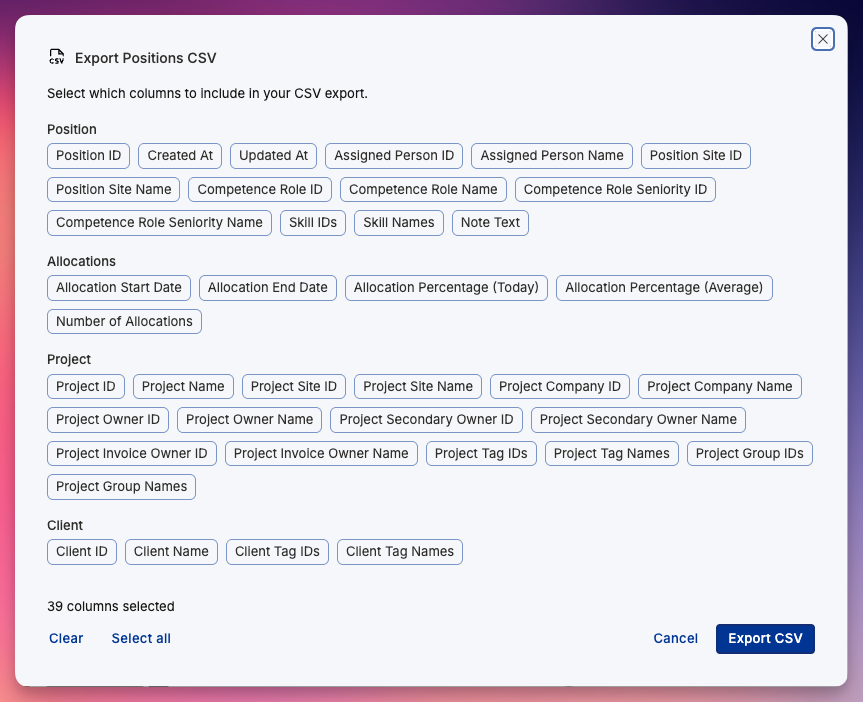
This makes it easy to share upcoming open work to people who are not using Operating themselves.
API Exports
For advanced use cases, you can export data directly via the Operating API.
The API allows you to fetch raw data (such as time entries, projects, allocations, and more).
You can also access pre-built reports like Planned work per project/person and Actual work per project/person (see screenshot above).
Full API documentation is available here: operating.readme.io
Common Use Cases for Exports
Time entry data → payroll, invoicing, audits
Project portfolio reports → financial forecasting, revenue analysis, client reporting
Capacity reports → utilization forecasting, demand forecasting, workforce planning
Was this helpful?
Still need help? Ask the team