How to create and send an invoice
Creating an invoice from tracked time entries and expenses, reviewing and adjusting it, and sending it to your client.
Written By Matti Parviainen
Last updated 3 days ago
Before you start
Make sure the following are in place:
Time entries are tracked (and approved). The invoice pulls from time entries in the selected billing period. If your organization uses approval flows, entries should be approved before invoicing.
Optional: Billable expenses are added. Any project expenses you want to include should already be recorded against the project.
Invoicing settings are configured on the company. Invoicing configuration (your company name, address, tax rates, payment terms, etc.) is set at the company level, not the organization level. If your organization has multiple companies — for example, a Finnish entity and a UK entity — each has its own invoicing setup.
The project has a client with contact details. The invoice is addressed to the project's client. Make sure the client has an address and contact person set up.
Step 1: Navigate to the project's invoicing section
Open the project you want to invoice. Click the Invoicing tab on the project detail page. Here you'll see:
The project's invoicing schedule (if one is set), showing upcoming and past invoices
Any previously created invoices for this project
A button to create a new invoice
Option to change the invoicing currency, if it’s different from the project currency
If you've set up an invoicing schedule (monthly, custom, etc.), the upcoming invoice dates are visible here.
Step 2: Create a new invoice
Click Create invoice. Operating presents you with the time entries and billable expenses from the billing period.
For time-and-materials projects: Operating shows all un-invoiced time entries for the period. Each time entry's value is calculated from the tracked hours multiplied by the applicable billing rate (from the rate card or position-specific rate). Billable expenses are listed separately.
For fixed-price projects with a custom invoicing schedule: The invoice amount is based on the schedule you've defined. You can still review and adjust line items.
What Operating does automatically
Groups time entries into line items (typically by person or by task, depending on your settings)
Calculates amounts based on tracked hours and billing rates
Includes billable expenses as separate line items
Applies the tax rate configured for the company
Sets the invoice date, period, and due date based on your payment terms
Step 3: Review line items
Before finalizing, review every line item carefully. Mistakes in sent invoices can be awkward and time-consuming to fix.
Check that:
The billing period is correct. Make sure the date range covers the work you intend to invoice.
All expected time entries are included. If entries are missing, they may not have been approved yet, or they may fall outside the selected period.
Hours and rates look right. Each line item shows the person, hours tracked, billing rate, and total. Verify these match your expectations.
Expenses are correctly included. Billable expenses should appear as separate line items. Non-billable expenses are excluded automatically.
For projects with the capped time-and-materials billing type, the invoice review shows a "Budget exceeded" warning if any selected time entries or expenses include work beyond the project's budget cap. That work has been capped to the budget, so the amount you can invoice is lower than the raw hours × rate — check the warning before
finalizing.
Adjusting prices on line items
You can adjust the price of individual line items during invoice creation. This is useful when:
You've agreed to a discount with the client
You need to cap hours at a maximum amount
You want to round amounts for cleaner totals
Important: Price adjustments on the invoice do not change the underlying time entries or earned revenue figures. The adjustment only affects the invoiced amount. This means "invoiced revenue" and "earned revenue" may differ for this project — this is by design and is normal in consulting billing.
Step 4: Add any notes or references
Add relevant information to the invoice:
PO number if your client requires one for payment processing
Invoice notes for any additional context (e.g., project phase, contract reference)
Description to help the client understand what's being billed
Step 5: Finalize the invoice
Once you're satisfied with the invoice:
Review the total amount including tax.
Check the due date is correct for your payment terms.
Save the invoice. At this point, Operating marks the included time entries as invoiced. Those time entries will no longer appear as un-invoiced in future billing cycles.
The invoice is now in Ready to send status.
Step 6: Send the invoice
From the invoice view, you can:
Download as PDF to send manually via email or upload to your accounting system
Download work breakdown PDF
Send directly from Operating if your organization has email sending configured (currently in Beta)
Download a CSV of the time entries include in the invoice
The invoice is addressed to the client contact person associated with the project.
After sending
Once sent, the invoice appears in the project's invoicing timeline with its status. You can track which invoices are sent and which are outstanding.
If you need to make corrections after sending, you can create a credit note linked to the original invoice rather than modifying the sent invoice. Credit notes show which invoice they belong to, making the invoicing timeline easy to follow.
Invoicing across multiple projects for the same client
An invoice can include work from multiple projects — as long as they belong to the same client and the same company. This is common when a client has several active projects and you want to send a single consolidated invoice rather than one per project.
When an invoice covers more than one project, the project's Invoicing section shows only that project's share of it. The invoice card shows the amount for this project, with a caption below it: of {amount} invoice subtotal. So you can see what this project contributes and how large the whole invoice is, without opening the invoice.
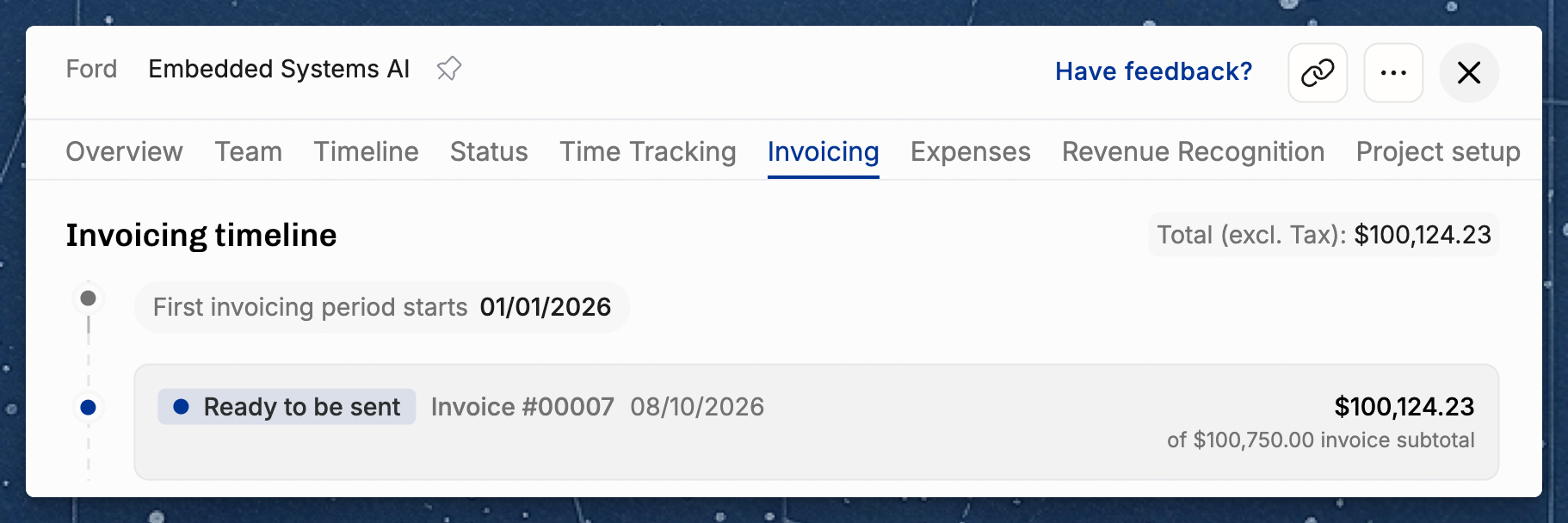
Invoices that cover this project alone show the Subtotal, Tax, and Total amounts on the card instead.
Split work done in one project into multiple invoices
There are situations where one project in Operating must be invoiced in multiple slices: a practical example of this would be that the client wants different work packages to be invoiced with their corresponding purchase order numbers.
Here’s a video explaining the workflow:
How to add project-specific tasks to make sense of which hours belong to which task/PO number
How to move time entries from one task to another (such as “Development” to “PO 456 Development”)
How to create an invoice for a subset of time entries done in that project – for example, only the slice that belongs to PO 456
Invoicing in another currency
Sometimes you plan & track the work in your local currency but the client wants their invoices in their preferred currency. This is well supported in Operating. From the “Invoicing” section in the project details, you can find the invoicing currency option (defaults to project currency).
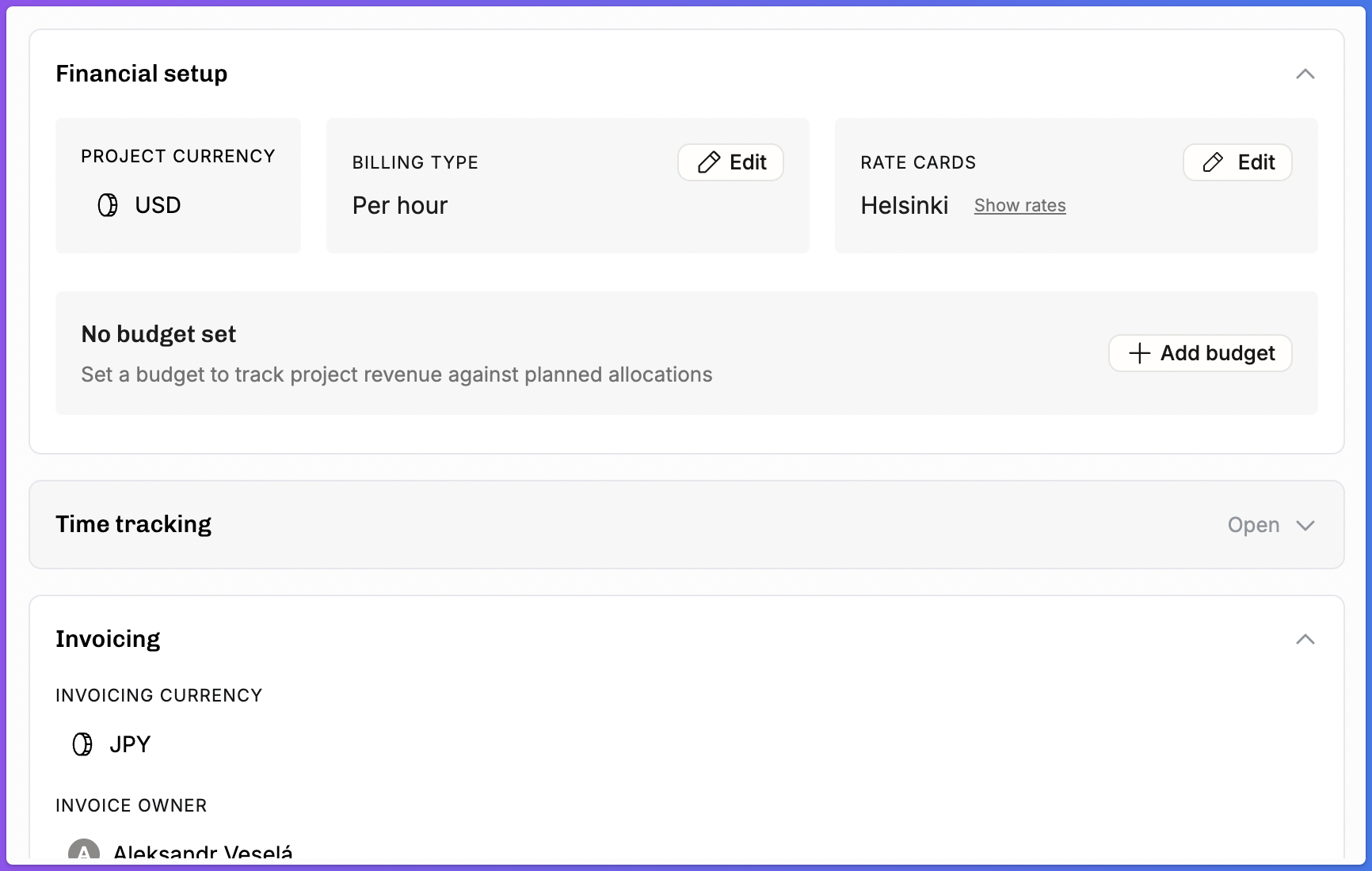
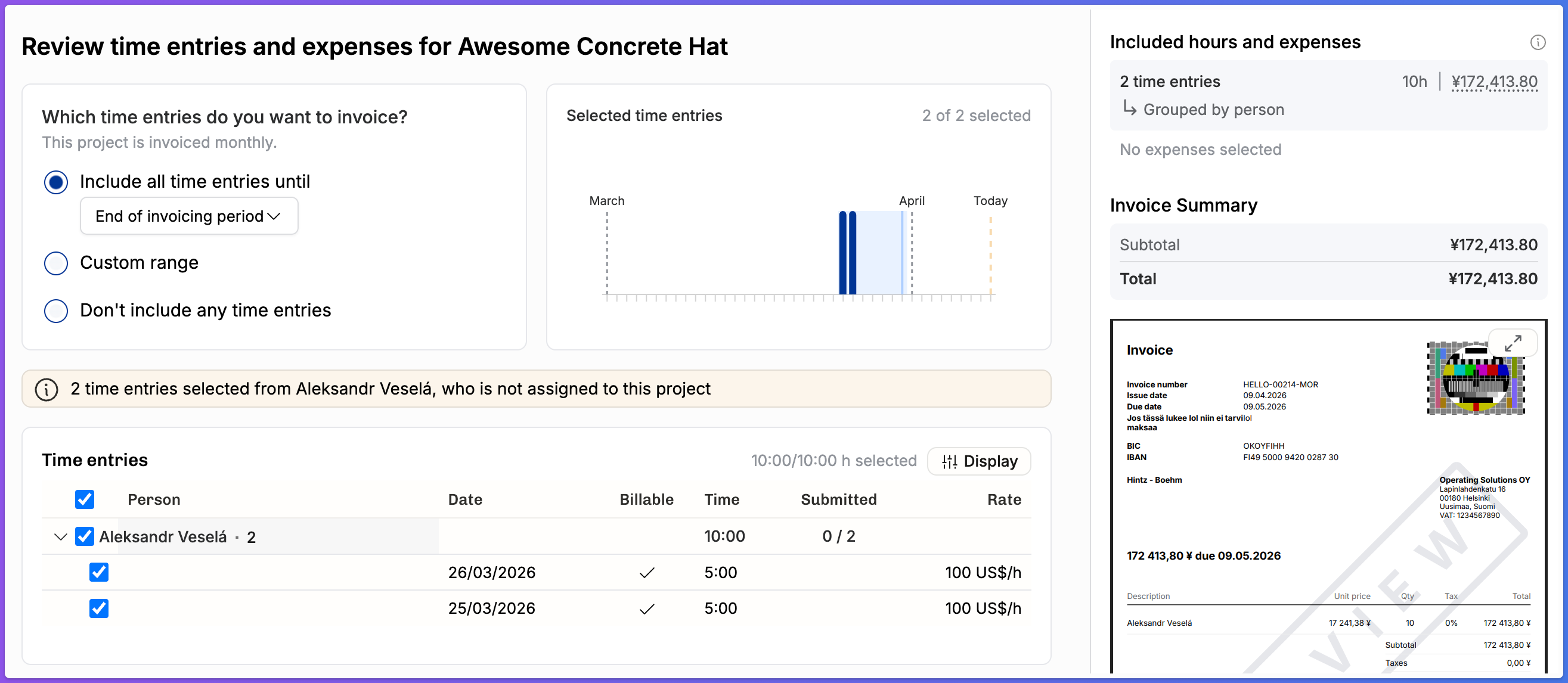
When you’re creating the invoice, the time entries still show rates and revenue in project currency, but the invoice line items and the invoice itself show the other currency (JPY in this example):
Setting up invoicing schedules
To avoid creating invoices from scratch each month, set up an invoicing schedule for the project:
Go to the project detail page → Invoicing section
Choose a schedule type: Weekly, Bi-weekly, Monthly, Quarterly, Yearly, or Custom.
For custom schedules, define the invoice stages with your own dates and amounts — useful for upfront payments, phased billing, or non-standard contracts
The schedule creates a cadence for invoice generation, so you can see upcoming invoices and prepare for each billing cycle. Custom invoicing schedules are especially useful for fixed-price projects where you want to invoice in stages that don't align with calendar months.
Marking time entries and expenses as invoiced without using Operating's invoicing
If your organization creates invoices in an external system (an accounting tool, for example) but tracks time in Operating, you can bulk-mark time entries as invoiced from the Time Entries page. This keeps your data clean by preventing those entries from appearing as un-invoiced.
Go to the Time Entries list, select the relevant entries, and use the bulk action to mark them as invoiced.
Note: You can reverse this later from the same bulk-edit dialog by turning the invoiced switch back off — you'll be asked to confirm, since this may change rates and revenue recognition. Entries invoiced through an actual Operating invoice can't be uninvoiced this way; delete the related invoice instead.
—
You can do the same for Expenses. Open Expenses from the sidebar, select the expenses, and click Edit in the bar that appears at the bottom of the list. With Invoiced as the field to set, turn on Mark as invoiced and click Submit. Operating then treats the expenses as invoiced: they can't be edited, and they won't be offered on future invoices. To undo this, select the same expenses and turn the switch off.
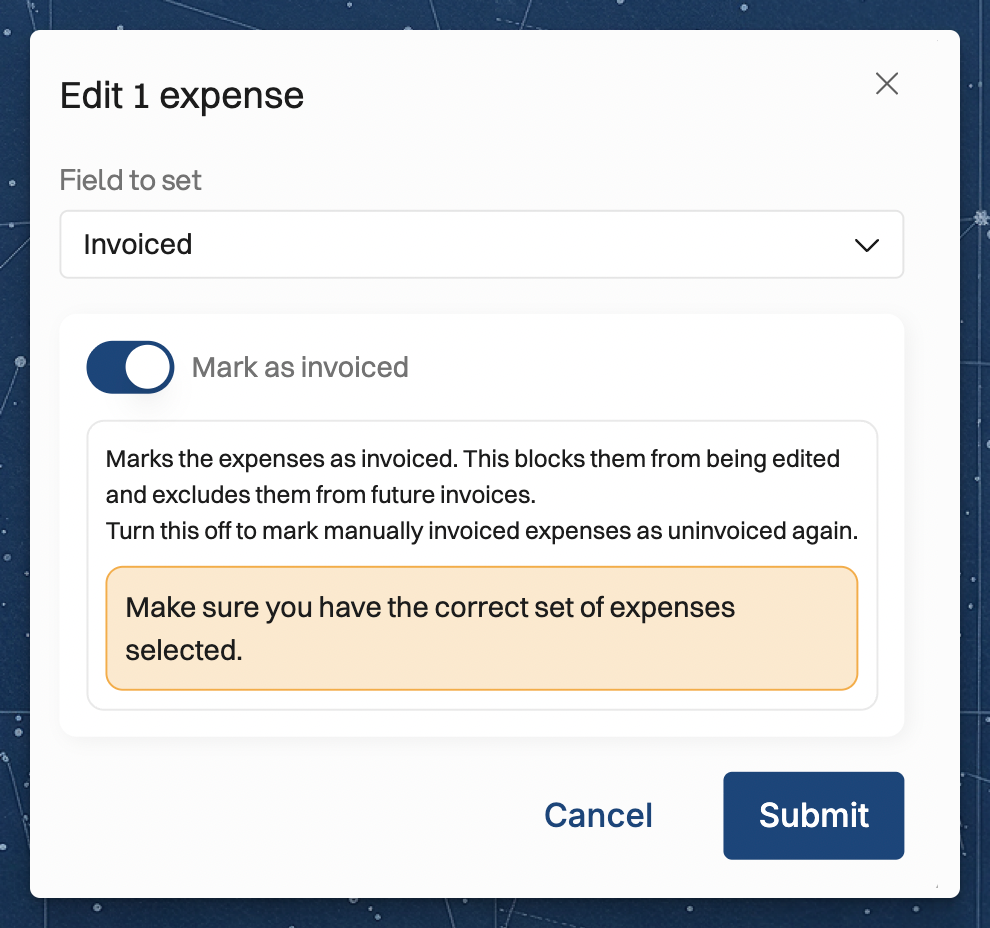
Expenses that are already on an Operating invoice are left out of this change, and the dialog tells you how many of the selected expenses that applies to. To change those, delete the related invoice instead. Marking expenses as invoiced requires the Manage expenses permission set to All expenses.
Tips for a smooth invoicing process
Build a monthly routine. The most common invoicing cadence is monthly. At the start of each month, invoice the previous month's work. Combine this with timesheet approval: approve timesheets first, then create invoices from the approved entries.
Review before creating, not after. It's easier to fix time entries (wrong project, wrong task, missing hours) before they're included in an invoice than to create credit notes afterward.
Use the project Status section. The project detail page shows earned revenue, invoiced revenue, and the difference between them. This helps you catch projects that haven't been invoiced on time or where invoiced amounts are falling behind earned revenue.
Check the invoicing section regularly. The project's invoicing timeline gives you a clear picture of what's been sent and what's upcoming. When all invoices for the past period have been sent, you can move on with confidence.
Related articles
Understanding planned vs. actuals — how earned revenue and invoiced revenue relate
How revenue recognition works in Operating — how earned revenue is calculated for fixed-price work
How to set up rate cards — billing rates used in invoice calculations
How to set up cost rates — understanding margins after invoicing
How to start tracking time in Operating — ensuring time entries are ready for invoicing
Was this helpful?
Still need help? Ask the team