HiBob HR
Connecting with the HRIS and Workforce planning app.
Written By Matti Parviainen
Last updated 14 days ago
Overview
When you connect HiBob and Operating, Operating will fetch and store the following information:
Employees
The easiest way to control which people show in Operating is limiting the scope with the HiBob settings – more below.
Full name
Employment start date, employment end date
Start time, end time, approval status
Skills (from Lists or from Tables)
Optionally, you can choose to import your site and organisation structure:
Sites in HiBob → Sites in Operating
Department in HiBob → Groups in Operating
Custom fields used for groups in HiBob → Groups in Operating
The permission system in HiBob takes care of the scope of information shared. That’s fantastic!
In addition to this, HiBob sends us some basic information about your employees. These include, e.g.:
Profile picture, Department, Site, Title, Manager
Important: Using Custom First & Last Name Fields
By default, Operating reads the following HiBob fields:
root.firstNameroot.surname
These are combined automatically into the Name field in Operating.
If your organization uses custom fields for first name and/or last name instead of HiBob’s default fields, you have two options.
Option 1: Switch to HiBob’s Default Name Fields (Recommended if possible)
Using the default HiBob first and last name fields simplifies the integration and avoids extra configuration.
However, there may be a valid internal reason for using custom fields (for example reporting logic or legacy workflows). If you’re unsure, check internally before making changes.
If you decide to switch:
Update the data in HiBob to use the default fields.
Proceed with the normal Operating import process.
Option 2: Continue Using Custom Name Fields
If you need to keep using custom first and last name fields, pick them in the integration settings before the first import.
Go to Operating → Settings → Integrations → HiBob.
Add the service user credentials and token, and click Connect.
Open Personnel data. Under Person name, choose First and last name.
Pick your custom fields in First name field and Last name field, for example
root.custom.field_1712216261136.If one HiBob field already holds the full name, choose Single full name field and pick that field.
Click Save configuration and begin import.
Setup step by step
In order to get this done, you will need HiBob Integrations permissions. You probably want your HiBob admin to follow what you do.
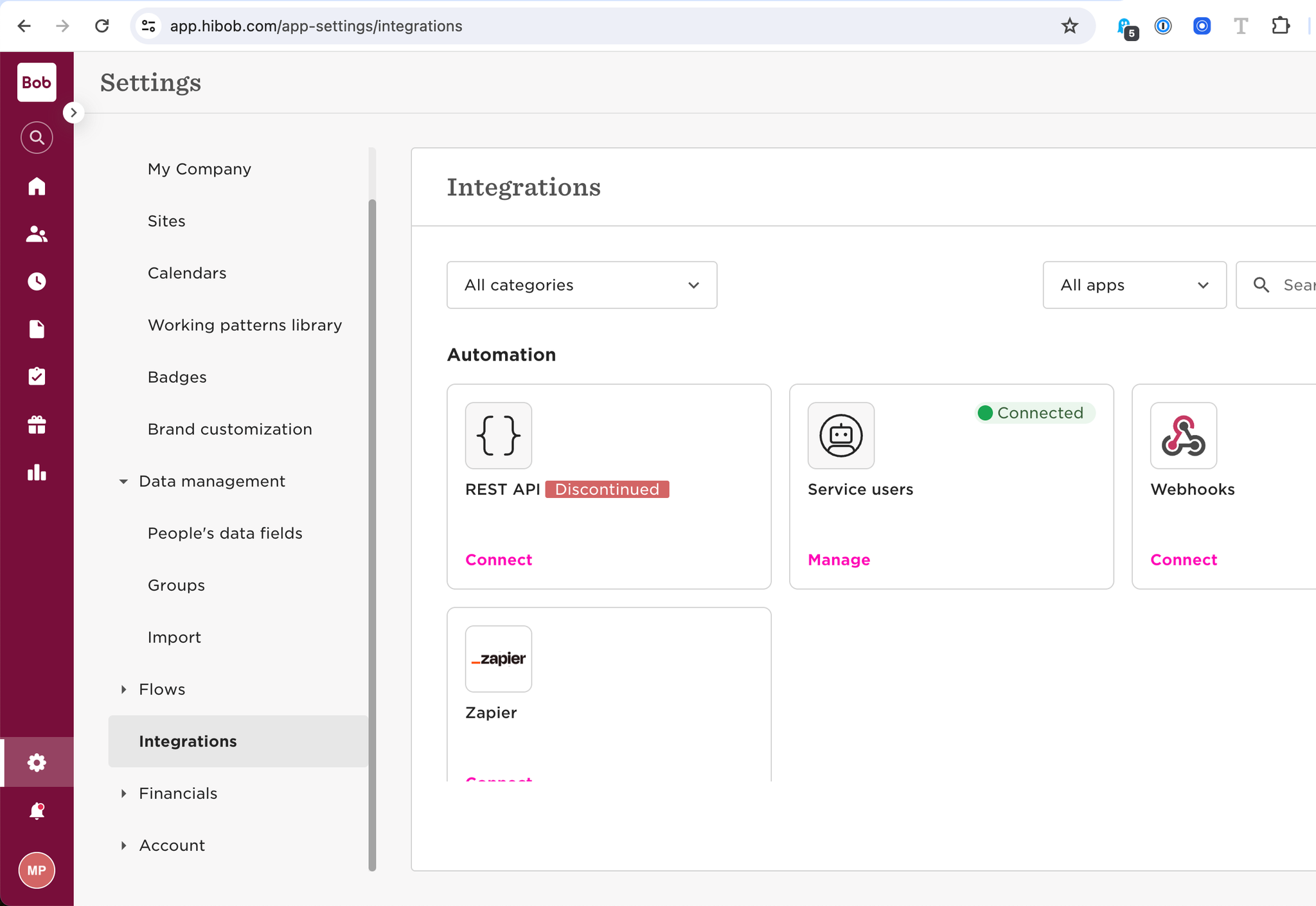
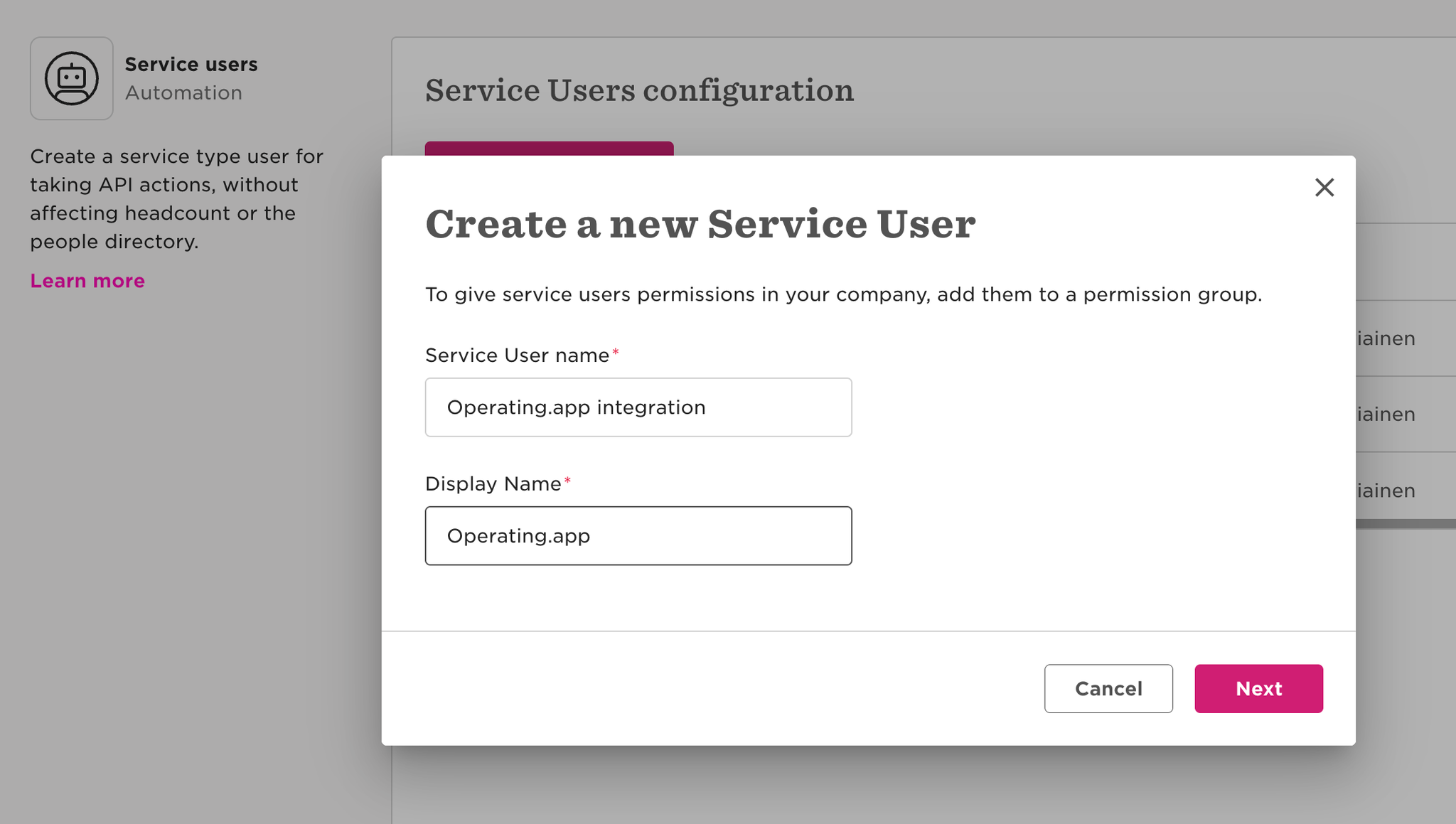
Create service user in HiBob
System Settings → Integrations → Service users
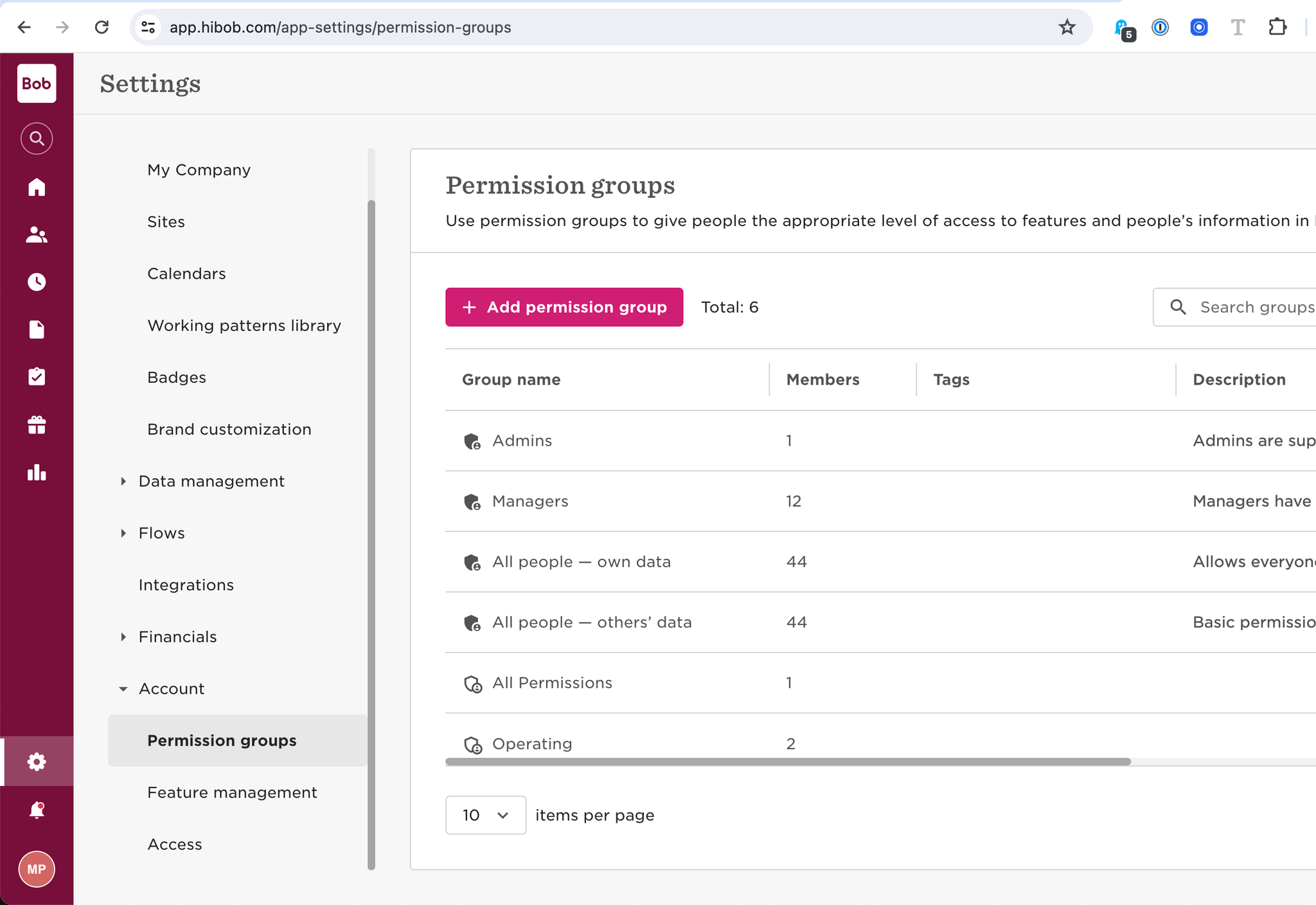
Create permission group in HiBob
Select people by condition → Choose which employee groups are relevant for your Operating use. Make sure that future members of your organisation will get added according to the condition.
Assign appropriate permissions to the permission group
Access to all employees
People’s data Permissions:
People
View selected employees About sections
View selected employees Basic info sections
View selected employees Employment sections
View selected employees Lifecycle sections
View selected employees Work sections
Required for “reports to” and groups import
View selected employees' Work section histories
This is because Operating supports changes in Sites over time, instead of overwriting the entire history with the latest value
Time off
View, approve or decline requests that are pending approval of others
See who's out because of a private policy
See who's out today
Features permissions:
Time off
See company’s time off settings
Required to handle different time off policy types
Add the service user to the permission group
After this, you’re done with the HiBob end of things. Move over to Operating → Settings → Integrations → HiBob.
Add service user & token in Operating
Choose whether or not you want to import Sites & Groups from HiBob
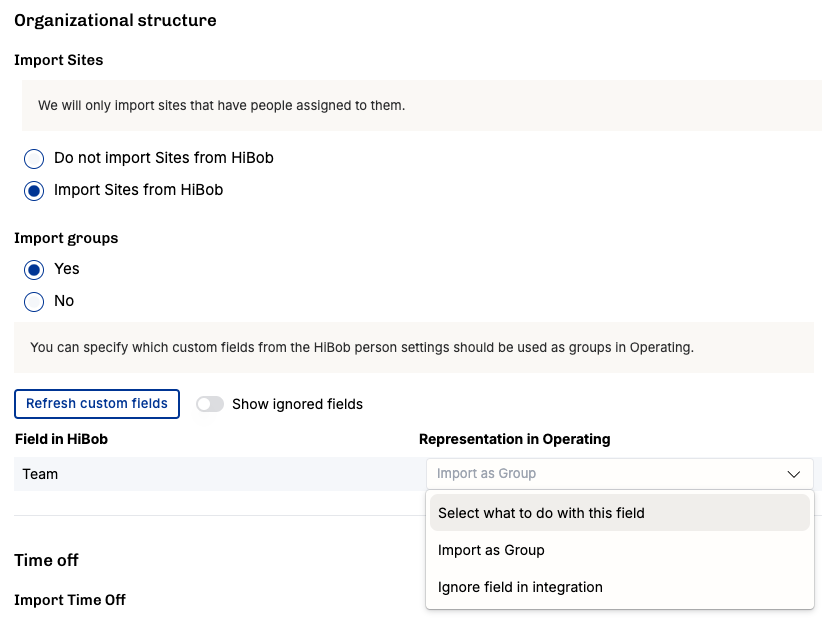
If you decide to import Groups from HiBob, you can pick and choose which custom fields will be used to create groups. In our experience, you don’t want to bring all of the information to Operating.
You can also import each person's primary role and seniority under Personnel data, and their skills, skill levels and feelings under Skills. See Roles and seniorities and Skills below.
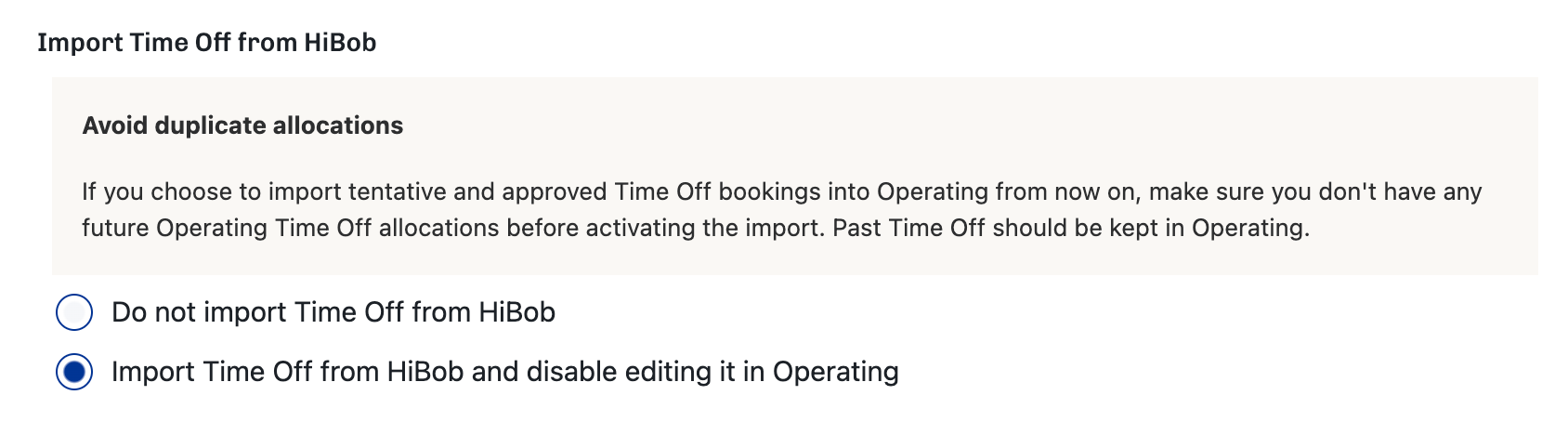
Choose whether or not to import Time Off to Operating
Refresh data
You can turn on automatic data refresh in settings → integrations → HiBoB → Automatic Refresh
The data will then refresh every 5 minutes
Skills, skill levels and feelings sync separately: once a night while automatic refresh is on, and whenever you click Refresh data or save the configuration. Saving starts the sync only if you have the Refresh integrations permission.
Updating the credentials
When the service user's token changes in HiBob, for example after you regenerate it, update the credentials in Operating instead of disconnecting. Go to Settings → Integrations → HiBob, click Update credentials at the bottom of the page, and enter the HiBob service user id and the new HiBob service user token. Operating checks the credentials with HiBob before it saves them, and keeps your configuration and imported data. You need permission to manage integrations to do this.
HiBob Workforce planning module
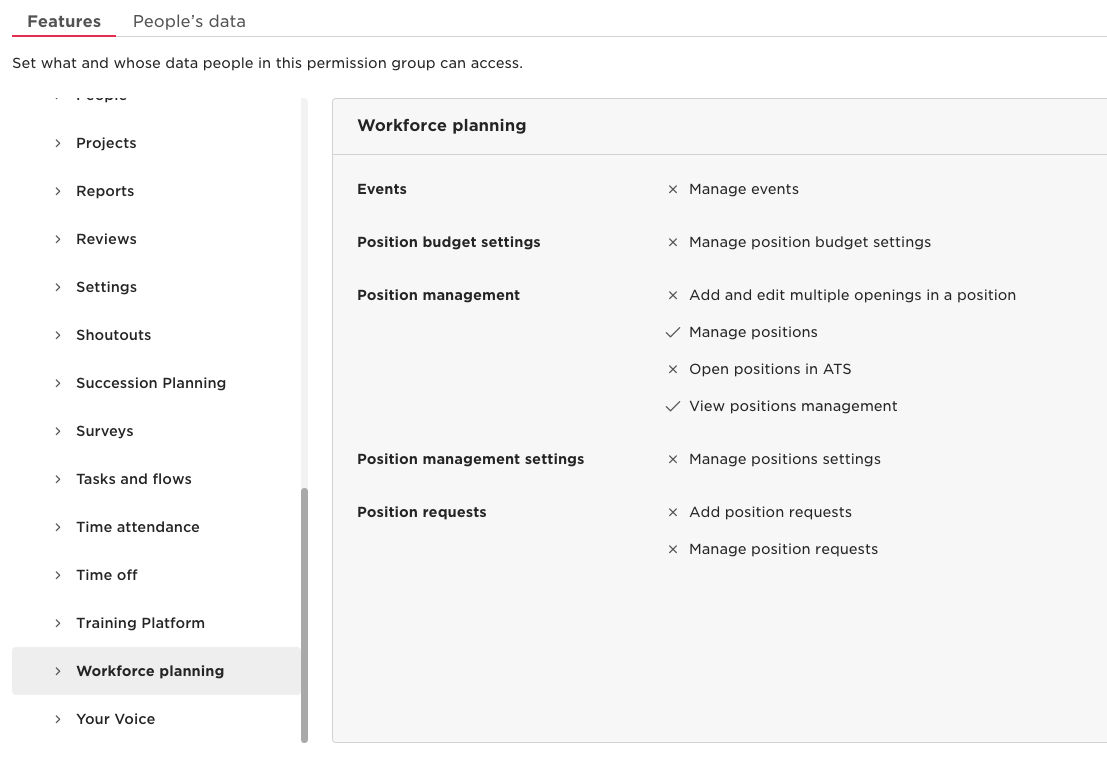
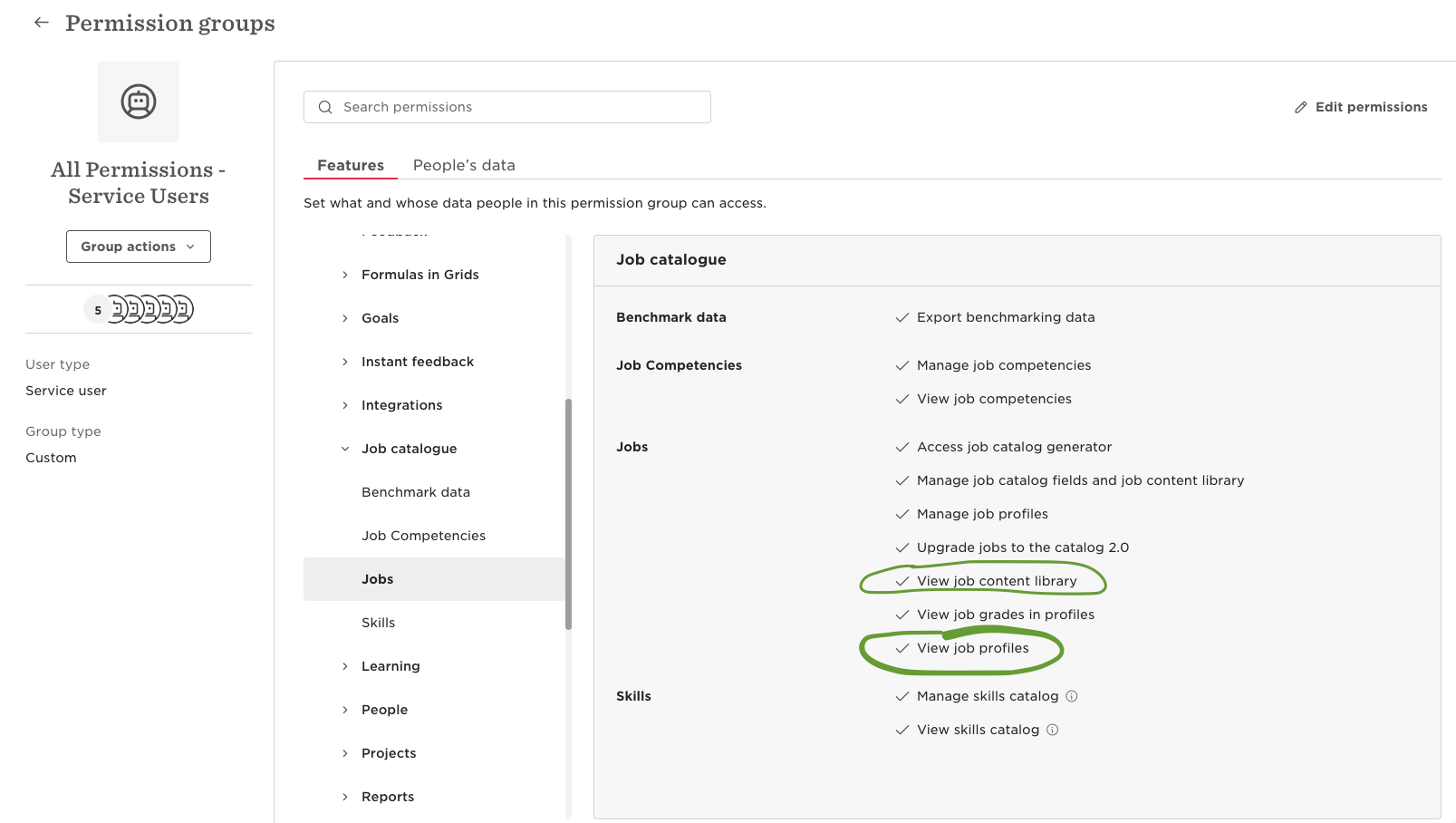
If you want to show upcoming hires as placeholder People, turn on Import upcoming hires under Workforce Planning in the HiBob settings. Operating then creates a placeholder person for each HiBob Workforce Planning position that doesn't have anyone assigned yet, starting on the position's expected start date. You need to have HiBob WFP activated. Here are the permissions you must give to the service user:
Here’s how the placeholders work (each with their employment start & end dates, etc.):
Naming placeholders
The Placeholder name template sets how placeholder people are named. It is text with keys in curly brackets, and Operating fills in each key from the position in HiBob. The default template is {positionName}-{jobTitle}, which gives names such as “TBD-0001-Senior Backend Engineer”.
Click a key under Available keys (click to insert): to insert it at the cursor. Each key in the list has a short description and an example value.
The Preview: line under the field shows the name built from the example values.
A key that isn't in the list shows an error, for example Unknown key "{salary}", and you can't save the configuration until you fix it.
When a position has no value for a key, that key is left out of the name. To show something else in its place, enter it in Fallback for empty keys (optional).
When you change the template, placeholders are renamed on the next sync, until their position is filled.
Adding placeholders to a group
To keep placeholder people together, pick a group in Add placeholders to group (optional). On the next sync, every placeholder person whose position is still vacant is added to the group, including ones that were imported earlier. Operating removes a person from the group when their position is filled or cancelled. If you change the group later, people stay in the previous group.
Which data fields are imported from HiBob
People
Sites
Sites are imported from Hibob with their ids, names and working patterns as average weekly working hours
Groups
Any named list fields can be imported as groups to Operating. These are configured during the integration setup.
Roles and seniorities
Under Personnel data, turn on Primary role and pick the HiBob list field that holds each person's role in Role field. Turn on Seniority and pick the list field that holds their seniority in Seniority field. Operating reuses an existing role with the same name, and creates a new role for a value it doesn't recognise.
When a person's role or seniority changes in HiBob, Operating ends their current primary role the day before the sync and starts the new one on the day of the sync, so the person's role history stays intact. If HiBob has no role for a person, Operating keeps the role they have.
Turn on Keep role and seniority names in sync if you rename roles and seniorities in HiBob. Operating then renames the matching role or seniority on the next sync. This applies to roles and seniorities linked to HiBob, including ones that already existed in Operating and were matched by name.
Skills
Under Skills you can import skills in two ways, and you can use both at the same time.
Import skills from lists — pick HiBob custom list fields whose values become skills, and choose a skill category for each field. Operating reuses an existing skill with the same name in that category (upper and lower case count as the same) and creates a new skill only when there is no match.
Import skills, levels and feelings from tables — use this when your skills are in a HiBob People's data table, with one row per skill. For each table, pick the Skill name column and a Skill category, and optionally the Level column and Feeling column. Click Map another table to add more tables.
Skills, skill levels and feelings are matched to existing ones in Operating by name (upper and lower case count as the same), and created when there is no match.
You can rename levels and feelings in Operating after the import. When a level or feeling is renamed in HiBob, Operating follows the new name, unless you already renamed it in Operating.
When a row is removed from the table in HiBob, Operating removes that skill from the person, unless someone has added a note to the skill in Operating.
Table data syncs once a night while automatic refresh is on, and when you click Refresh data or save the configuration. It is not part of the 5-minute refresh.
Turn on Keep skill names in sync if you rename skills in HiBob. Operating then renames the matching skill on the next sync. This applies to skills linked to HiBob, including ones that already existed in Operating and were matched by name.
Time off
Open time off requests are imported as tentative allocations, and approved requests are imported as confirmed allocations and time entries.
Each imported time off gets the time off category that you choose for its HiBob policy type. To choose the categories, go to Time Off Policy Types in the HiBob settings, click Refresh policy types to fetch the policy types from HiBob, and turn on Edit imported policy types. The table lists each policy type under Policy name, with its Time off category next to it.
Choose a time off category to import that policy type's time off into that category.
Choose Do not import to skip the policy type. If time off of that type was already imported, Operating deletes it on the next refresh.
A policy type that is imported without a category of its own shows and uses your default time off category. The default category is also used when the chosen category is later archived or deleted.
Policy types that Operating finds before you turn on time off import start as Do not import. Policy types found after that start as imported.
When you change a category, Operating also moves time off that HiBob changed in the last six months to the new category, because six months is as far back as HiBob reports changes. Hours already logged keep the category they were created with.
Common HiBob ↔ Operating issues
Problem: time off doesn’t show up correctly for some people in Operating
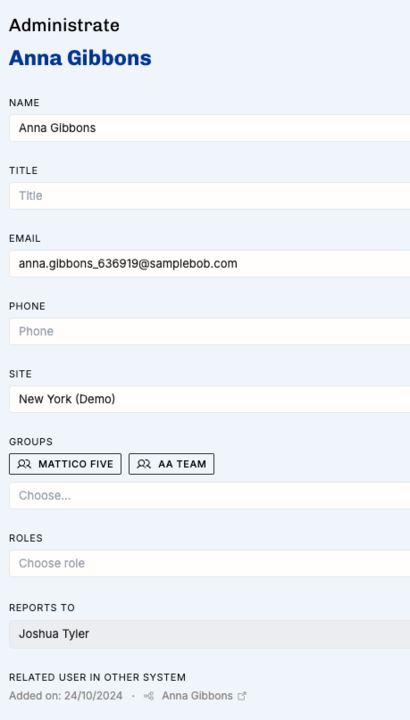
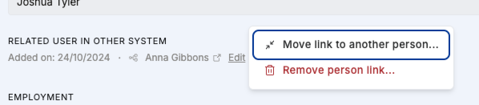
Solution: make sure the person in HiBob is pointing to the right Person in Operating.
Open the Person detail page (click the person's name anywhere in the app) and check the Links section on the Overview tab — the connected HiBob user appears there as a pill.
Problem: some people don’t appear in Operating even if they’ve been added in HiBob
Solution: make sure that the permission group in HiBob includes new joiners (so that the conditions match new people as well). See step Select people by condition above.
Problem: a warning says Operating could not load fields and tables from HiBob
Solution: the warning on the HiBob settings page shows the error that HiBob returned. If HiBob rejected the credentials, the warning has an Update credentials link that takes you to the Update credentials button, where you enter the service user id and a new token. See Updating the credentials above.
Problem: a warning says the last Workforce Planning sync failed
Solution: the warning under Import upcoming hires shows the error. Check that the HiBob service user's permission group also grants Workforce Planning access. See HiBob Workforce planning module above for the permissions.
Was this helpful?
Still need help? Ask the team