Harvest time tracking
We provide a full one-click data migration from Harvest.
Written By Matti Parviainen
Last updated 8 days ago
You can import clients, projects, people and time tracking data from Harvest to Operating. It takes a couple of minutes to get the initial setup done, as you need to map the data between the systems.
You can also choose to bring over more from Harvest: project codes as tags, the people assigned to each project as positions, project details such as billing type, rates and budgets, expenses, people's cost rates, and which work Harvest has already invoiced. See Choosing what to import from Harvest below.
For new accounts this is easy, as you're mostly just creating new clients, projects, and people in Operating.
Importing the data
Go to settings → integrations → Harvest.
Use the date dropdown on the first page of the import to only choose active projects (image below). Only projects with time tracking entries on the chosen date or after will be imported to Operating. This is to not bring your whole project history and inactive projects to Operating.
Linking absences
We recommend you logging absences to a single project in Harvest. Use tasks under the project to specify the absence type. E.g. annual holiday, parental leave…
When mapping the projects, link your Absences project in Harvest, with the Time Off project in Operating. This is crucial to get the utilization calculations correctly.
Linking internal projects
If you have internal projects in Harvest, you can choose to create them as new internal projects in Operating or to link them with the Internal project that’s created in Operating by default.
Once you've fetched the data, your clients, projects, and people are linked to Harvest and actual hours data appears on the the reports, namely metrics (utilization report) and planned vs. actuals.
I forgot to link absences and/or internal projects between Harvest and Operating, what now?
Worry not! If your Harvest Absences project has appeared in Operating, you can simply merge the project to the time off project in Operating. The time off project is now linked to your Absences project in Harvest.
Choosing what to import from Harvest
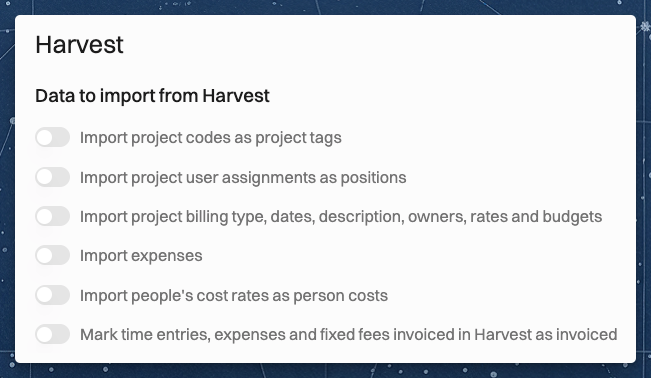
Clients, projects, people, tasks and time entries always come over from Harvest. Once Harvest is connected, the Data to import from Harvest section in settings → integrations → Harvest has switches for the other data you can import:
Import project codes as project tags: each Harvest project code becomes a tag on the project.
Import project user assignments as positions: the people assigned to a Harvest project become positions on the project.
Import project billing type, dates, description, owners, rates and budgets: projects created from Harvest get these details. A Harvest fixed fee becomes the project's budget, and its revenue is recognized evenly by month.
Import expenses: Harvest expenses come over to their projects.
Import people's cost rates as person costs: a person's Harvest cost rates become their hourly person costs, but only for people who have no person cost in Operating yet.
Mark time entries, expenses and fixed fees invoiced in Harvest as invoiced: see the Work invoiced in Harvest section below.
When you connect Harvest, every switch except project codes is on. If your Harvest connection was set up before these switches were available, they all start off, and your imports stay the same until you turn them on.
When you turn a switch on, Operating checks that the connected Harvest user has the Harvest permissions that import needs. If a permission is missing, the switch stays off and an error message names the permissions to grant in Harvest. The project codes switch needs no extra permission, and turning a switch off needs no check. If a permission is taken away in Harvest later, Operating skips that import and the rest of the import still runs.
Only people who can manage integrations can change the switches.
Keeping archived and active state in sync
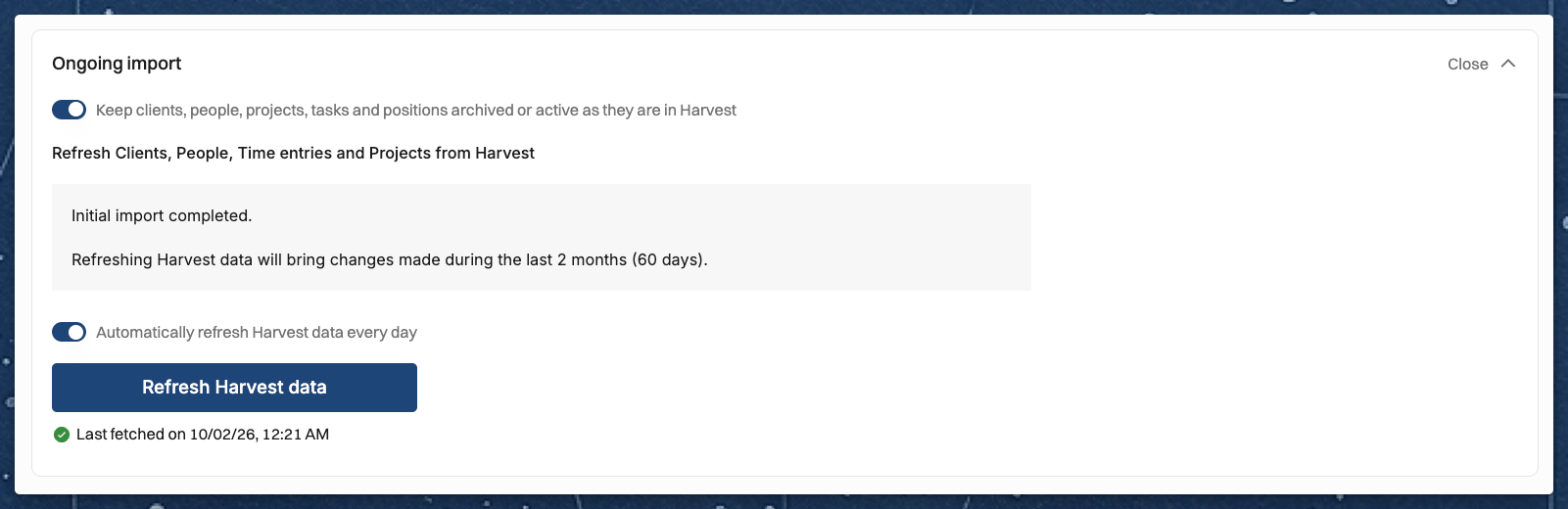
The Ongoing import section has the switch Keep clients, people, projects, tasks and positions archived or active as they are in Harvest. It decides what later imports do with items that were imported before:
When the switch is on, an item you archive or make active again in Harvest is archived or unarchived in Operating at the next import, unless Operating's own archiving rules stop the change.
People whose details come from an HR system keep the state set there.
Items that are already inactive in Harvest when they are first imported are always created archived, whatever the switch says.
The switch is on by default when you connect Harvest.
Refreshing the Harvest connection
You can refresh the Harvest connection under
Settings → integrations → Harvest
Reports → Planned vs. Actuals → Refresh Harvest Data
When you refresh the data, we bring in new time entries, projects, clients and people. The information of existing projects, clients or people isn’t updated in Operating in order to not overwrite any information added there, with these exceptions:
With the project details switch on, a project that has no project owner in Operating gets its owner from Harvest.
With the archived or active switch on, items follow their state in Harvest, as described above. This includes items you archived by hand in Operating that are still active in Harvest.
With the invoiced switch on, time entries, expenses and fixed fees that Harvest has invoiced are marked as invoiced, as described below.
Work invoiced in Harvest
With Mark time entries, expenses and fixed fees invoiced in Harvest as invoiced on, work that Harvest has already billed arrives in Operating marked as invoiced, so it isn't invoiced again from Operating. The Harvest invoices themselves aren't imported.
A time entry or expense counts as invoiced when it's on a Harvest invoice that is no longer a draft, or when it's marked as billed in Harvest without an invoice. Items on draft invoices stay uninvoiced.
A fixed fee that Harvest has invoiced in full marks the project's budget for that fee as Externally invoiced, so its amount is left out of what is still to invoice on the project. This also needs the project details switch to be on.
A fixed fee invoiced only in part is left as it is, so its whole amount is still to invoice in Operating.
If the budget amount was changed in Operating, the budget isn't marked.
You can also turn on Externally invoiced yourself when you edit a budget on a fixed-price project.
Rates (prices) for time entries coming from Harvest
Time entries imported from Harvest keep the rate set in Harvest.
Here's how it works:
Harvest rate is preserved - The
billable_ratefrom Harvest becomes the time entry's rate in Operating, marked with source typeINTEGRATION_RATERate is protected - Time entries with
INTEGRATION_RATEsource cannot have their rate updated in Operating.To change the rate, you must either:
Update it in Harvest and re-sync
Manually edit the time entry in Operating (if not invoiced) to override
This differs from time entries created natively in Operating, where rates are calculated dynamically based on position rates, rate cards, roles, etc.
Was this helpful?
Still need help? Ask the team