How to export data from Operating
Written By Lauri Eurén
Last updated About 17 hours ago
In Operating, you can export data into CSV format for further analysis, reporting, or use in external systems.
Exports are available from several parts of the platform, each giving you a different view of your company’s data:
Exporting Time Entry Data
You can export time entries to CSV from these places:
- The Time Entries page (under More in the sidebar), for the entire company.
- A project's Time Tracking tab, for that project.
- A person's Time tracking tab, for that person.
- An invoice, for the time entries on the invoice.
- The Active Projects report, for the projects in the report.
- The Approved by you tab in Approvals, for the time entries you approved.
Each export opens a column picker, where you choose the columns of the file. On the Time Entries page, the Approved by you tab, a project and a person, you can also group the rows and add a total row. See How to view, edit, and export time entry data for the columns, what each place selects at first, and the steps.
The time entry export is useful for payroll, invoicing, or auditing.
Exporting Expenses
Expenses can be exported as CSV from two places: the Expenses section on a Project page, or the org-wide Expenses page in the sidebar.
The flow is the same on both:
Filter the list to what you want to export, because the export reflects the currently filtered view. You can filter by date range, Project, status, or anything else available in the page filters.
Click Export and choose Export expenses CSV.
A dialog opens listing every available column, grouped by entity (Expense, Vendor, Project, and so on). Toggle the columns you want individually, or use Select all / Clear to switch them on or off in bulk.
Confirm to download the CSV.
The export respects the access you already have: you can only export Expenses you can see.
On the Expenses page, the Export menu also holds Export planned expenses CSV.
Exporting expense receipts
You can download the receipts of the Expenses in the filtered list as one file:
Filter the list to the Expenses whose receipts you want.
Click Export, on the Expenses page or in a Project's Expenses section.
Choose a format:
Receipts (ZIP) downloads the original receipt files in one ZIP file,
expense-receipts.zip.Receipts (PDF) joins the PDF, PNG, JPEG and WebP receipts into one PDF file,
expense-receipts.pdf. Receipt files in other formats are left out of the PDF, so download the ZIP to get every file.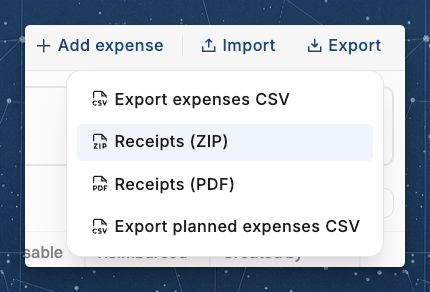
The expenses export option menu
An invoice page also has Receipts (PDF) and Receipts (ZIP) when the invoice holds Expenses with receipts and you can see Expenses. The files are named after the invoice number, for example invoice-1042-receipts.pdf.
One receipt export holds at most 100 receipts and 50 MB of files. These messages tell you why a receipt export did not download, and what to change:
"There are no uploaded receipts to export." None of the filtered Expenses has a receipt. Change the filters to include Expenses with receipts.
"There are no receipt files the PDF can include. Download the zip for the original files." None of the receipts is a file that the PDF can hold. Choose Receipts (ZIP) instead.
"Narrow the filter. This export has more than 100 receipts or their files are larger than 50 MB." Narrow the filters, for example to a shorter date range or one Project, and export again.
"This invoice has more receipts, or larger files, than the export can include." The invoice's receipts are over the limit. Export them from the Expenses list instead, in smaller sets, for example one date range at a time.
Exporting the Projects list
From the Projects list, click Export in the top bar. The Export Projects CSV dialog opens, and you choose which columns to include. The columns are grouped as Project, Client, Task, Deal, External Project, and Financials.
The CSV covers the projects your current filters show. It holds project, client, task and deal details plus financial figures: planned, tracked, and forecasted.
The export always carries a forecast cutoff date, so the Forecasted columns have values. The cutoff date is the date you set in the display dropdown, or your account's default cutoff date.
Project Portfolio Report
From Reports → Project portfolio, you can export booked hours and revenue data for projects.
Unit: Planned hours gives you a breakdown of all projects per person, showing how much work has been planned.
Unit: Planned revenue lets you export revenue data in the same way, which is useful for financial forecasting.
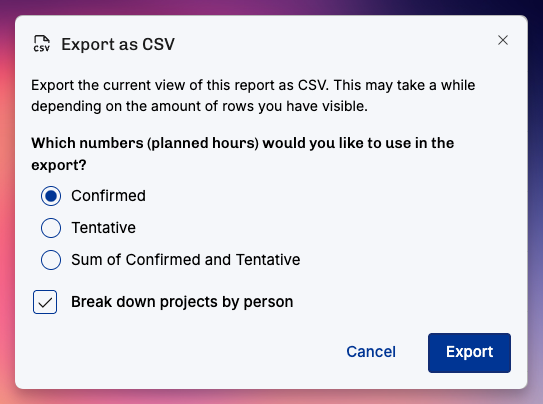
When you choose one of the forecast units, the report combines actuals up to the forecast cutoff date with planned work after that date. The forecast units are Forecasted revenue, Forecasted costs, Forecasted gross profit, and Forecasted margin %.
The cutoff date starts at your account's default from Settings. You can pick a different date for the report in the Units dropdown.
Capacity Report
From Capacity, you can export utilization and booked hours. This view can be exported per person, team, or site, instead of only by project. This makes it easy to see how work is distributed across your organization and helps with utilization or demand forecasting.
Exporting Planned vs. Actual reports
The Planned vs. Actual People and Projects reports each have an Export button in the toolbar. It opens the Export as CSV dialog, which exports the current view of the report.
The dialog gives you one breakdown checkbox. On the Projects report it is Include person breakdown, which adds a row per person under each project. On the People report it is Include project breakdown, which adds a row per project under each person.
A second checkbox, Include task breakdown, appears only for display units that support tasks. It stays unavailable while the breakdown checkbox above it is off, and it turns itself off if you clear that checkbox.
Export positions (e.g. upcoming unassigned work)
From the Positions list, you can export the list of all positions and related metadata. Filter the list to your liking, adjust the display options if you wish, and click Export in the top bar. You can then choose which columns to include in the CSV file.
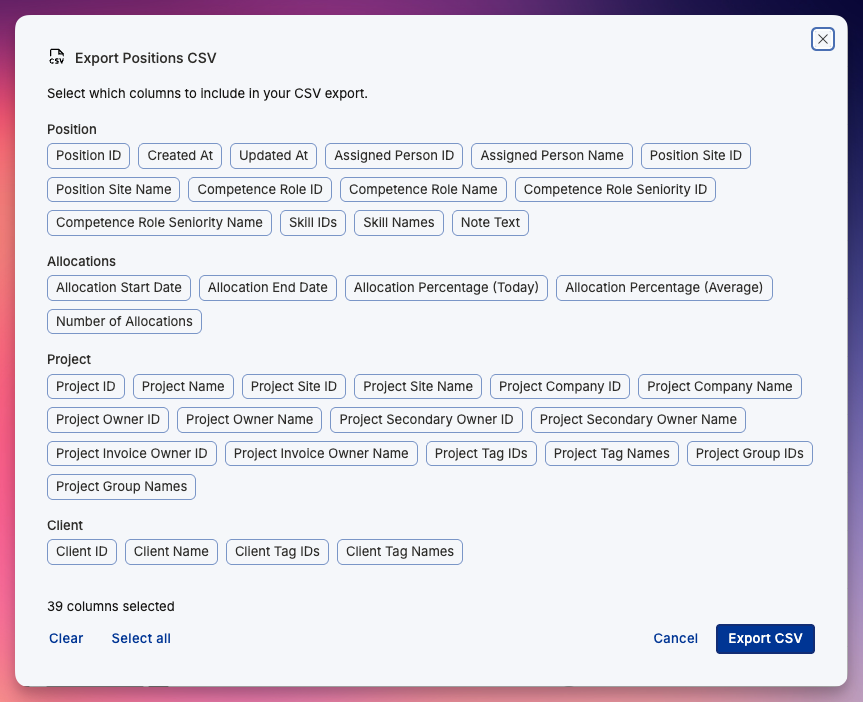
This makes it easy to share upcoming open work to people who are not using Operating themselves.
API Exports
For advanced use cases, you can export data directly via the Operating API.
The API allows you to fetch raw data (such as time entries, projects, allocations, and more).
You can also access pre-built reports like Planned work per project/person and Actual work per project/person.
Full API documentation is available here: operating.readme.io
Common Use Cases for Exports
Time entry data → payroll, invoicing, audits
Project portfolio reports → financial forecasting, revenue analysis, client reporting
Capacity reports → utilization forecasting, demand forecasting, workforce planning
Was this helpful?
Still need help? Ask the team