How to merge Time Off projects
Sometimes after an import you might need to do this
Written By Matti Parviainen
Last updated 13 days ago
Time Off is an exceptional project in Operating
There should only be one Time Off – but if you import time tracking data from external sources, you might find that you have multiple absence-related projects in your Projects list.
This article will show you how to merge all Time Off projects into the official Time Off.
Find all of the projects that only contain time off (absences, vacations, leaves)
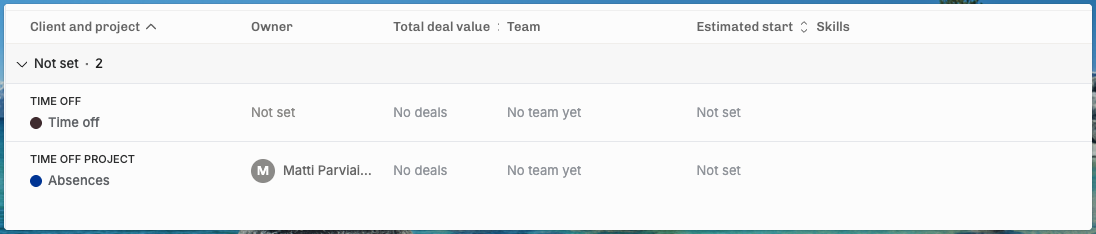
This will naturally depend on your data sources and what you’ve done in the past. The example above is a very simple one.
Merge the other project into the Time Off
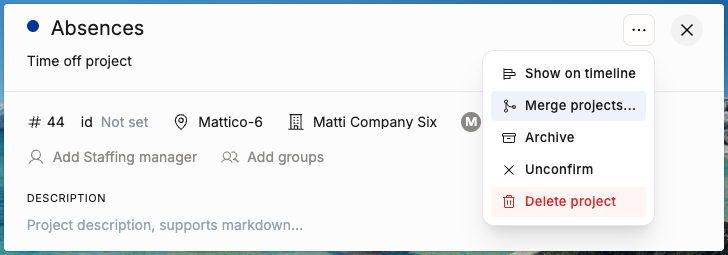
This happens from the Project Details page’s top right corner (the “…” button).
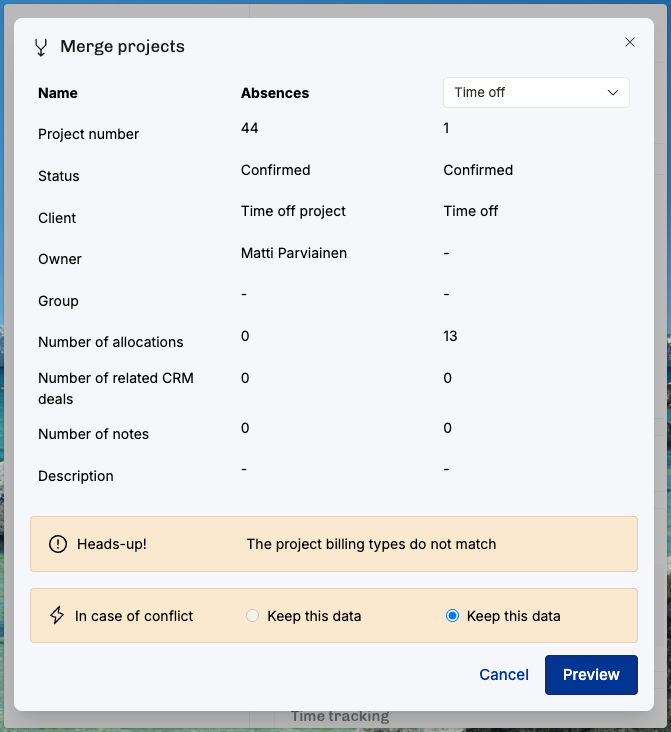
Set the billing type to “Not set” before the merge
Operating merges a project into Time Off only when the project you merge has no billing type. Otherwise the merge stops with the message “The project billing types do not match”:
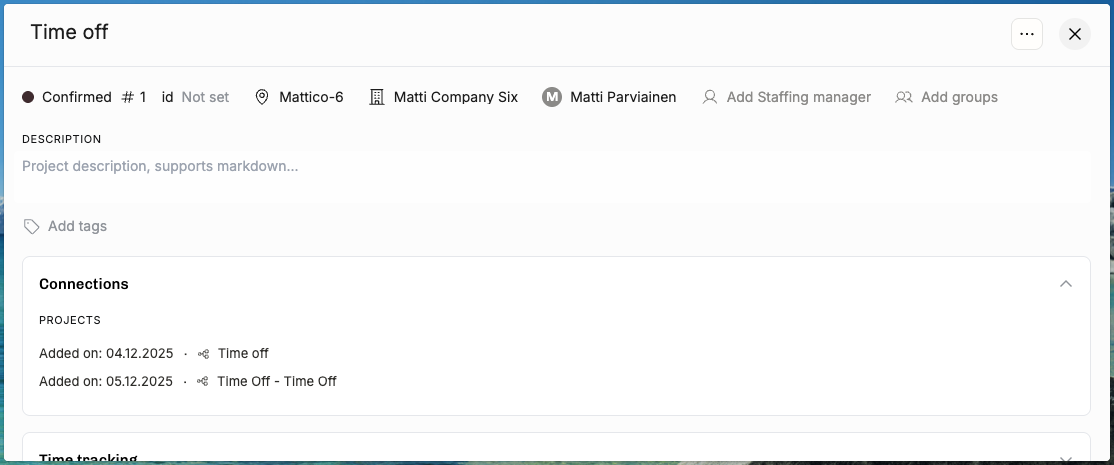
End goal: the Time Off project contains references to all the external systems
On subsequent imports, the time entries and allocations or whatever you’re importing will map to the official Time Off project. You can see the project Links in the details page:
Was this helpful?
Still need help? Ask the team