How to merge clients, projects, and people
Merging entities in Operating helps you clean up duplicates, consolidate data across systems, or handle project continuations. This guide walks you through how to merge entities and what to expect during the process.
Written By Lauri Eurén
Last updated 13 days ago
When to Use Merging
You might want to merge entities in the following scenarios:
CRM Project Continuation
A project created from your CRM overlaps with an existing one in Operating. Merge them to avoid fragmentation.
Duplicate Data
You’ve accidentally created or imported duplicates — e.g., multiple people or clients representing the same real-world entity.
Multiple ERP Entries
You have several project entries in your ERP, but they’re treated as a single project for time tracking or resource planning. Merge to unify reporting.
What Happens During a Merge
Conflict Resolution: You can choose which data to keep when values differ (e.g., descriptions, owners, dates).
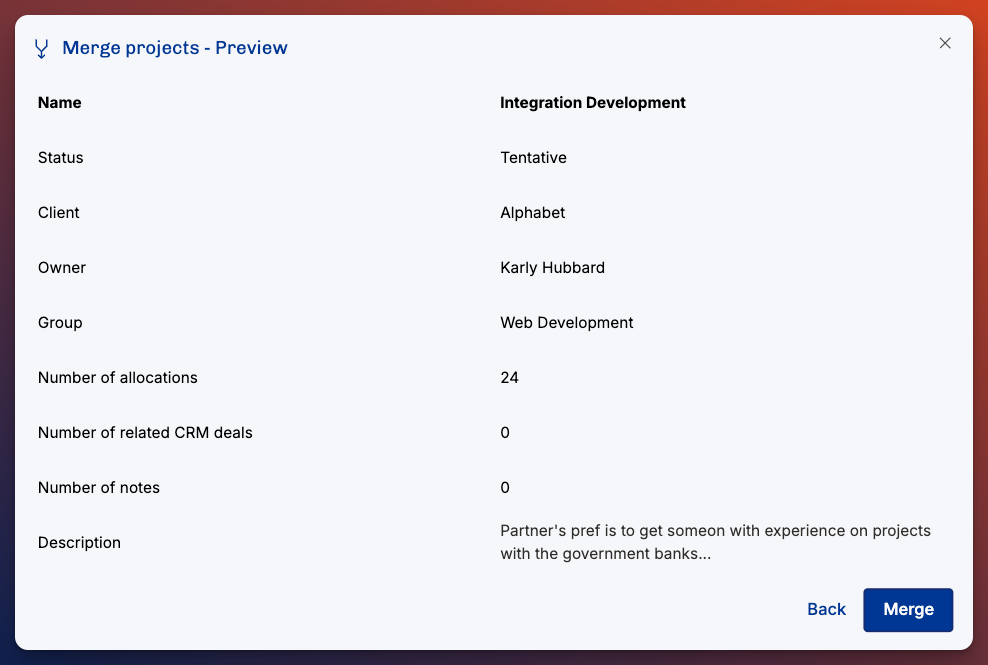
Preview Mode: You’ll see a side-by-side preview of the entities.
External References: If the merged entity came from an external source (e.g., CRM, CSV import), the external ID/reference is preserved in the final merged entity.
- Working hours of merged people: When the other person has individual working hours today and the person you keep has none today, the person you keep takes them over. Their own working hours on other dates stay, and the moved working hours fill the dates around them. In every other case, the other person's individual working hours are deleted. Operating then recalculates the kept person's time balance and planned figures.
How to Merge Entities
Go to the relevant entity list
Navigate to Person profile, a Project Details page, or a Client Details page
Click "Merge"
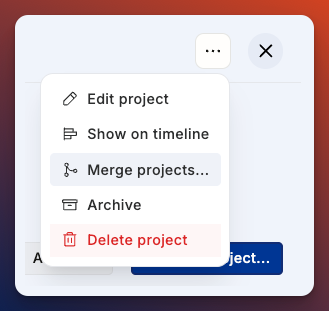
Click the three dots in the top right corner, and then merge projects/clients/people
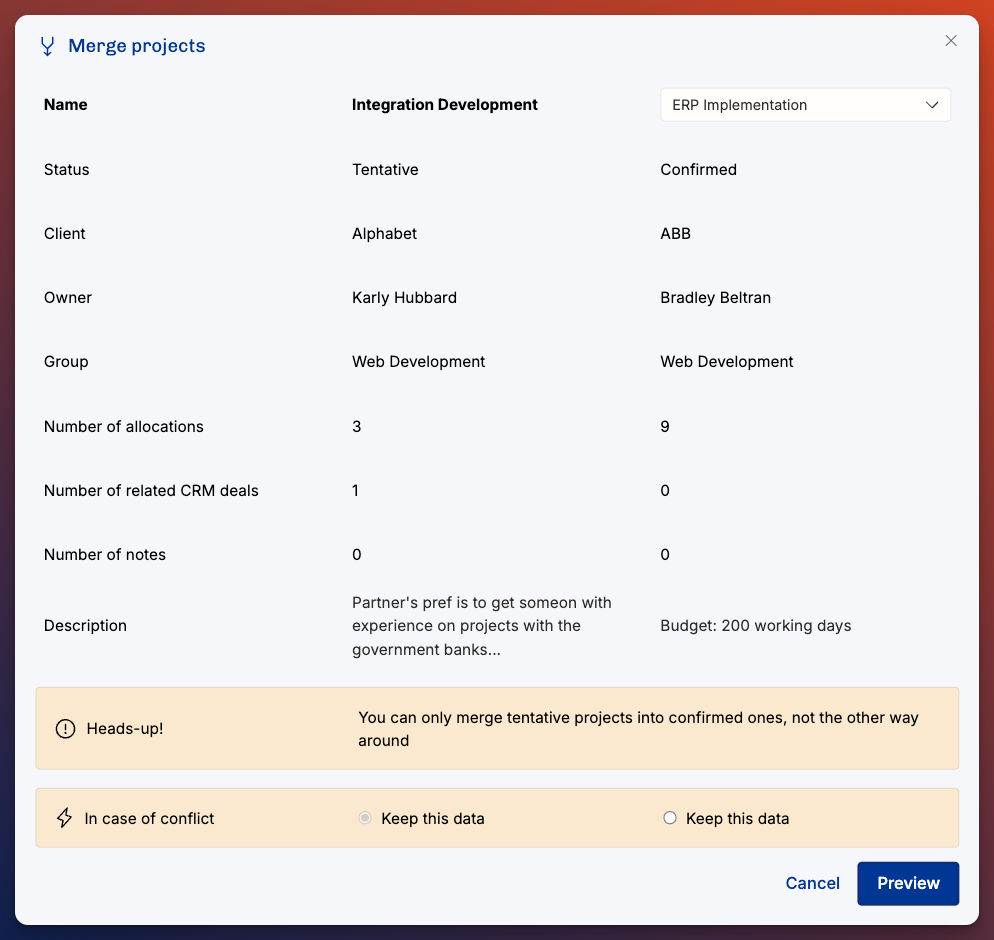
Select which entities to merge
Select the entity you want to merge into.
Review and resolve conflicts
You’ll see a preview screen.
Choose which entity’s data to keep in case of a conflict
Fields that don’t conflict will be auto-merged.
Confirm the merge
Once confirmed, the merged entity becomes your master record. Any external IDs or references from integrations (CRM, CSV, etc.) will be preserved and moved.
Note: Merging cannot be undone — double-check the data before confirming.
Things to Keep in Mind
Merging is irreversible. Always review the preview carefully.
When the other project has budgets, the merge dialog shows a warning that depends on where those budgets belong:
All belong to phases: each phase moves to the project you keep and brings its budgets with it, so no budget is removed.
None belong to phases: the merge removes all budgets from the other project and uses the budgets from the project that has "Keep this data" selected.
Some belong to phases: the merge removes the budgets the project holds itself and uses the budgets from the project that has "Keep this data" selected. Budgets that belong to a phase move with their phase to the project you keep.
External systems linked via integrations will continue syncing using the preserved external ID/reference.
- Invoice numbers: when your company uses Per-client sequences for invoice numbers, the client you keep keeps its own sequence. The other client's sequence is removed, and Operating does not add the two counters together. The other client's invoices move to the client you keep. After the merge, check the next invoice number in the kept client's sequence.
Things that prevent merging projects:
If you try to merge a confirmed project into a tentative one. Tentative projects can’t have confirmed allocations, that’s why it’s prevented
If the billing types conflict. Change both billing types to the desired one to continue with the merge.
Was this helpful?
Still need help? Ask the team