How to create, pin, share, and edit views
Written By Lauri Eurén
Last updated 17 days ago
In Operating, you can create filters as views and share them with groups. This is useful for personalizing the UX for specifics groups of people.
Saving a view
When you choose a filter in the filter bar, an option for saving the view will appear. Note, you can also pin a view by clicking the “pin” icon on the top of the screen. See below at “Pinning views to your sidebar”.
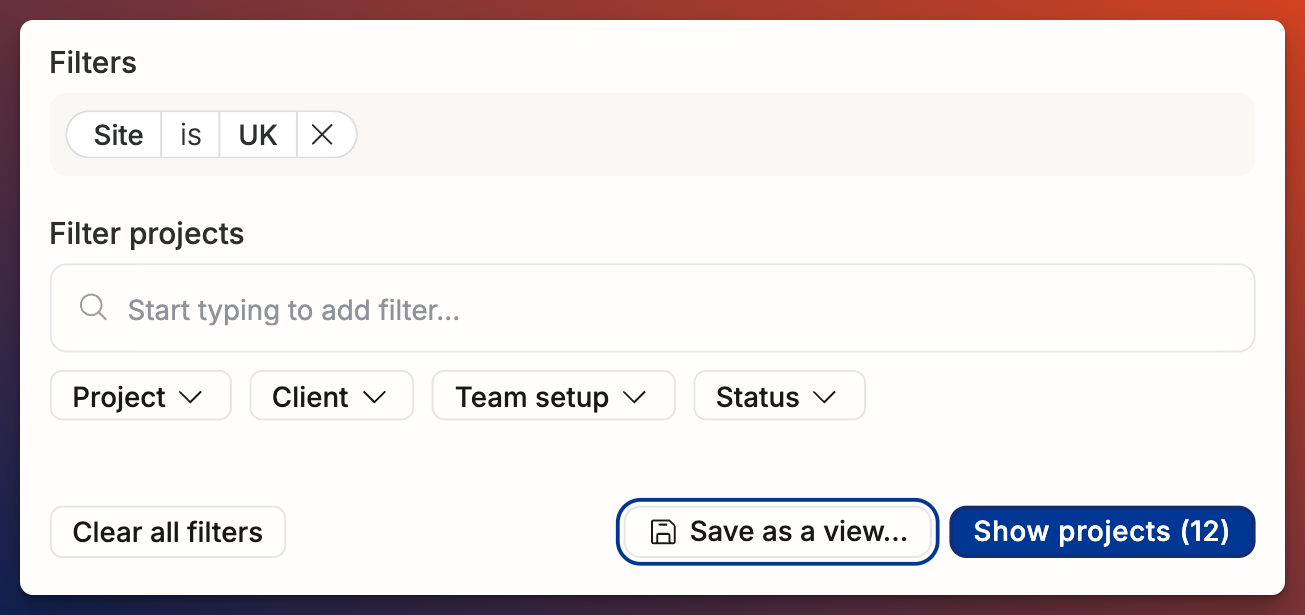
You can name the view, give it a description, and share it with different groups in the organization.
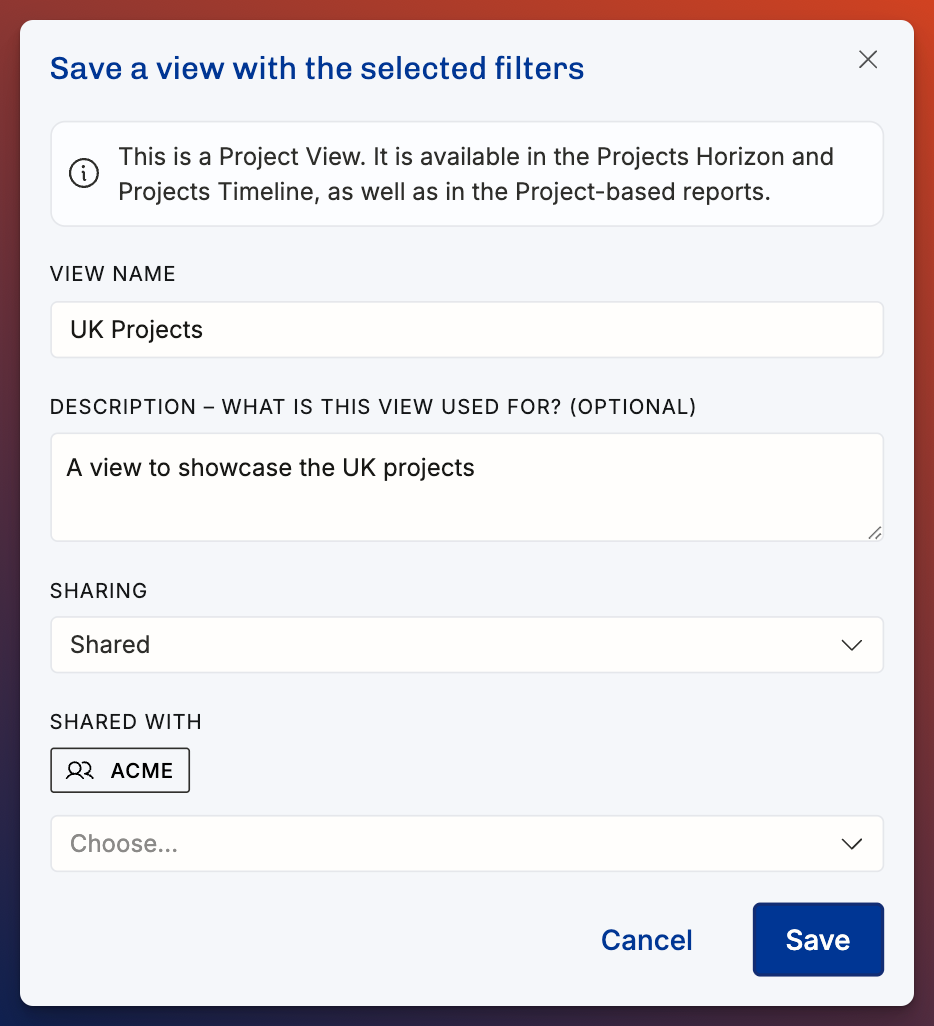
Pinning views to your sidebar
You can pin views by clicking the pin icon on the top of the screen.
Instead of clicking save as a view from the filter bar, you can create a view directly when clicking the pin icon: if you pin a list whose filters you haven't saved yet, Operating prompts you to save and pin it as a view in one step.
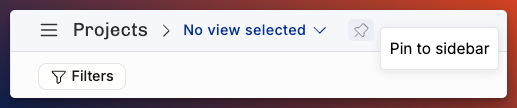
Where to access views
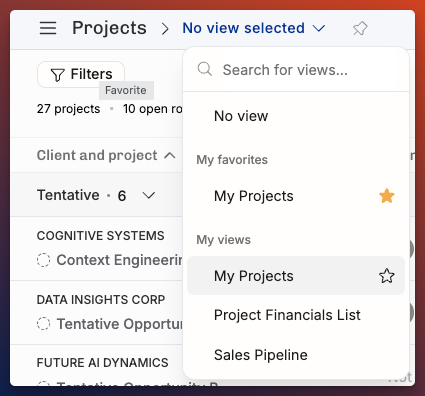
Views can be accessed on the top of the screen, next to the small pin icon.
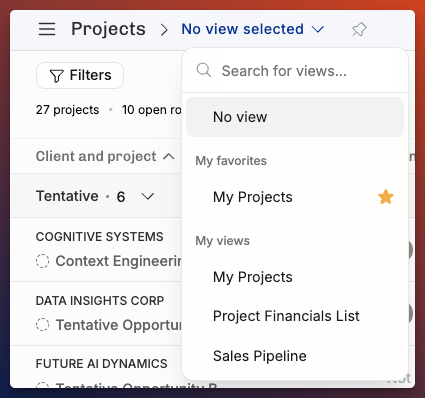
Set your favorite views
You can mark views as favorite by clicking the star icon next to the view name. Your favorite views will always show on the top of the list.
Personal views
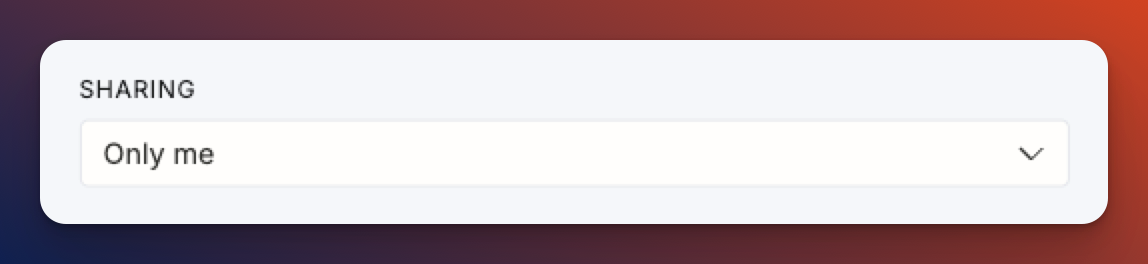
You can create personal views that are not seen by anyone but yourself by choosing to share the view only for yourself.
These views can only be seen, edited, and deleted by the person who created a view.
Managing Views
Manage your saved views — rename, edit, favorite, or delete them — from the sidebar under More → Views.
Adjusting columns
You can change the width and order of the columns in a list:
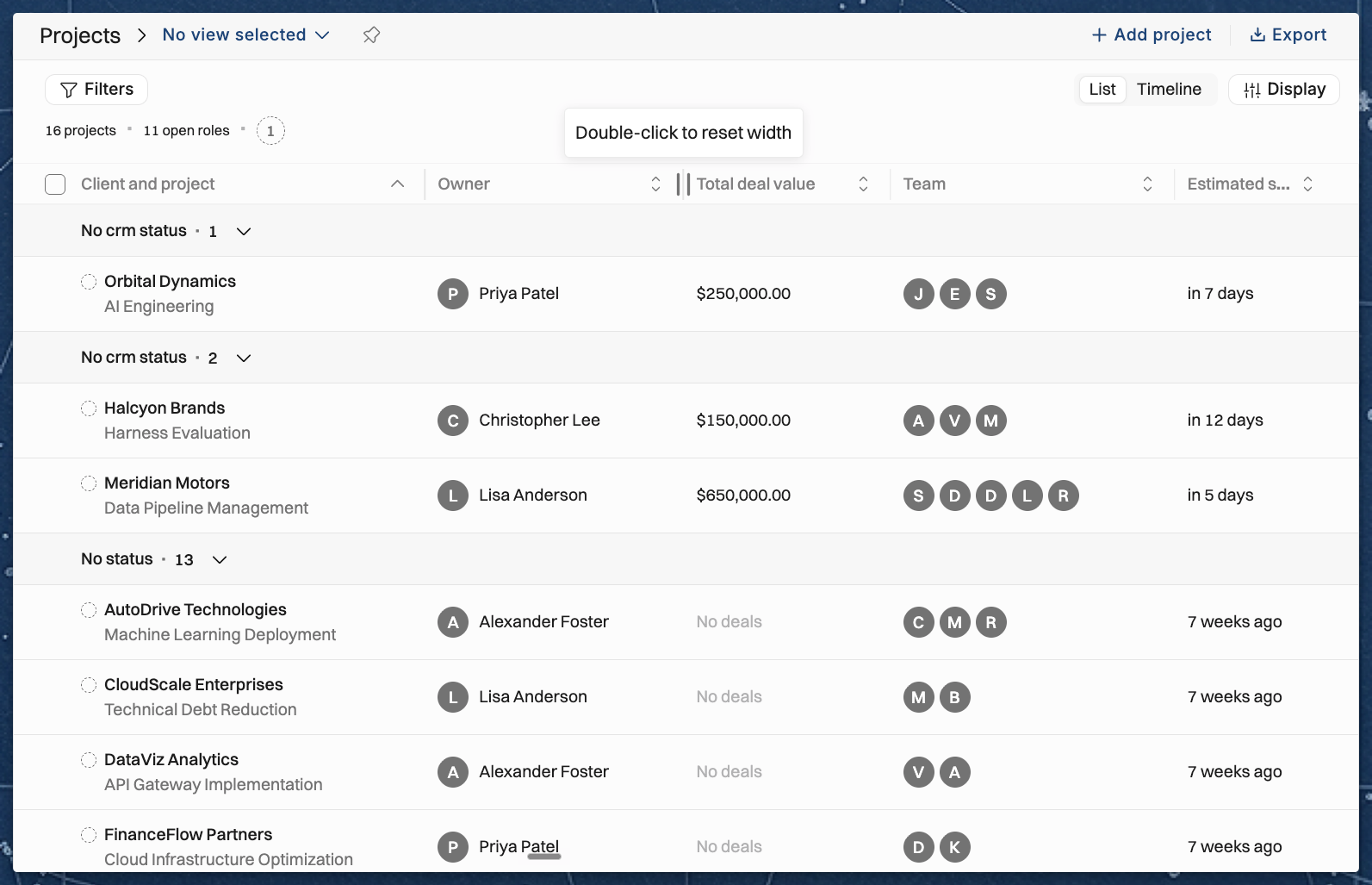
Resize a column — drag the border on the right edge of the column header. Double-click the border to return the column to its default width.
Move a column — drag the column header to a new position. A few columns, such as the checkbox and action columns, stay in place.
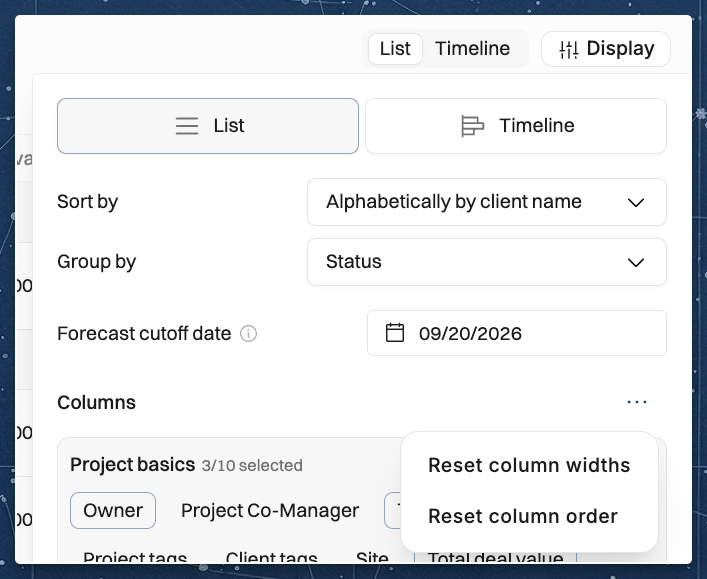
Reset — open Display, then use the menu next to Columns and choose Reset column widths or Reset column order.
Column widths and order are saved with a view, like the other Display settings. When you share a view, the people in the group see the same column layout. On lists without views, such as the lists in Settings, Operating remembers your column layout in your browser.
Related Articles
Was this helpful?
Still need help? Ask the team