The Person detail page
Written By Lauri Eurén
Last updated 9 days ago
The person detail page is where you see and manage everything about one person — their allocations, tracked time, skills, project history, and employment details. This article walks through how to open it and what each tab shows.
Opening the person detail page
Click a person's name or avatar anywhere in Operating — the People timeline, a people list, or a project's Team tab. The page opens as a side panel (you can also open it full-screen). Use the tabs along the top to move between views.
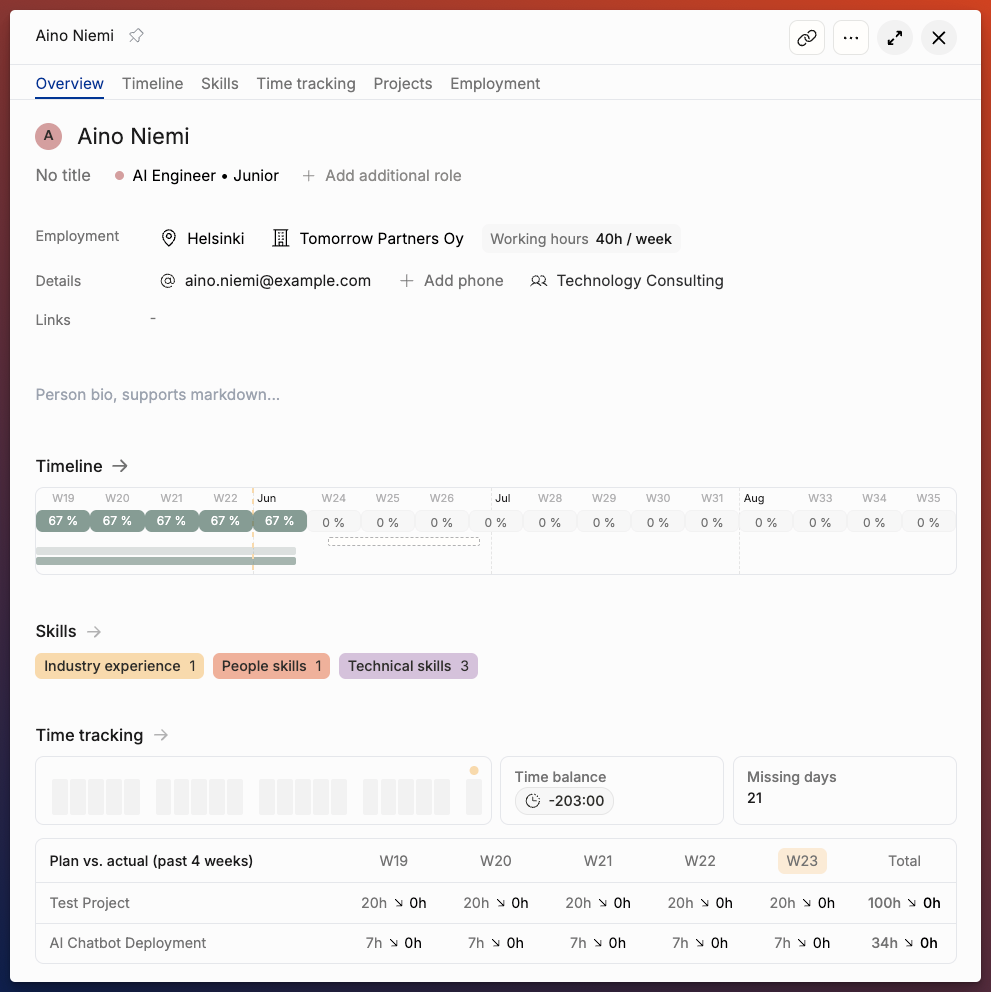
The tabs
Overview — an at-a-glance summary: key details (role, seniority, site, employment status), a snapshot of current and recent projects, a time-tracking summary (planned vs. actuals and recent activity), skills, and links to connected external systems (such as CRM contacts). A timeline strip shows their allocations from the past month to three months ahead, one row for each project they are allocated to in that period.
Timeline — the person's full allocation timeline: what they're allocated to over time, how much of their capacity is booked, and where they're available or overbooked.
Skills — their skills and proficiency levels. (This tab appears only if your organization uses skills.)
Time tracking — the person's tracked time: a 30-day summary with time balance and missing days, a plan-vs-actual breakdown by project, and their full time-entries list (detailed below).
Projects — the person's project history: the projects they've been allocated to or worked on.
Employment — the person's working arrangement: employment dates, site, company, external status, reporting line, working hours, and cost rates (detailed below).
The Time tracking tab in detail
Summary (top) — a chart of time tracked over the past 30 days and a count of missing days (days they were expected to track but haven't). If your organization uses the time balance feature, the summary also shows the person's time balance, and Open details breaks it down. View timesheet opens their timesheet.
Plan vs. actual — planned vs. tracked hours by project for the current week and the three completed weeks before it (current week highlighted). Each cell shows planned hours and the hours actually tracked, with a Total column. If time-entry rounding is enabled for your organization, you can toggle between Time and Rounded hours.
Time entries — the person's full time-entry list (Client, Project, Date, Task, Note, hours) with a running total. You can filter by date range, edit entries, export to CSV, and choose columns with Display.
The Employment tab in detail
The Employment tab gathers a person's working arrangement in these sections.
Employment
Employment period — when this person's employment starts and ends. Set a start and end date; this bounds where the person is included in capacity and planning.
Company — the legal entity this person works for. (Visible only if your organization has companies enabled.)
Treat [person] as an external — turn this on for contractors and freelancers. The availability of external people is ignored in capacity calculations.
Reports to — who this person reports to, setting their place in the reporting structure. (Visible only if reporting structure is enabled in your settings.)
Employee ID — an optional identifier from an external system (for example, your HR tool); enter it and click Save.
Site
The Site this person works at (for example, Helsinki), with the dates each Site applies. Current and upcoming Sites show first; click Show history to see past ones. Each entry shows its dates, holiday calendar and weekly working time. Click Move to a new site to change the Site from a chosen date, or use the menu on an entry to correct or delete it. Clicking the Site on the Overview tab brings you here. For how site changes work and what follows the Site, see Sites.
Roles
The person's primary role, which their rates and costs are based on, and any additional roles. Add or change roles here, and click Show history to see earlier ones. Role changes take effect from a date you choose — see Roles and seniority levels.
Working hours
Shows the site default (for example, 40h/week). Add individual working hours to override the default — use this for part-time or otherwise non-standard schedules.
Individual cost rates
Add an individual cost rate to track this person's cost to the business. This feeds margin and profitability calculations, and overrides any cost-card default. (Visible to users with cost permissions.)
Managing a person
From the top of the page you can edit the person's details, archive or unarchive them, merge them with a duplicate, or delete them. Archived people stay in historical reports where they have data.
Related articles
Was this helpful?
Still need help? Ask the team