Milestone-based revenue recognition and invoicing
Recognize a fixed-price Project's revenue when its milestones are completed, and invoice the client on milestones.
Written By Mikko Karjalainen
Last updated 7 days ago
A fixed-price Project can tie its money to its milestones. There are two settings (for revenue recognition and invoicing), and you can use them together or one at a time:
When a milestone is completed — a revenue recognition method. Each milestone's value is recognized on the day the milestone is completed.
On milestones — an invoicing schedule. Each milestone you pick sets an invoice date, and its invoice becomes ready to create when the milestone is completed.
This article explains both, the amounts a milestone carries, and the rules that keep those amounts inside the Budget.
Revenue recognition when a milestone is completed
What it is
With this method, the Budget is earned in steps, one milestone at a time. In Operating's words: "When a milestone is completed recognizes each milestone's value on the day it is completed, and holds it on the milestone. Time entries earn no revenue of their own, and budget amount not yet assigned to a milestone is not recognized."
Use it when the contract pays for deliverables, and the revenue should follow what the client has accepted rather than the hours worked.
Choose the method
Set the Project's billing type to Fixed-price.
As the Revenue recognition method, pick When a milestone is completed.
Save.
Give a milestone a value
Open the milestone's dialog. See Project milestones for the ways to open it.
Click Add revenue recognition. If the milestone already has a Revenue recognition section, click the section's heading to open it.
Enter the Amount — the revenue recognized when this milestone is completed.
Click Save.
Next to the Amount label, Max shows the most this milestone can take: the part of its Budget that no other milestone claims. Hover over the information icon next to it to see how the Budget splits. Once the milestone is completed, the dialog also shows the Recognized revenue.
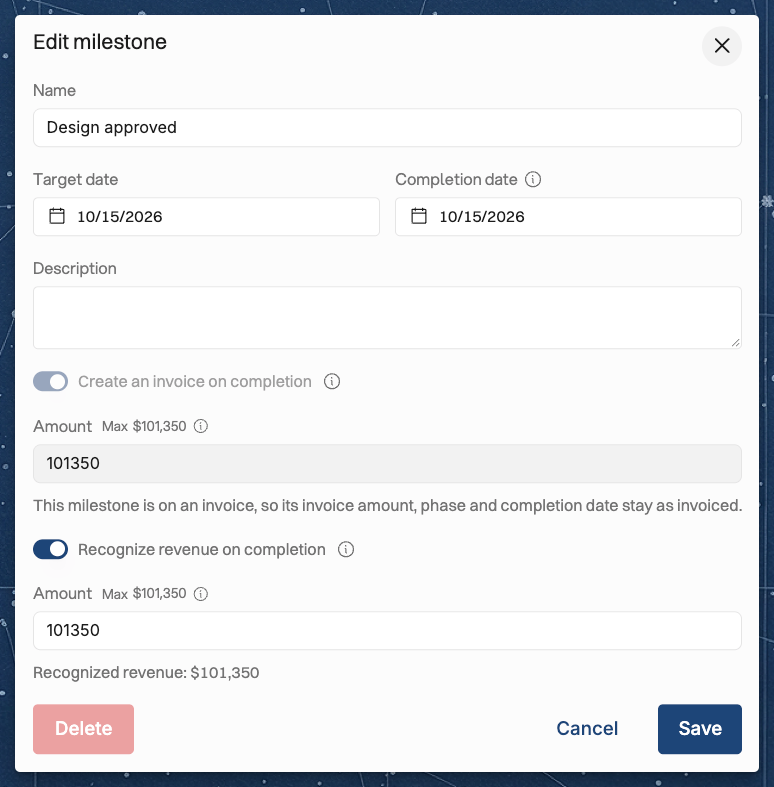
A few rules apply to the amount:
A Budget must cover the target date. The amount goes on the Budget whose dates cover the milestone's target date. You don't pick the Budget. If no Budget covers the date, the dialog says: No budget covers the target date. Move the date into a budget, or add one, to give this milestone an invoice amount or a revenue recognizable amount.
The amounts fit the Budget. The revenue recognizable amounts of a Budget's milestones can't add up to more than the Budget. The split behind the information icon shows Other milestones, This milestone and Not assigned, or Over by when the total is too high.
The amount is in the Budget's currency.
The phase. When more than one phase could carry the amount, pick one under Phase.
A date in another Budget. If you change the target date to a date in another Budget, the dialog tells you that the milestone moves from one Budget to the other.
When the milestone also has an Invoice section, adding the Revenue recognition section starts its Amount at the invoice amount, and the other way round. While you set a milestone's amounts for the first time, typing one amount also fills in the other. This stops once you type in the other amount yourself, or when the milestone already has that amount saved.
Set the values of several milestones at once
Two places list a Project's milestones with their amounts, so you can set them together:
The Project setup tab. On a Project that recognizes revenue When a milestone is completed, the Project setup tab has the row Revenue recognition on milestones. It reads, for example, 2 of 3 milestones carry revenue, or No milestones yet. Click Edit to open the Revenue recognition on milestones dialog. A phase with its own billing type has its own row.
The Budget dialog. When you edit a Budget, its Revenue by milestone section lists the milestones that the Budget's dates cover. The section starts closed, and its heading shows a summary such as 1 of 3 completed · [amount] of [Budget amount] assigned. Click the heading to open the section.
Unassigned amount. Inside the section, a caption reads [amount] of [Budget amount] assigned to milestones. When part of the Budget has no milestone, it adds The [amount] not yet assigned is forecast on the budget's end date.
To set the values:
Open the list in one of these places.
Enter each milestone's Amount. Leave it blank when the milestone should recognize no revenue.
To add a milestone, click Add milestone, then enter its name, target date and amount.
To edit or delete a milestone, open the menu at the end of its row and choose Edit or Delete. Edit opens the milestone's own dialog.
Click Save.
Operating changes nothing until you click Save, including the milestones you add or delete. In the Budget dialog, Save saves the Budget and its milestones together.
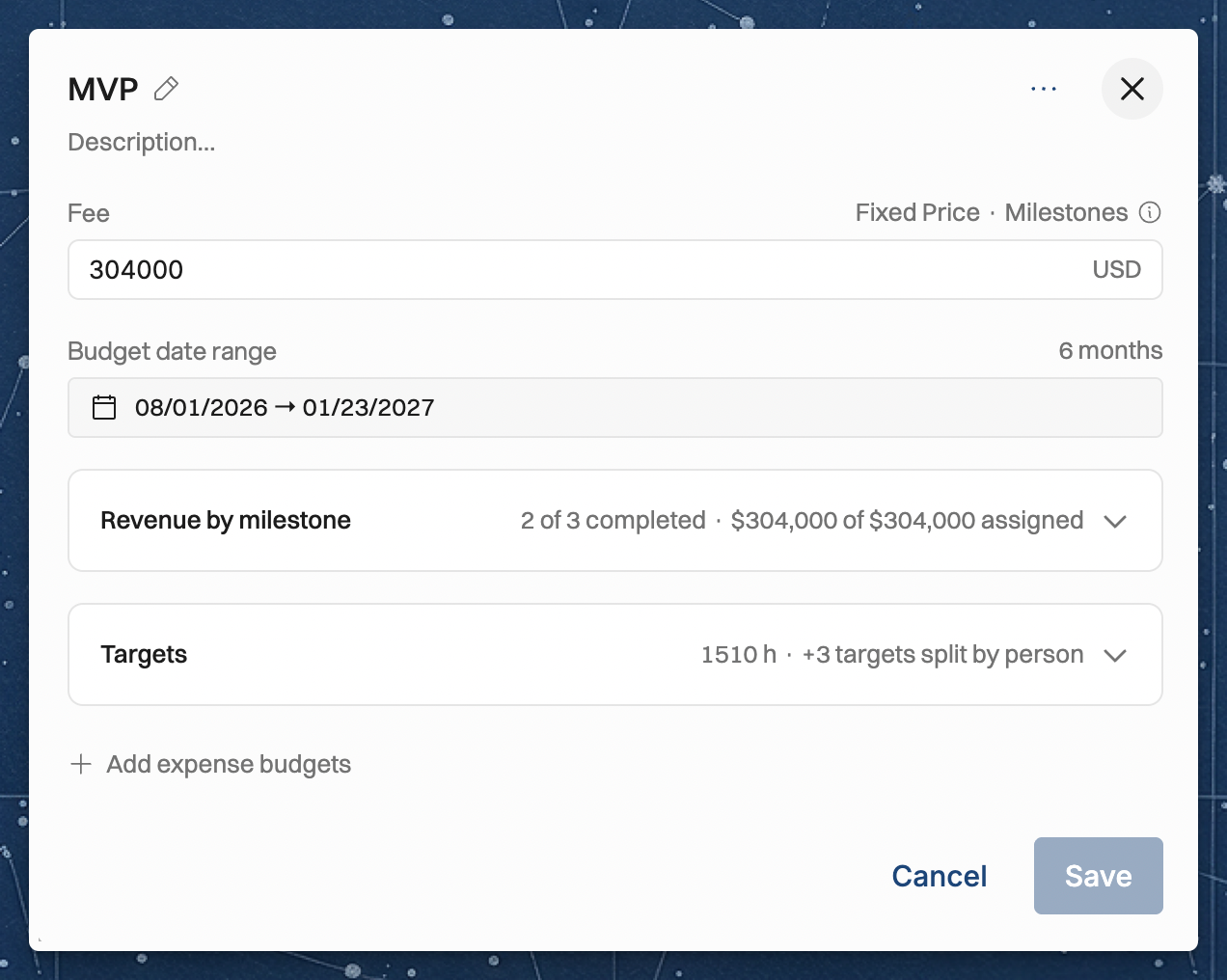
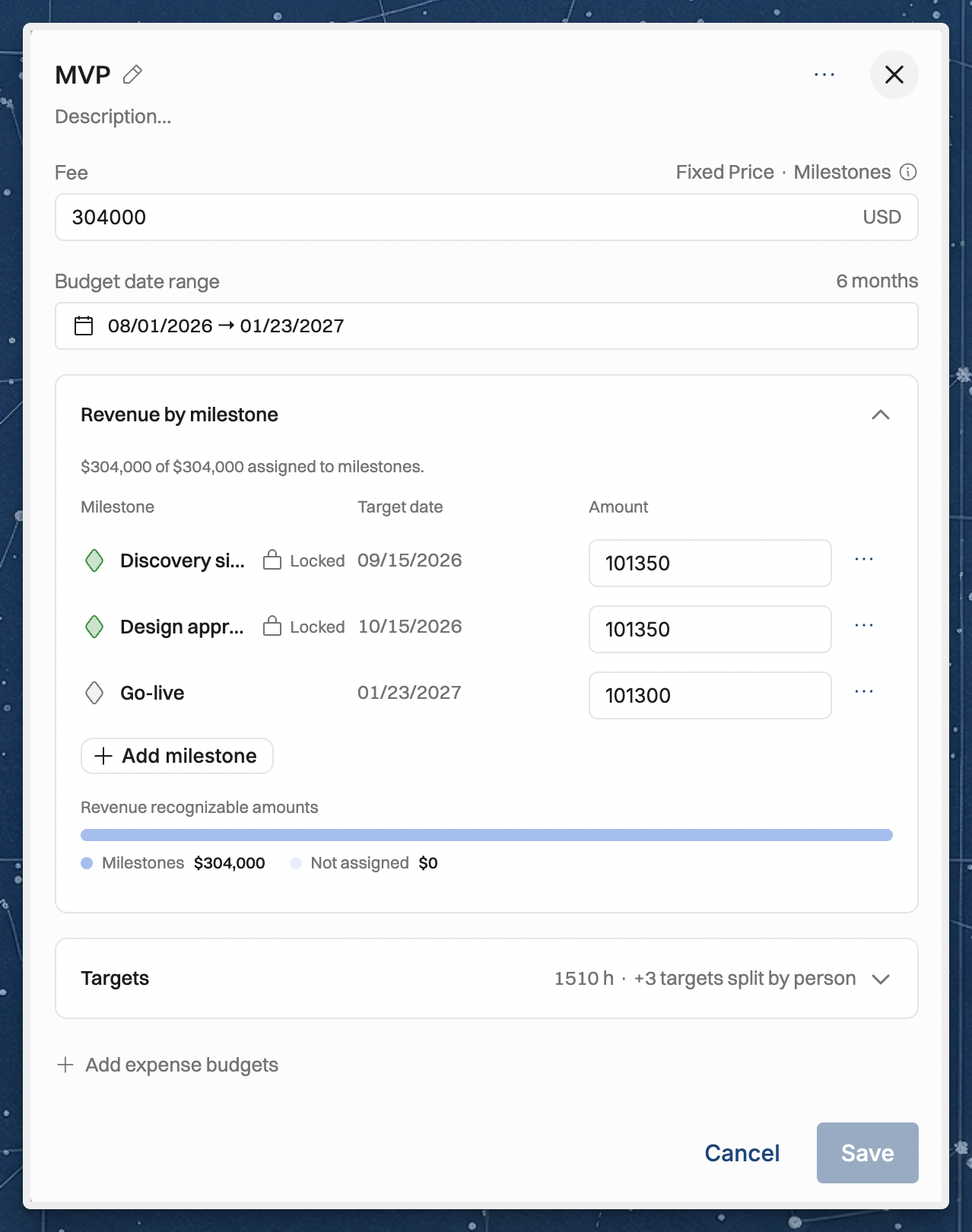
Good to know:
Several Budgets. The Revenue recognition on milestones dialog shows one card per Budget. Each milestone sits in the card of the Budget that covers its target date.
No Budget yet. The dialog shows No budgets yet with an Add budget button. Add a Budget first, because a milestone's amount sits on the Budget that covers its target date.
No milestones in the Budget's dates. The Budget dialog shows an Add milestones button in place of the Revenue by milestone section. Click it to add the first milestone.
No Budget covers the target date. Hovering over the milestone's Amount shows No budget covers the target date. Move the date into a Budget's dates, or add a Budget that covers it.
A milestone on an invoice shows Locked, and you can't delete it.
A milestone that carries money on another phase or on the Project shows – as its amount. Hover over the ? next to its name to see where its revenue or invoice sits. A milestone recognizes revenue in one place only, and its invoice and revenue recognition are on the same phase or Project.
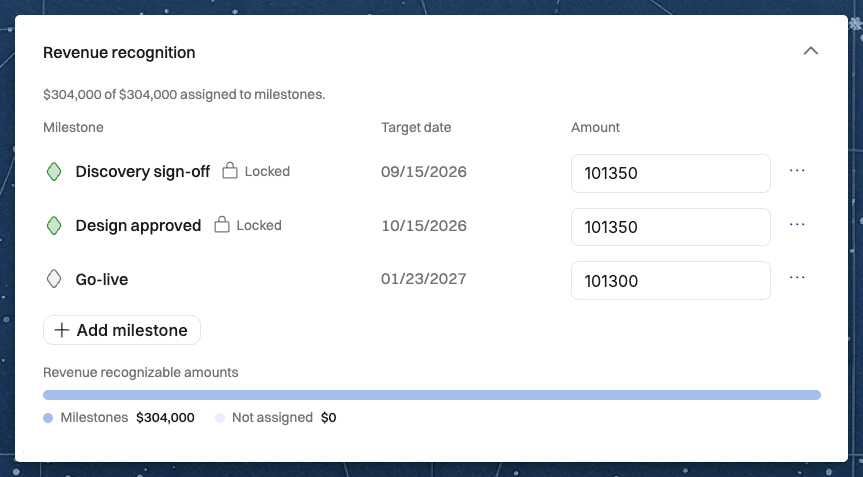
What is recognized, and when
On completion. When you complete a milestone that has a revenue recognizable amount, that amount is recognized on the completion date, on the milestone's Budget.
Nothing between milestones. No revenue builds up while the work goes on. Time entries show their time value and cost, but they earn no revenue of their own.
Billable expenses first. Billable expenses in the period that a milestone closes are paid from the milestone's value, up to that value. The rest of the value stays on the milestone.
Unassigned Budget stays unrecognized. Budget amount that no milestone claims is not recognized, even after the Budget's end date. The other fixed-price methods count an ended Budget as fully earned. This method counts only completed milestones.
Marking a milestone as not completed removes the revenue it recognized.
On a Budget, each completed milestone shows as a progress entry: the milestone's name, then Completed and the completion date. In the Budget dialog, completed milestones show in the Revenue by milestone section, and the section's summary counts them.
You can't set budget progress by hand on this method. Operating explains: "Revenue is recognized by milestones here. Mark a milestone as completed instead of setting progress." A progress entry that comes from a milestone changes only through the milestone: "This progress comes from a completed milestone. Change the milestone instead."
Where you see it
Revenue Recognition tab. The tab shows Total recognized and Total budget. Its help reads: "Each milestone carries a value. When a milestone is completed, its value is recognized on the completion date and held on the milestone."
Revenue drill-down. In place of the revenue attribution for time entries, the drill-down shows a note: Milestone-based revenue isn't attributed to time entries. It's held on the milestone that recognized it. Billable expenses still show.
Time entries. The revenue tooltip reads: "Revenue is recognized at milestone level. Time entries show time value and cost, and earn no revenue of their own."
Status tab. The Earned revenue tooltip explains that each milestone's value is recognized when it is completed.
Month view. When you open a month on the Revenue Recognition tab, the progress section is titled Progress from milestones and lists the milestones completed that month. A month with none reads No milestone completed this month.
Planned and forecast revenue
Plan. Each open milestone's value is planned on its target date. Budget amount that no milestone claims is planned on the Budget's end date.
Allocations and planned expenses plan no revenue. They keep their time value and cost on the Budget that covers their date.
Forecast. After the forecast cutoff date, the forecast uses that plan as it is. Your organization's Fixed-price forecast method setting does not apply to this method.
Switch to or from the Milestone-based revenue recognition method
Switching to milestones. Manual budget progress entries are removed, and the completed milestones' values are recognized from their completion dates.
Switching away. The milestones lose their revenue recognizable amounts. Switching back does not bring them back. Before you save, the dialog says how many milestones lose their amounts.
Who can switch away. "Only someone who can edit revenue can move this project off milestones, because its milestones lose their revenue recognizable amounts."
Leaving fixed-price. The milestones also lose their invoice amounts.
A phase moved back to the Project's Budgets. Its milestones lose their values. The phase form tells you before you save.
Invoicing on milestones
What it is
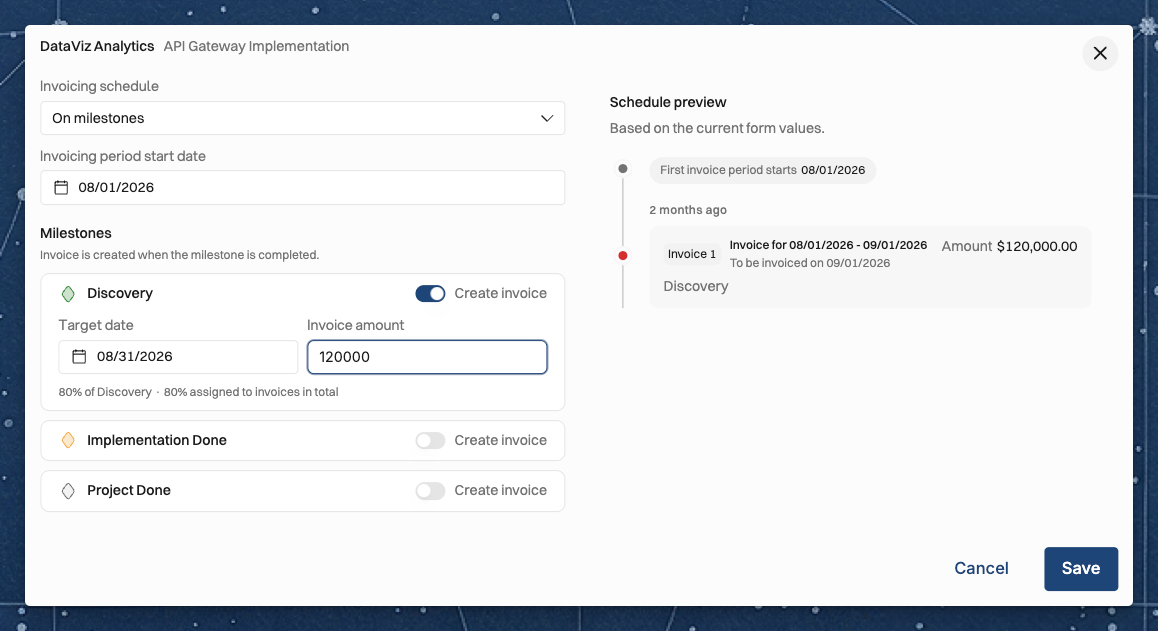
On milestones is an invoicing schedule. You pick the milestones that should be invoiced by turning on Create invoice for each one. Each of those milestones sets an invoice date.
When the milestone is completed, its invoice becomes ready on the Invoicing page, in the list of Projects to be invoiced. You then create the invoice there, the same way as any other invoice — see How to create and send an invoice.
On a fixed-price Project, each milestone can also carry an Invoice amount: what the client is invoiced for it.
Set up the schedule
Open the Project and go to the Invoicing tab.
Open Edit invoicing schedule.
Choose On milestones as the schedule type.
Set the Invoicing period start date.
Under Milestones, turn on Create invoice for each milestone you want to invoice.
On a fixed-price Project, enter each milestone's Invoice amount. The caption under it shows the amount's share of the Budget, and how much of the Budget is assigned to invoices in total.
Save.
Good to know:
If the Project has no milestones, the list says: This project has no milestones yet. Add them on the project's timeline.
A milestone with no Budget on its target date can't take an invoice amount. Its tooltip reads No overlapping budget for the target date.
Turning off Create invoice clears the milestone's invoice amount.
When you turn on Create invoice for a milestone that has a revenue recognizable amount and no invoice amount, the Invoice amount starts at the revenue recognizable amount. You can change it.
Switching to On milestones removes the Project's custom invoice dates. The dialog tells you how many before you save.
Your organization's default schedule can't be On milestones.
You can also set this up from the milestone's own dialog. Click Add invoice, then enter the Amount in the Invoice section. The invoice amounts of a Budget's milestones can't add up to more than the Budget. On a Project that doesn't invoice on milestones yet, see "Turn on invoicing and revenue recognition from a milestone" below.
Invoice dates and periods
Only milestones with Create invoice turned on set invoice dates.
The invoice date is the milestone's completion date. Until the milestone is completed, the target date stands in.
The invoice period runs from the day after the date of the previous milestone that has Create invoice turned on, to this milestone's date. The first period starts on the invoicing period start date.
Early completion. When a milestone is completed early, the work after its completion date goes on the next invoice.
Two rules keep the dates in order:
"The invoicing period can't start after the first invoice milestone"
"An invoice milestone can't be dated before the project's invoicing period starts"
When the invoice is ready
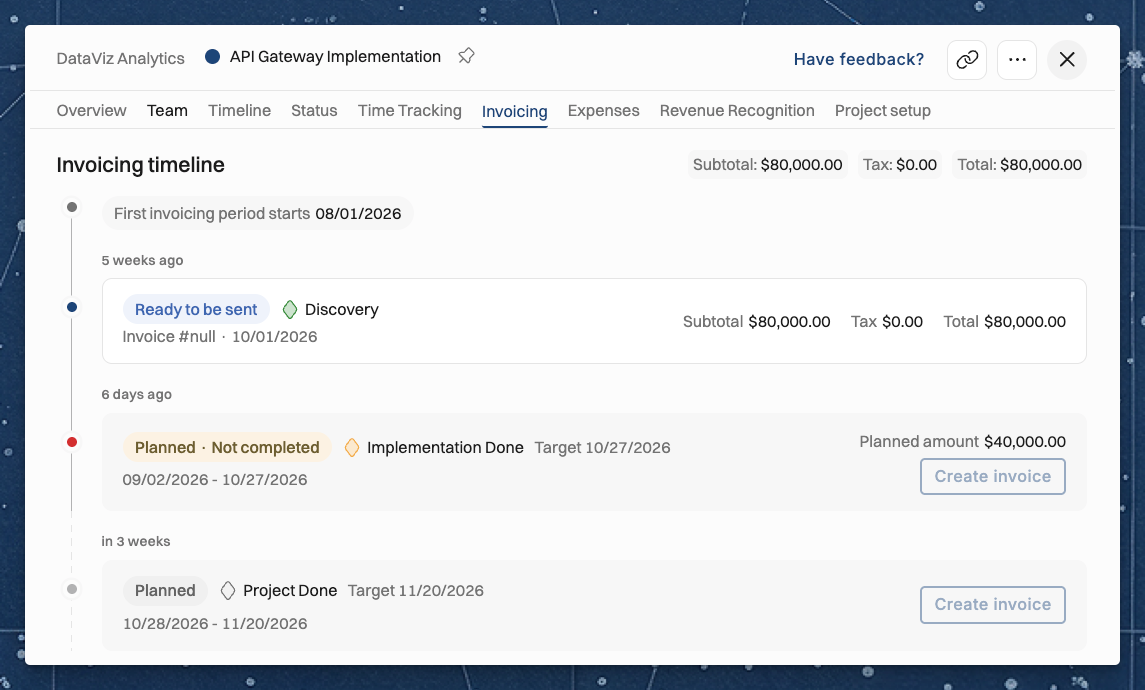
On the Project's Invoicing tab, each planned invoice is named after its milestone and marked Planned. Once the target date has passed without a completion, it reads Planned · Not completed. It shows Target with the target date until the milestone is completed, and To be invoiced on with the date after that.
The Invoicing tab lists a milestone's planned invoice in these cases:
The milestone is not completed. The planned invoice shows even when its date is before the latest invoice.
The milestone is completed and has an invoice amount that no invoice bills yet. The planned invoice shows until an invoice bills it.
The milestone is completed and has no invoice amount. The planned invoice shows only when its date is after the latest invoice's date, or when the Project has no invoice yet.
On the Invoicing page, the Project's status follows the milestone:
Upcoming — the milestone is not completed, and its target date has not passed.
Milestone not completed — the target date has passed, but nobody has marked the milestone as completed. "Mark it as completed to invoice it."
Ready for invoicing — the milestone is completed, early or late. If the invoice includes hours, Not submitted or Approval pending can show first, until the time is submitted and approved.
Once a milestone is completed, its invoice takes all the work not yet invoiced up to its date.
You can't create an invoice for a milestone that is not completed: "The milestone has not been completed yet".
What the invoice bills
Fixed-price. The invoice bills one line for each completed milestone that has an invoice amount and is not on an invoice yet. Each line is named after its milestone. The fixed-price Budget adds no other lines.
Other billing types on the same Project. A phase with another billing type, such as time and materials, adds its usual lines for the period.
After you create the invoice, the Project's Invoicing tab names the invoice after the milestones it bills.
What an invoiced milestone keeps
Once a milestone is on an invoice, it counts as invoiced:
It keeps its invoice amount, phase and completion date. "This milestone is on an invoice, so its invoice amount, phase and completion date stay as invoiced"
You can still change its name and target date.
It can't be deleted.
It can't go on another invoice.
Change the schedule away from On milestones
You can change a Project's invoicing schedule from On milestones to another schedule type in Edit invoicing schedule. The milestones stay on the Project, but they no longer set invoice dates, and:
Their invoice amounts are cleared. Before you save, the dialog tells you how many milestones lose their invoice amount.
You can't make the change while a milestone is on an invoice. Operating says: "A milestone of this project is on an invoice, so its invoice amount cannot be cleared".
The invoice amounts are also cleared when the Project, or one of its phases, changes from fixed-price to another billing type.
Turn on invoicing and revenue recognition from a milestone
The milestone dialog has two optional sections: Invoice and Revenue recognition. Click Add invoice or Add revenue recognition to add a section. To remove a section, click the X in it. A closed section shows its amount in its heading, or On completion when it has no amount yet.
What an add button does depends on how the Project is set up:
The Project already uses the setting. Its invoicing schedule is On milestones, or its revenue recognition method is When a milestone is completed. Click the add button and enter the Amount.
The Project has no setting yet. Clicking the add button opens a dialog that sets it for the whole Project. Invoice on milestones? sets the invoicing schedule to On milestones. Set to fixed price with milestone based revenue recognition? sets the billing type to Fixed-price with the method When a milestone is completed. Click Confirm. Operating changes the Project's setting, then adds the section.
The Project uses another setting. The add button is greyed out. Hover over it to see the Project's current setting. Change that setting in Project setup to use the button.
The dialog does not show Add revenue recognition when neither the Project nor any of its phases is fixed-price.
When Invoice on milestones? sets the schedule, the invoicing period starts on the Project's start date. When the Project has no start date, it starts on the earliest start date of the Project's Budgets. It starts earlier when an invoice milestone, this one included, has an earlier target date.
When a button is greyed out
Hover over a greyed-out button in the milestone dialog to see why you can't use it. Apart from the Project's settings, the reason is one of these:
"You don't have permission to change this milestone's invoice." or "You don't have permission to change this milestone's revenue recognition." — you need Manage projects and Manage rates, budgets, planned expenses and baselines. See "Who can do what" below.
"The project has no invoicing schedule yet, and you don't have permission to set one." or "The project has no billing type yet, and you don't have permission to set one." — ask someone who can edit the Project to choose the setting.
"This milestone is on an invoice, so its invoice stays." — the milestone is already invoiced, so you can't remove its invoice.
"This milestone's invoice is on a phase that doesn't recognize revenue on milestones." — the milestone invoices on a phase with another revenue recognition method, so it can't recognize revenue there.
"Your organization has disabled the milestones invoicing schedule.", "Your organization has disabled revenue recognition based on milestones." or "Your organization has disabled the fixed price billing type." — your organization doesn't use this setting. Ask an admin of your organization.
Budgets with milestone amounts
A milestone's amounts come out of a Budget: the one whose dates cover the milestone's target date. So once milestones carry amounts on a Budget, Operating blocks any change to that Budget that would leave those amounts without room or without dates:
Lowering the amount. The Budget amount can't go below the total of its milestones' revenue recognizable amounts, or below the total of their invoice amounts. It must also be at least what its completed milestones have already recognized. Otherwise, the Budget dialog shows "The amount must be at least what its completed milestones recognized".
Changing the dates. A milestone with an amount must stay inside its Budget's dates. In the Budget dialog, the list of milestones follows the dates as you enter them. If a milestone with an amount would fall outside the new dates, the dialog shows a message under the list. The Budget doesn't save until you clear the milestone's amount or move its target date.
Deleting or splitting. You can't delete or split the Budget while milestones carry amounts on it. First move those milestones to another Budget's dates, or clear their amounts.
For example, a Budget of 30,000 with two milestones of 10,000 each can't be lowered below 20,000.
Phases
A milestone belongs to the Project. Its amounts sit on a phase when that phase has its own billing type. A phase without its own billing type uses the Project's Budgets, method and schedule. The Project has one invoicing schedule for all its phases.
If a milestone won't save
When Operating refuses to save a milestone's amounts, the message tells you which rule the milestone breaks, and what to change:
"A milestone has a revenue recognizable amount only when its phase or project recognizes revenue by milestones" — the Project, or the milestone's phase, uses another revenue recognition method. Switch it to When a milestone is completed, or clear the amount.
"A milestone has an invoice amount only when its project invoices on milestones and its phase or project is fixed-price" — set the Project's invoicing schedule to On milestones. Check that the Project or the phase is fixed-price. Otherwise, clear the amount.
"No budget covers this date, and a milestone with an amount has to be inside a budget" — move the target date into a Budget's dates, or add a Budget that covers it.
"Enter the amount to recognize, or turn off revenue recognition" — the milestone has a Revenue recognition section, but its Amount is empty. Enter the amount, or remove the section.
"Add a budget covering the target date, or turn off revenue recognition" — the milestone has a Revenue recognition section, but no Budget covers its target date. Add a Budget that covers the date, or remove the section.
"Choose the phase" — more than one phase could carry the milestone's amounts. Pick one under Phase.
"The revenue recognizable amount must be in the budget's currency" or "The invoice amount must be in the budget's currency" — enter the amount in the currency of the Budget.
"The revenue recognizable amounts of this budget's milestones would exceed the budget amount" or "The invoice amounts of this budget's milestones would exceed the budget amount" — together, the Budget's milestones would take more than the Budget holds. Lower a milestone's amount, or raise the Budget amount.
In the Budget dialog, the Revenue by milestone section shows these messages under the list:
"The budget amount must cover the values of its milestones" — the milestones' amounts in the list add up to more than the Budget amount. Lower a milestone's amount, or raise the Budget amount.
"A milestone with an amount would fall outside this budget's dates. Clear its amount under Revenue by milestone, or move its target date on the timeline." — the Budget's new dates leave out a milestone that has an amount. Clear the milestone's amount in the list, or move its target date on the timeline.
Who can do what
A milestone can carry two amounts: its Revenue recognizable amount and its Invoice amount.
To set or change either amount, or to turn Create invoice on or off, you need two permissions on the Project: Manage projects and Manage rates, budgets, planned expenses and baselines.
If you can see revenue on the Project but can't edit it, the milestone dialog shows both amounts as text, and you can't change them.
If you can't see revenue on the Project, the milestone's amounts and its Budget are hidden from you.
See Permission sets in Operating.
Related articles
Was this helpful?
Still need help? Ask the team