Location information for time tracking
Here's how you can use Sites to specify where the work was done
Written By Matti Parviainen
Last updated 14 days ago
Sites are the location concept in Operating
Whenever you think about the geographical location where someone belongs in your company, use Sites. Every Person in Operating belongs to exactly one Site on any given date.
The same concept may be used when defining where the work took place when tracking time using Operating Hours.
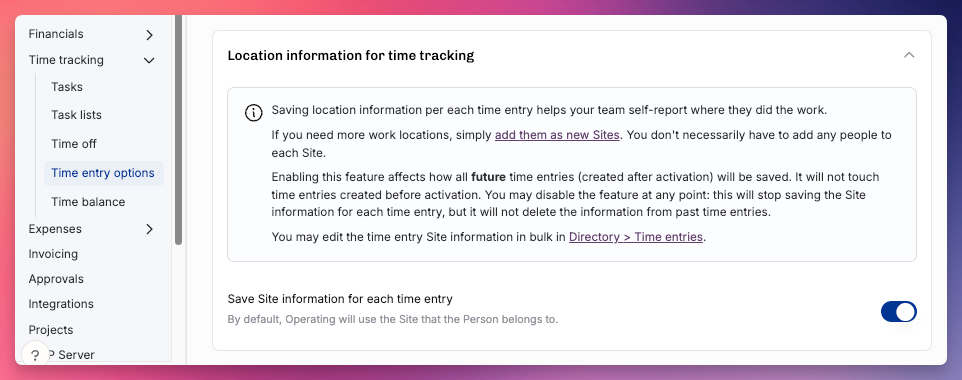
Opt-in to enable Location per time entry
This can be done in Settings > Time tracking > Time Entry Options. Once you the feature on, the Site info will be saved for all new time entries. If you turn it off, the information will no longer be saved for new time entries.
After activation, each new time entry gets a default Site. Operating uses the Site of the latest time entry you tracked on the same day. If there is none, it uses the Site of the latest time entry from the previous day. If there is none, it uses the Site the Person had on the date of the time entry.
Show or hide the Location in your Hours Timesheet or List view
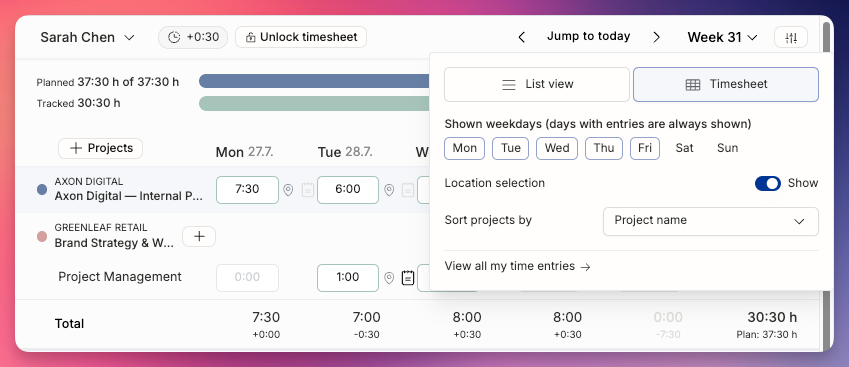
If you travel a lot and want to always see the location indicator next to each time entry, keep this setting on.
Change the location (Site) and your next time entries will follow
If you change the Location to be something else than your own Site from the 📍 icon next to a time entry, the icon will change color to darker blue. That way you know that this time entry was tracked in a different location.
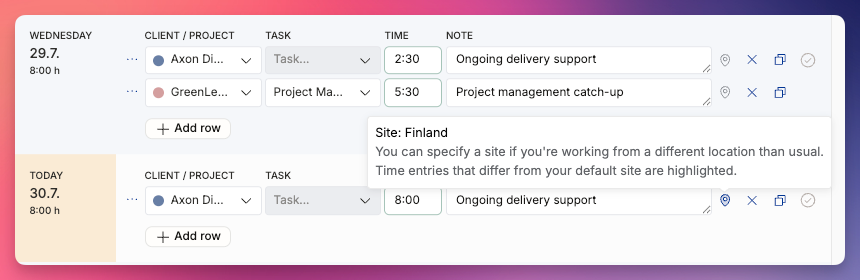
All later time entries will use the most recent location by default – in the above example, I will be in London until I change it back.
If changed back to the Person’s own Site, the marker will turn back to light grey.
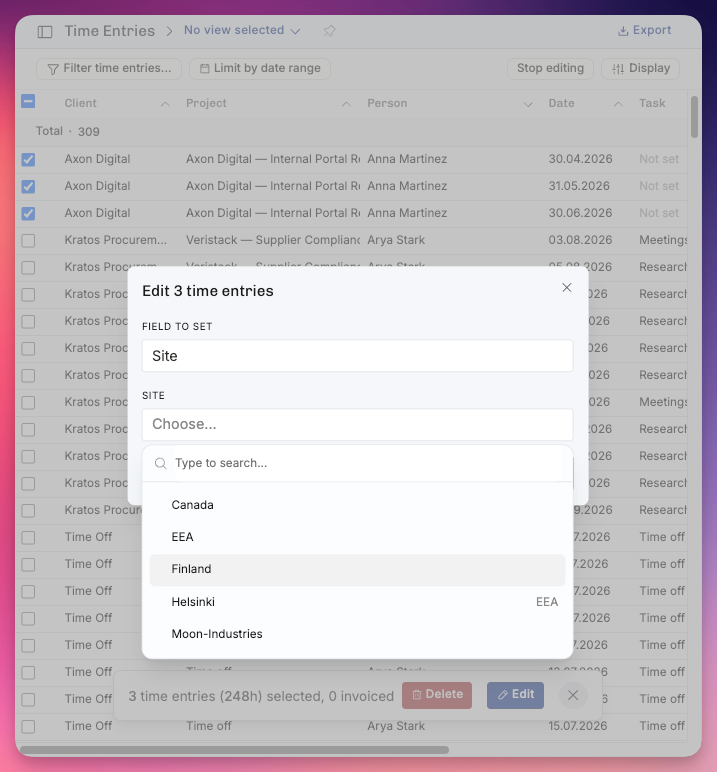
Wrong location? Change the Site in bulk on the Time Entries page
On the Time Entries page (under More in the sidebar), you may edit multiple time entries at a time. This is particularly useful if you accidentally tracked a lot of time and forgot to change the Site ahead of time.
To filter time entries by location, use the Site filter. To filter by the Site the Person belonged to on the date of each entry, use the Person Site filter.
Video explainer
Here you are, the same things in less than 4 minutes
Was this helpful?
Still need help? Ask the team