Sidebar navigation
The left-hand sidebar and how to make most of it
Written By Matti Parviainen
Last updated 23 days ago
Sidebar structure
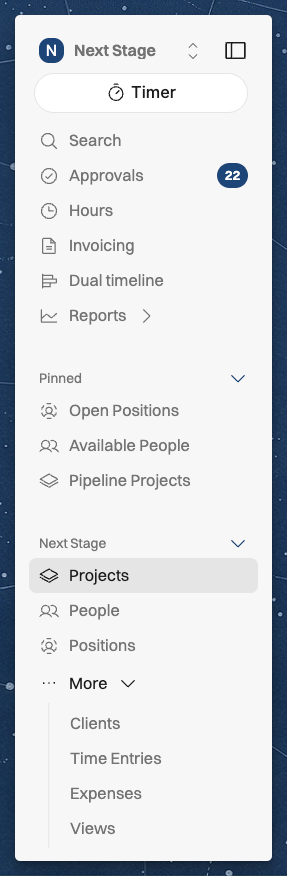
Company name / switcher — click it for your profile, settings, and sign out. If you belong to more than one organization, switch between them here.
Search — find anything; also opens with cmd+K (Mac) or ctrl+K (Windows).
Approvals — when approvals are enabled, shows time entries waiting for your approval per person
Hours — time tracking.
Invoicing — see the invoices for projects here.
Dual timeline — the Projects and People timelines together on one screen.
Reports — expand to open any report: Project Portfolio, Active Projects, Capacity, Projects, People, and Utilization Metrics.
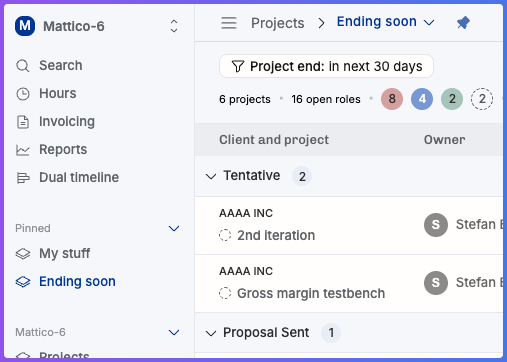
Pinned — your saved pages for quick access, organizable into folders. See How to pin views here How to create, pin, share, and edit views & Example saved views worth building and pinning.
List Views (Projects, People, Positions) and More
After the fist views, you have the list views under the company name: Projects, People, Positions, and More (Clients, Time Entries, Expenses, Views).
Projects and People can each be shown in different formats with the List/Timeline switcher at the top right:
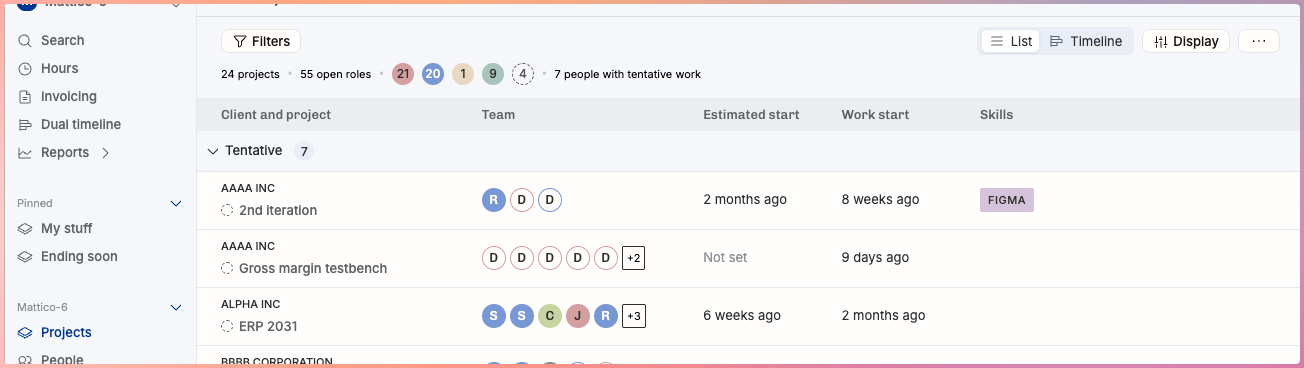
Projects — List or Timeline. (The List was previously called the Project Horizon.)
In Projects, you can choose to display the same data (filters applied) on either a List or a Timeline.List – familiar to you as the Project Horizon (until November 2025)
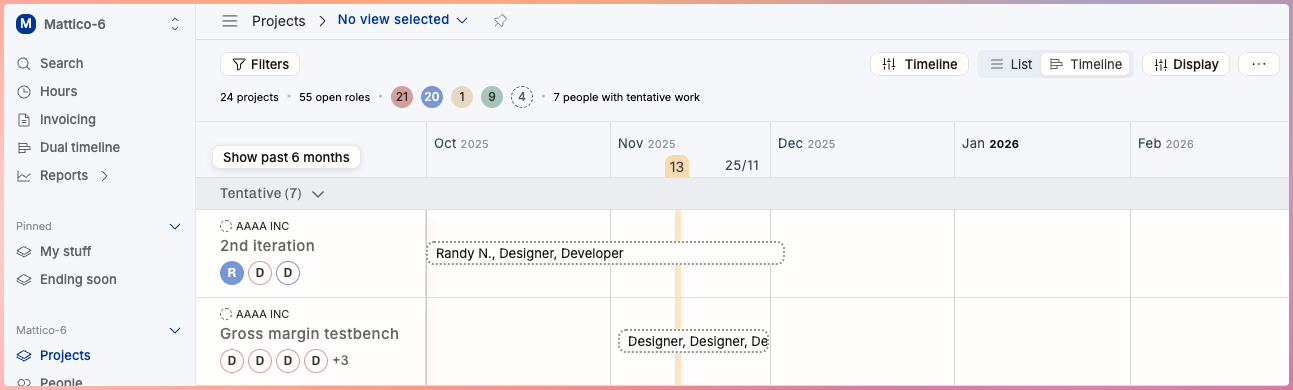
Timeline – with the same content, after a click of the List/Timeline switcher at top right
People — List, Cards, or Timeline.
Similar to Projects, you can switch between different formats: List/Cards/Timeline.
Positions are the rows in a project's team setup — each is an assignment to play a part in a project.
Clients, Time Entries, Expenses, and Views
Pinned Views
The Pinned section holds pages you've saved for one-click access — for example a specific project, a filtered list, or a report. You can group pins into folders (such as Staffing, Personal, or Financials) to keep them organized.
→ To pin pages and set up folders, see Example saved views worth building and pinning.
Before pinning:
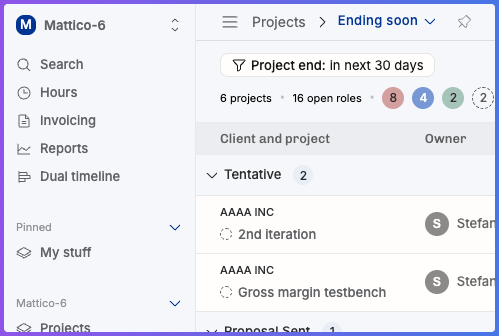
After:
Related Articles
Was this helpful?
Still need help? Ask the team