How to set individual and part-time working hours
Written By Matti Parviainen
Last updated 17 days ago
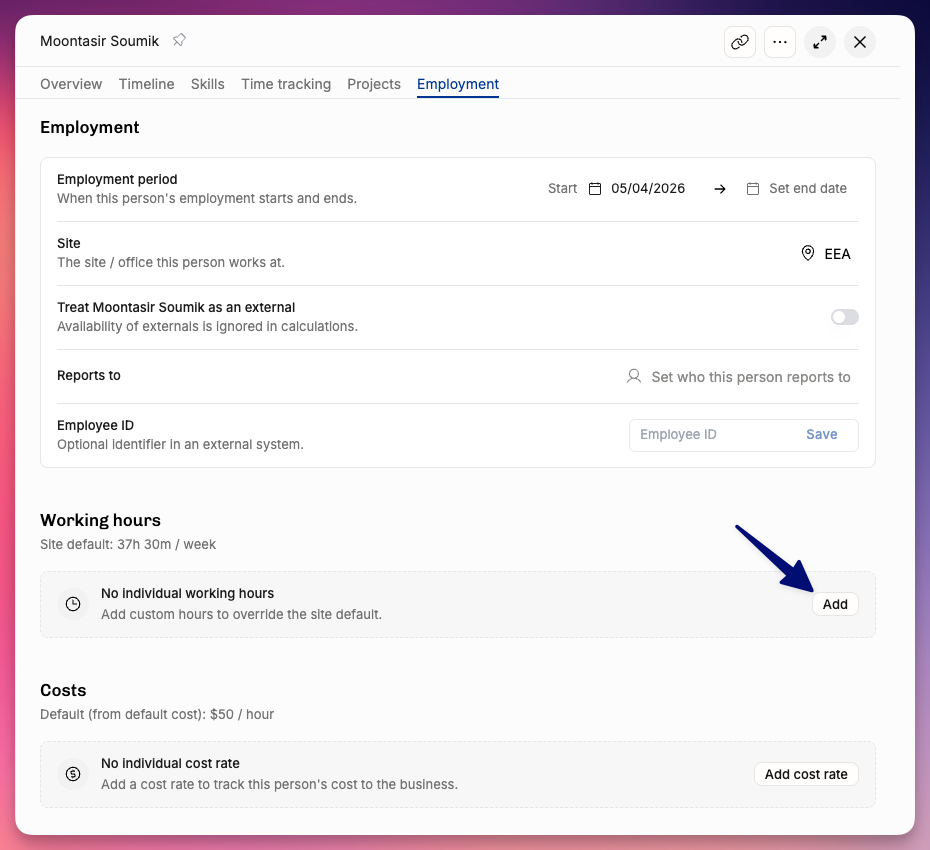
You can change someone’s working hours in the Person details page → Employment → Add individual working hours-button:
This quite old 2-minute video explains how we handle allocations for anyone with individual working hours:
Some edge cases you want to be aware of:
If a long work allocation spans over changes in working hours, we strongly recommend splitting the allocation bar at the day of the change. This will make it obvious that there is a sort of a discontinuation point – even if the project work itself stays the same, the % of that person’s week changes and people doing the staffing should take note.
We don’t show which days of the week people are working. We recommend using the Note on the individual working hours – it is shown on the edit allocation popover and in the expanded person view on the People Timeline.
A Person without individual working hours follows the default working hours of their Site on each date, so moving to another Site with different hours is also a change in working hours. See Sites.
If you have any questions or ideas related to managing part-time work more fluently in Operating, we’re open to all suggestions at support@operating.app – thanks in advance!
Was this helpful?
Still need help? Ask the team