How to give team members access to Operating
Guide to user management in Operating
Written By Lauri Eurén
Last updated 17 days ago
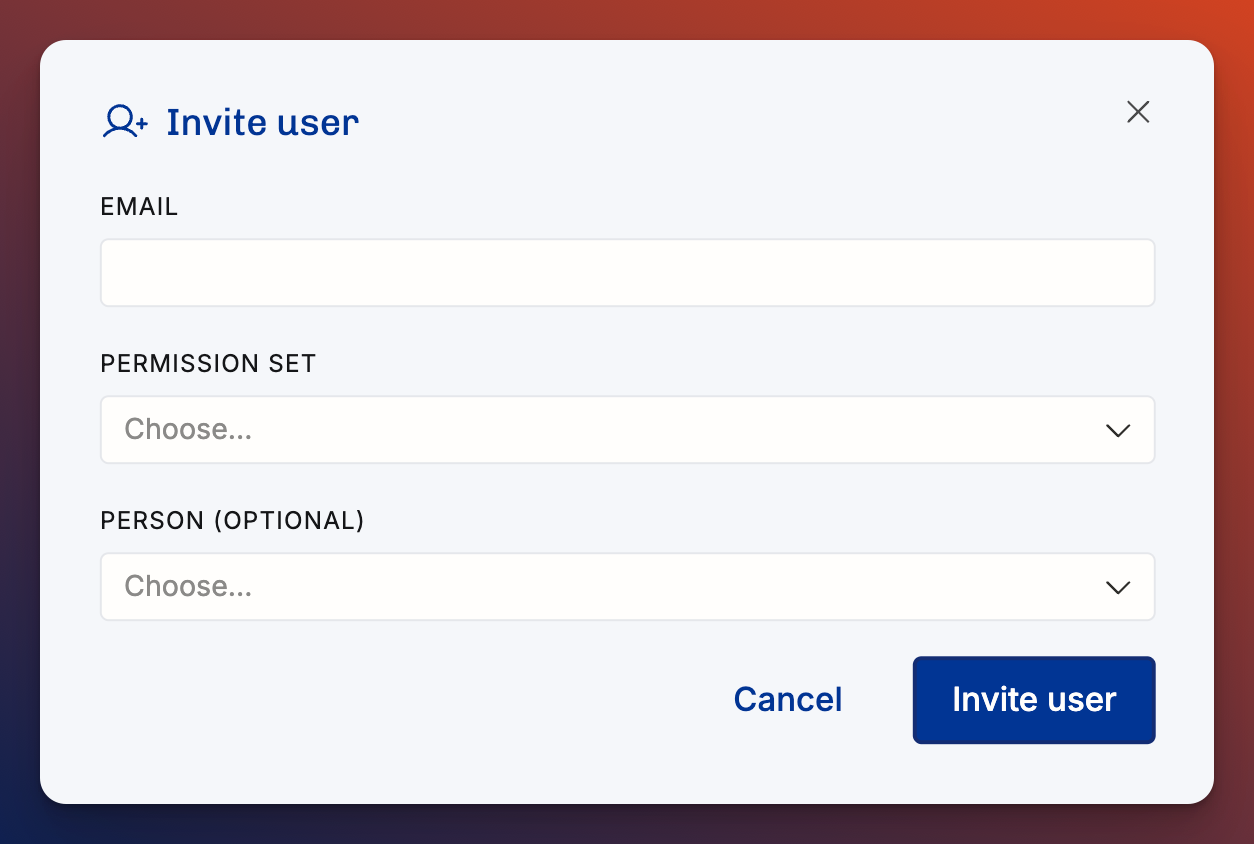
Navigate to Settings → Users → Invite User
Enter their email address
This becomes their user ID (or use the correct ID for SSO users).
Set permissions
Choose what they can see and edit by choosing their permission set
Link the User to a Person
Select an existing person profile or create a new one.
Now this user can interact with Operating: allocate resources, track time, or look at reporting.
See which login method users use
In the Users list, you can see who is using the basic Email/Password authentication method:
To see everyone who uses the same login method together, open Display and group the list by Login method.
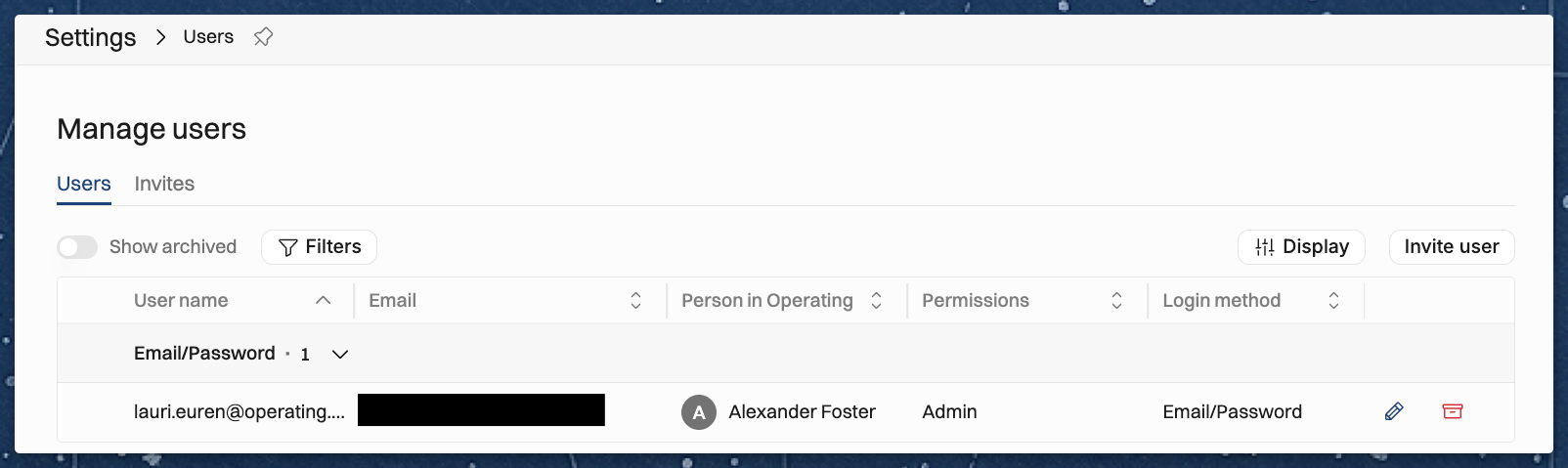
This is important if you have SSO set up and you want people to use that exclusively. If you click the archive icon on a user's row and confirm with Archive user, the user is marked as archived (inactive) and will not be able to log in anymore. All data for the user and the person they have been linked to will be preserved.
Restore an archived user
Go to Settings → Users and turn on Show archived.
Click the unarchive icon on the user's row.
Confirm with Unarchive user.
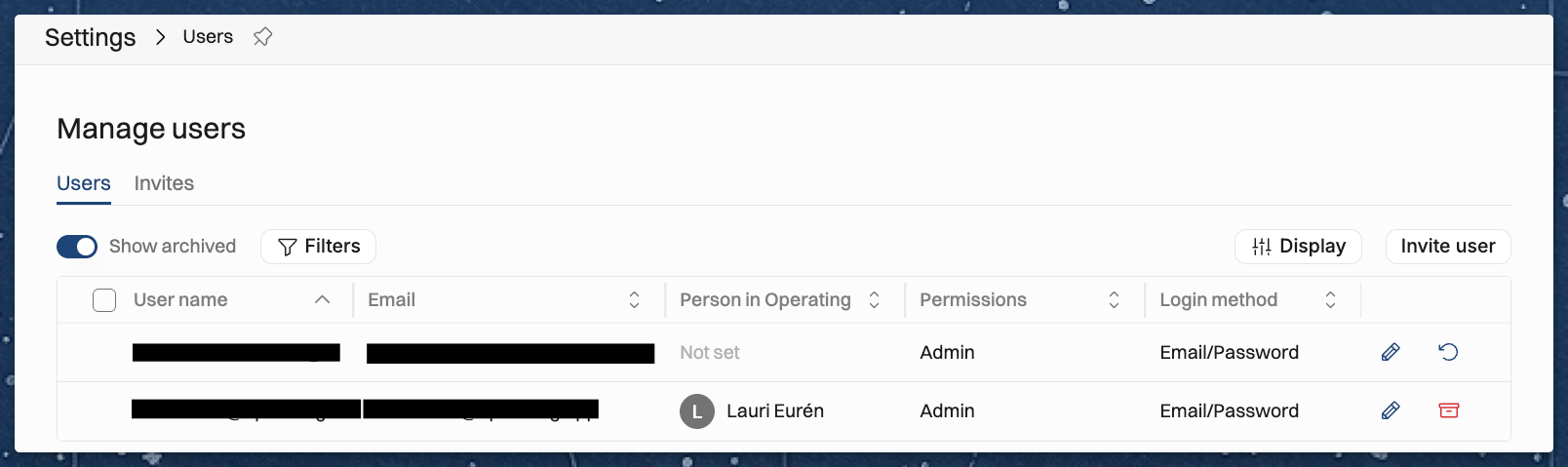
The user can log in again, with the same permission set and linked person as before.
Users who log in with single sign-on can't be unarchived from Operating. Give them access again in your identity provider.
If you invite an archived user again, Operating restores them automatically the first time they log in.
Was this helpful?
Still need help? Ask the team