Who can track time on a project?
Two things decide whether a Person can track time on a project: their time-tracking permissions and their project membership — both need to allow it.
Written By Matti Parviainen
Last updated 13 days ago
Two things decide whether a Person can track time on a project:
- Time-tracking permissions: what their permission set allows.
- Membership of the project: usually because they're assigned to a Position.
A Person can log time on a project when they're a member of it and their permission set allows tracking. You set the permissions in Settings → Permissions. Each project can also be opened up so anyone can track time to it.
Whose membership counts
Operating checks the membership of the Person the time entry is for, not of the user who enters it. When a manager enters hours for someone who reports to them, the Person needs a Position on the project. The manager's own Positions don't count.
This check applies when the user's permission set allows time entries only for projects they're a member of. With For all projects they can see, there is no membership check. Projects open to everyone are always allowed.
Turn time tracking on or off
In Settings → Permissions, a top-level toggle controls whether a permission set can see the Hours tab at all.
On — these people track time in Operating.
Off — best for people whose time comes in another way (tracked outside Operating and imported via the API or file upload).

What each permission controls
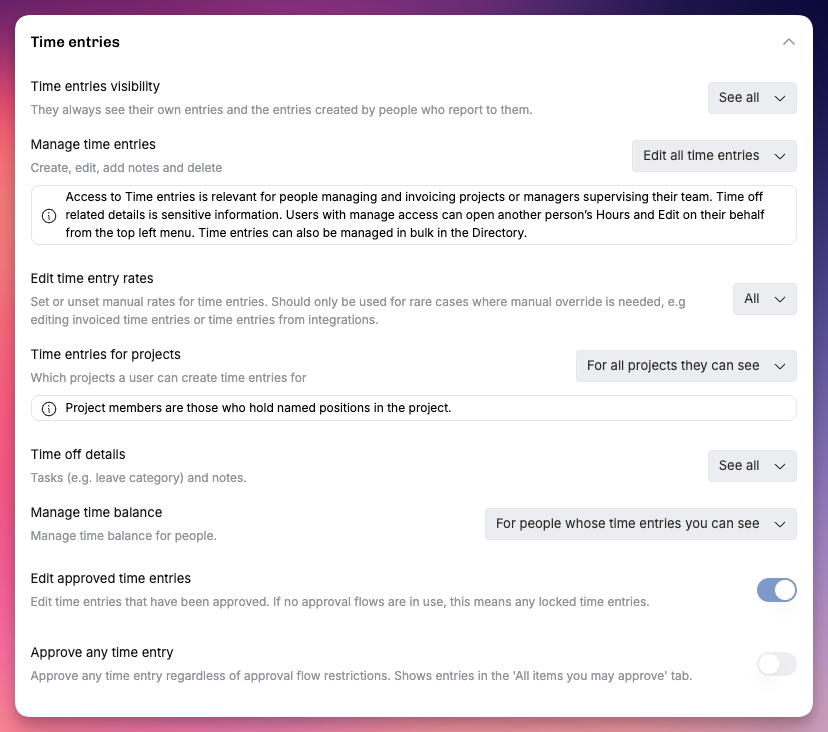
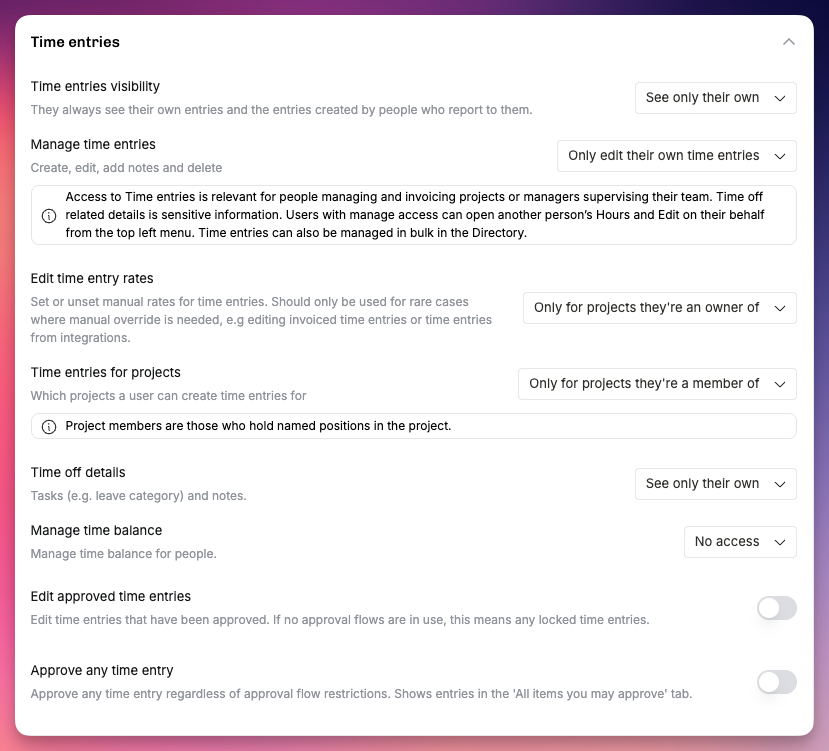
For permission sets that have time tracking on, you can set:
Time entry visibility — only their own, or all entries for the people and projects they can see.
Manage time entries — only their own, all, or none.
Time entries for projects — only projects they're assigned to, or any project they can see.
Time off details — only their own time off, or everyone's (for example, a colleague's sick leave).
Manage time balance — whether they can manage time balance for the people whose entries they can see.
Edit approved time entries — whether they can change hours after they've been locked and approved (rarely needed).
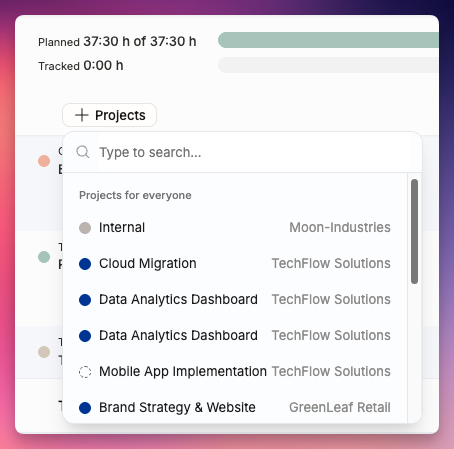
With the first, the Hours dropdown lists Projects for me and Projects for everyone. With the second, it also lists every other project they can see, under Other projects.
Two common setups
Full access — for managers and admins. They can:
- see and edit all entries
- track time on any visible project
- see all time off
- manage time balance
- edit approved time.
Typical member — for consultants. They:
- see and edit only their own entries
- track time on the projects they're assigned to
- see only their own time off
- have no time balance access
- have edit-approved off.
Keeping edit-approved off means they're responsible for locking correct hours. If an approver finds an issue, the hours can be unlocked and re-sent. After approval, only a manager or admin edits them.
Moving time entries
The same membership rule applies when you move a time entry to another project or to another Person. The Person who will own the entry needs a Position on the new project. An edit that keeps the project and the Person has no membership check, so you can still correct the hours or the note on an entry on a project the Person has left.
Let anyone track time: common projects
Sometimes you want a project anyone can log time to — an internal catch-all, for example. On the project, go to Project details → Time tracking and turn on Allow tracking time without position assignment. You can also toggle this setting on globally under settings → time tracking.
Anyone can then track time to that project, even without a Position on it. This overrides the "track time on assigned projects only" permission.
These projects appear under Projects for everyone in the Hours dropdown, so a Person can pick one even if they can't otherwise see the project.
Related articles
Was this helpful?
Still need help? Ask the team