Understanding expenses in Operating
Written By Lauri Eurén
Last updated 7 days ago
Expenses in Operating are how you record costs that aren't time. Time entries capture the labor side of a Project's actuals. Expenses capture everything else, such as contractor invoices, travel, software licenses, equipment and materials.
This article explains how the expense system fits together so you can decide how to use it.
Expenses vs. Time entries
Operating tracks Project actuals in two parallel streams:
Time entries — labor cost, captured through time tracking, valued at billing and cost rates.
Expenses — non-labor cost, entered manually, valued at the amount paid (and optionally marked up for billing).
Both flow into the same downstream surfaces: project profitability, planned vs. actuals reporting, revenue recognition for fixed-price Projects, and invoicing. The distinction matters because the lifecycles differ. Time is logged in small daily increments; Expenses tend to come as discrete events tied to a specific invoice or receipt.
Expenses are optional. Operating treats expense tracking as a separable module, which an organization can turn on independently of the invoicing module. This makes Expenses useful even for organizations that don't invoice through Operating but still want cost tracking and forecasting.
The structure of an Expense
A single Expense in Operating is more than just an amount. It's a record made up of:
Top-level fields — date, description, Project, optional Vendor.
One or more line items — each with its own Expense category, amount, markup, and billable flag
Receipts — one or more files attached to the Expense as a whole, not to individual line items.
The multi-line-item model exists because real-world costs often span categories. A contractor's monthly invoice might include consulting work and travel reimbursements — two line items in different categories under one Expense, rather than two separate Expenses to reconcile.
Each line item carries its own:
Expense category — the type of cost (Travel, Subcontractors, Equipment, etc.). The Category determines the markup applied to the line item's cost when invoicing the client.
Description — what the line item covers
Cost — the amount paid, in the Expense's currency.
Billable flag — controls whether the line item generates revenue. Non-billable line items still record cost but never appear on a client Invoice.
Whether a receipt is required for the Expense depends on the categories used across its line items. If any line item uses a category that requires a receipt, the Expense as a whole needs at least one receipt attached before it can be saved.
Expense categories
Expense categories are the taxonomy costs are classified under. A new organization starts with these categories: Travel, Accommodation, Meals, Local transport, Subcontractors, Software & licenses, Equipment, Materials and Other. All of them are billable by default, with no markup and no receipt requirement, so set the markups and receipt rules your firm uses.
Categories do three things:
Standardize how costs are recorded. Everyone in the organization uses the same labels, so reporting is comparable across Projects.
Set defaults that line items inherit. A new line item inherits its category's markup and billable default. The billable flag can be toggled per line item.
Roll up costs in reporting. Costs aggregate by category across reporting surfaces — Project, quarter, or organization-wide — with no manual grouping.
Categories are configurable: admins can rename them, change defaults, or add new ones.
Reimbursable and reimbursed Expenses
Reimbursement tracks money that your organization owes back to the person who created an Expense. Each Expense has two marks for it:
Reimbursable: the Expense is owed back to the person who created it.
Reimbursed: that person has been paid back.
Both marks start off. These rules apply:
- An Expense must be reimbursable before it can be marked reimbursed.
- An Expense with no creator can't be reimbursable.
- An Expense that is invoiced can't have Reimbursable changed.
- Turning Reimbursable off on a reimbursed Expense also clears the reimbursed mark.
Operating records the marks only and does not send the money.
Reimbursement is off by default. An admin turns it on with Enable reimbursement in the Reimbursement group of settings → Expenses. While reimbursement is off, the Reimbursable switch, the reimbursement badge, the list columns and the edit options for reimbursement are hidden.
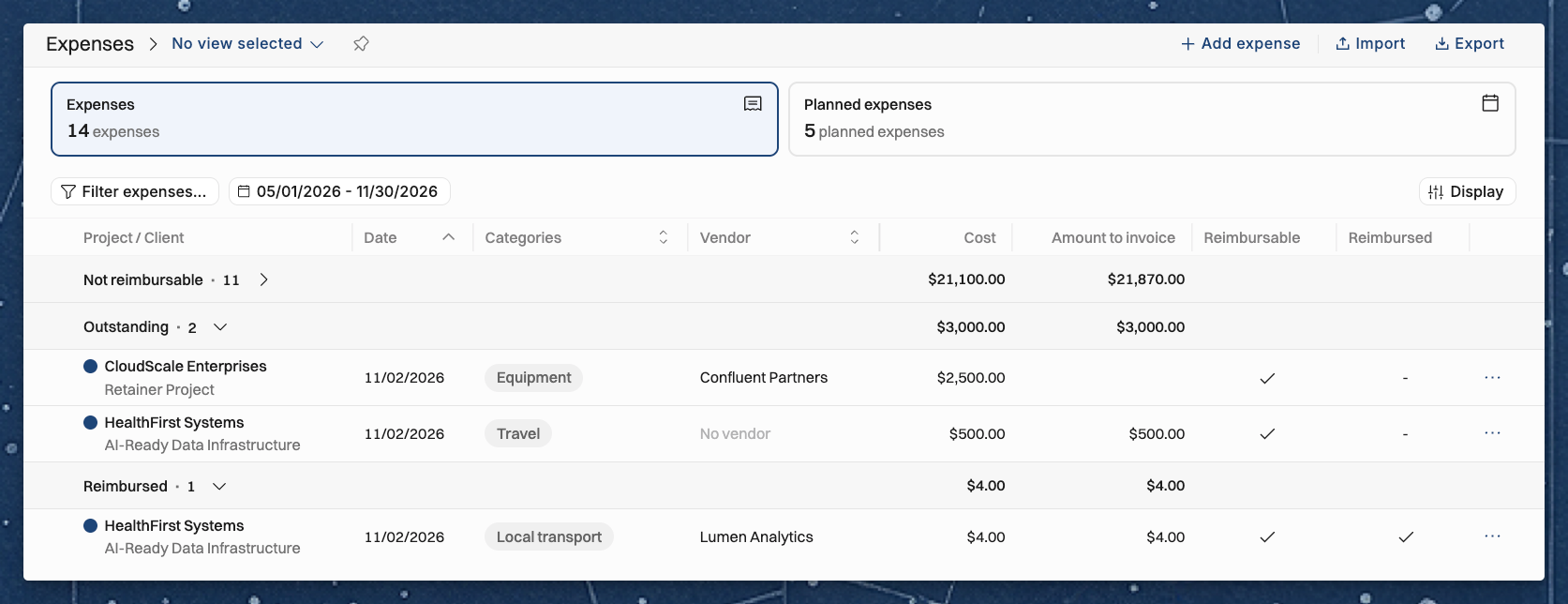
When reimbursement is on, the Expenses list has two extra columns, Reimbursable and Reimbursed. Each column shows a check mark when the mark is on and a dash when it is off. You can also group the list by Reimbursement, into these groups:
Reimbursed: Expenses whose creator has been paid back.
Outstanding: reimbursable Expenses whose creator has not been paid back yet.
Not reimbursable: Expenses that are not owed back.
To mark one Expense, see How to add expenses and expense budgets. To mark several Expenses at once, see Marking Expenses as invoiced or reimbursed below.
Vendors
A Vendor is the supplier or merchant a cost was paid to — a contractor, an airline, a software company. Vendors are optional metadata on an Expense, but they make reporting cleaner: you can see spend by Vendor without searching through descriptions.
Vendors are managed at the organization level. New Vendors can be added inline while entering an Expense, or maintained as a list in settings. Archived Vendors stop appearing in pickers, but their historical Expenses remain intact.
Marking Expenses as invoiced or reimbursed
In https://use.operating.app/expenses, you’re able to select one or multiple expenses and choose to edit them:
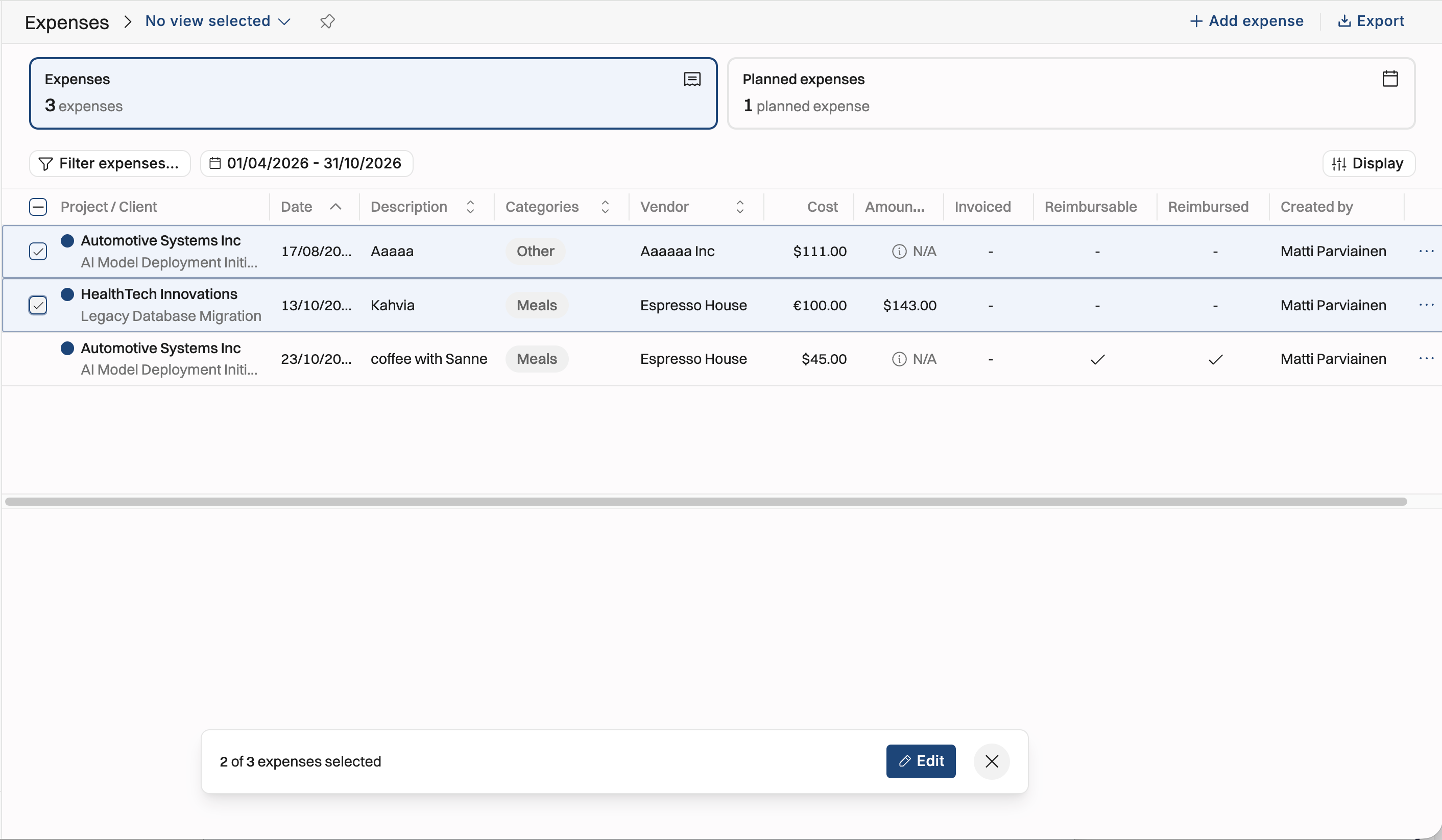
After you select the Expenses, click Edit at the bottom of the screen. In the dialog, pick a field in Field to set and choose the setting for the selected Expenses.
Invoiced is always in the list. Reimbursable and Reimbursed are in the list only when reimbursement is turned on.
The options are:
are the selected Expenses invoiced
are they reimbursable
are they reimbursed
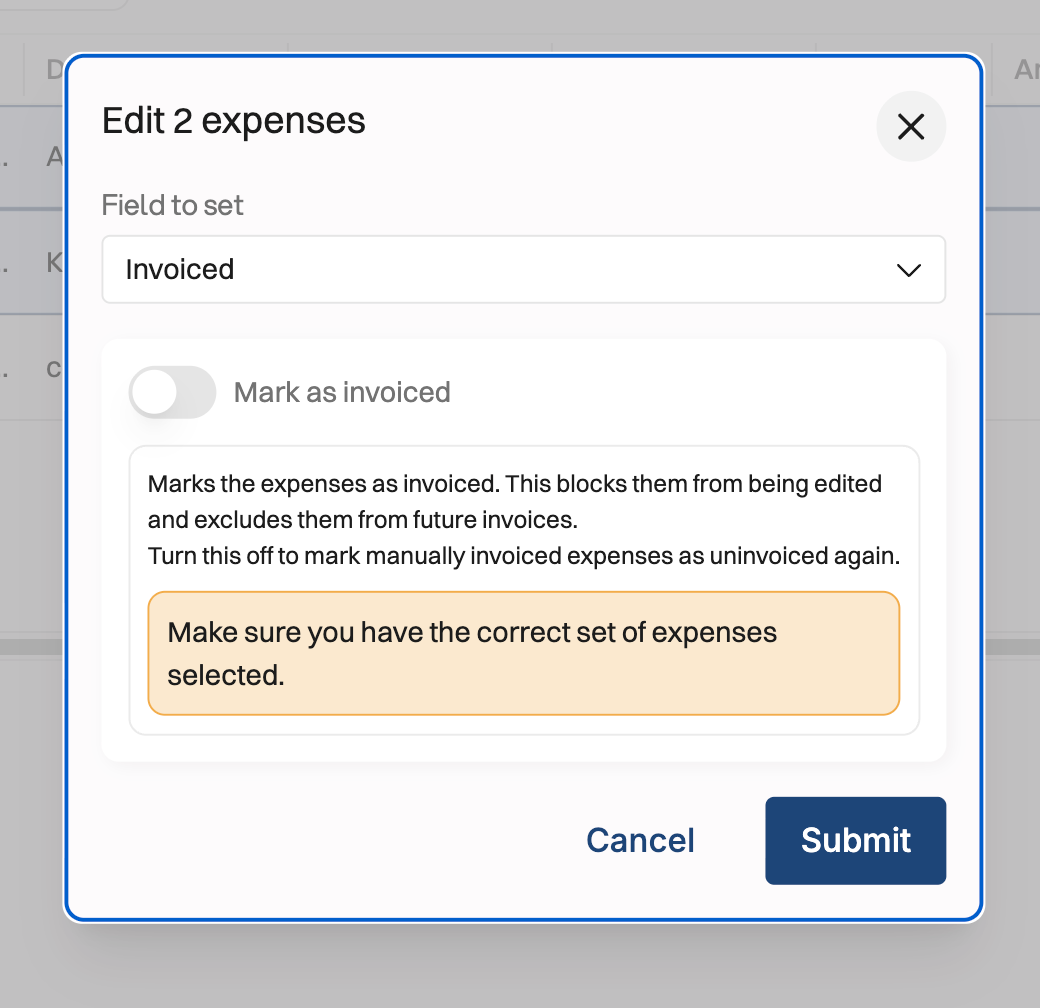
The dialog skips the selected Expenses that a change can't apply to, and shows a warning when the selection holds any:
Invoiced: Expenses on an Operating invoice are skipped. The warning says how many, for example "2 of 5 selected expenses are on an Operating invoice and will not be changed. Delete the related invoice instead." To change those Expenses, delete the related invoice first.
Reimbursable: invoiced Expenses are skipped. The warning reads "Invoiced expenses stay as they are. Reimbursement does not change an invoice." The other selected Expenses are updated.
Reimbursed: Expenses that are not reimbursable are skipped. The warning reads "Only reimbursable expenses can be marked reimbursed. The others stay unchanged." If those Expenses are owed back, turn on Reimbursable for them first.
When the change is saved, a message shows how many Expenses were updated, for example "Updated 3 expenses".
After you’ve submitted, you can see the changed state in the list:

Planned vs. actual Expenses
Expenses follow the same Planned vs. actuals pattern that runs through the rest of Operating's financial model. On the labor side, Allocations represent planned work and Time entries represent actuals. On the cost side:
A Planned expense is a future-dated cost you expect to incur — for example, a subcontractor invoice you know is coming in March. Planned expenses appear in forecasts and on project burnup charts on their planned date.
An actual Expense is the recorded cost once it has materialized.
Planned expenses and actual Expenses are kept as separate records. When a planned cost becomes real, Operating creates a new actual Expense pre-populated with the Planned expense's data. It doesn't update the Planned expense in place. So the original forecast and the recorded reality both exist as their own records.
The Planned expense remains afterward, and that's by design. It sits on the planned side of Planned vs. actuals reporting, while the new actual Expense sits on the actuals side. Keeping both is what makes the comparison meaningful. Deleting the Planned expense after the actual is recorded would erase the forecast the Planned vs. Actuals report depends on.
If only actuals are recorded and never plans, Expenses still work as a pure cost-tracking tool. The forecasting benefit is lost, but nothing else changes.
Expense budgets
Where a Project budget sets the total monetary value of work, an Expense budget sets a category-level allowance within that. For example: a fixed-price Project with a €100,000 budget might carve out €5,000 for Travel and €15,000 for Subcontractors. Anything spent or planned in those categories counts against those targets.
Expense budgets are planning guidelines. They don't directly affect revenue recognition, and they don't block spending beyond the allowance. They make project burndowns more accurate by separating expected non-time costs from labor costs. They also make it visible when one category is trending over while others have headroom.
On a retainer Project, you set Expense budgets once in the retainer settings, and every retainer period gets the same Expense budgets. They come out of the fee, and billable Expenses are still billed on top of it. See How to set up a retainer project.
How Expenses affect Project financials
Expenses interact with Project financials in four ways:
Cost. Every Expense line item's amount counts as cost on the Project, regardless of whether it's billable. This is what feeds gross profit and margin calculations.
Revenue (time-and-materials Projects). A billable line item's amount to invoice is its revenue from the Expense's date. It does not wait for the invoice.
Revenue recognition (fixed-price and capped T&M Projects). Expenses consume Project budget before labor in the recognition flow — so a billable Expense reduces the budget available for revenue from time. If Expenses exceed the budget value, their revenue is capped at the budget. Under an hour cap, billable Expenses earn in full and use none of the cap.
- Revenue (retainer Projects). A billable Expense is earned and invoiced in full on top of the retainer fee. It never uses up the fee or the included hours.
The cost counts as soon as the Expense is recorded. On a time-and-materials Project the revenue does too. On the other billing types, the revenue follows the recognition rules above.
Permissions and visibility
Expense permissions follow a clear rule: if you can see an Expense, you can see its cost. Cost is a fundamental part of what an Expense is. The invoiceable amount and revenue side follow the viewer's existing revenue permission level. Someone who can see Expenses without revenue access still sees what was spent, just not what was billed for it.
Four permissions split expense management:
Add expenses controls who can create Expenses.
Manage expenses controls who can edit and delete Expenses. Only people with All expenses for this permission can set or clear Reimbursed, or turn Reimbursable off on a reimbursed Expense.
Manage rates, budgets, planned expenses and baselines governs Planned expenses, Expense budgets, and Rate cards together — typically a more senior permission since these shape financial forecasts.
Manage expense settings controls who can add, edit and delete Expense categories, and who can edit and delete Vendors. Anyone who adds an Expense can create a new Vendor inline.
Related articles
Was this helpful?
Still need help? Ask the team