How to set up a time-and-materials (per-hour) project
Simple project setup for per-hour work
Written By Matti Parviainen
Last updated 13 days ago
Time-and-materials (T&M) is the most common billing type for consulting projects. The client pays for the actual hours worked, at agreed billing rates. Revenue is earned directly from time entries — every tracked hour generates earned revenue at the applicable rate.
This article walks through setting up a T&M project in Operating so that revenue, costs, and profitability are tracked correctly from the start.
What makes T&M different from fixed-price
With T&M, you don't need to choose a revenue recognition method or set up budgets. Revenue is straightforward: each time entry earns revenue at the billing rate that applies to the person, role, and project. There's no budget value to distribute — the earned revenue is simply the sum of hours × rates.
This means getting the rate card right is the single most important financial setup step for a T&M project. If the rates are wrong, every hour tracked earns the wrong amount of revenue.
Setting up the project
1. Create the project
Create a new project with the basic information:
Client — the customer company being billed
Company — the legal entity within your organization that will invoice this work
Site — the office or location associated with the project (affects rate card lookups if your rates vary by location)
Billing type — set to time-and-materials
Estimated start and end dates — initial planning estimates, overridden later by actual allocations and time entries
Project owner — the person responsible for this project's health
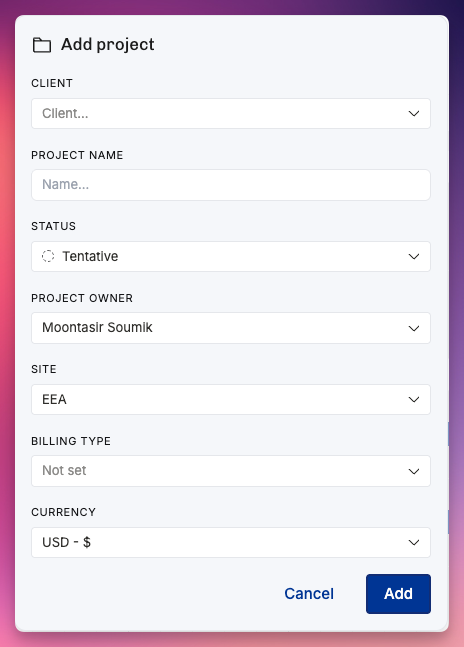
Optionally set groups and tags for reporting and filtering. See Projects in Operating for details on project metadata fields.
2. Assign a rate card
The rate card determines how much revenue each hour of work generates. Go to the project's Financial setup section and assign a rate card.
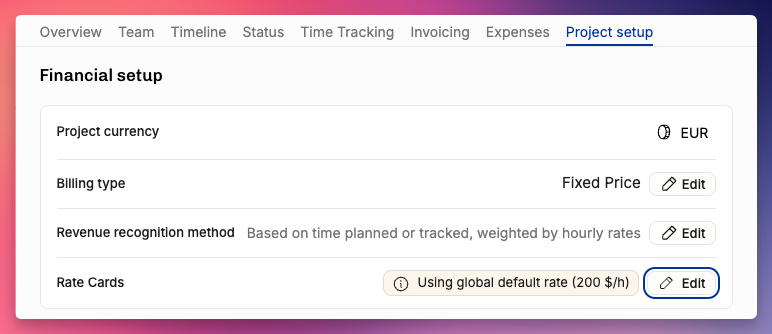
Operating uses a fallback hierarchy to determine the billing rate for each person's time:
Task-based rate — if the time entry is on a task with a specific rate set (see "Task-based rates" below)
Position-specific rate — if set directly on the person's position in this project
Exact match — role + seniority + site in the rate card
Role + seniority — if no site-specific rate exists
Seniority only — if no role-specific rate exists
Base rate — the rate card's default fallback
For example, say your rate card has these two rates:
- Senior Developer: 165 EUR/h
- Senior Developer, London: 180 EUR/h
A Senior Developer in Helsinki will get 165 EUR/h, because it falls back to role + seniority without site. A Senior Developer in London gets 180 EUR/h, because it's an exact match.
If no rate card is assigned, Operating uses the Global Average Rate from Settings → Financials. Make sure a rate card is assigned before the team starts tracking time. Otherwise all revenue is calculated at that fallback rate.
See How to set up rate cards for how to create and manage rate cards.
3. Set up positions and allocations
Add people to the project by creating positions and allocations. This is the same process as any other project — see How to staff a project from scratch and How to manage allocations .
For T&M projects, allocations serve two purposes:
Capacity planning — showing how much of each person's time is committed to this project
Revenue forecasting — planned revenue is calculated from allocations using the rate card rates. This is the "planned" side of Understanding planned vs. actuals.
The more accurate your allocations are, the better your revenue forecast will be. When people start tracking time, the "earned" (actual) revenue replaces the planned figures for past periods.
4. Set up cost rates (optional but recommended)
If you want to see gross profit and margin for the project, you need cost rates configured for the people working on it. Cost rates represent the internal cost of each person's time (derived from their salary or contractor rate).
Cost rates come from the Person, from the cost card for their Site, Role and seniority, or from your default costs, so you don't set them per project. The one exception is an external's cost, which you can override on a Position. If costs are already set up, the project shows profitability metrics automatically. See How to set up cost rates for setup instructions.
5. Configure invoicing (if using Operating for invoicing)
If you plan to create invoices in Operating, set up the invoicing details:
Verify the client has a contact person and billing address set
Configure an invoicing schedule (e.g., monthly) if you want Operating to help you track billing cycles
Choose the applicable tax rate
For T&M projects, invoices are created from the accumulated time entries for a billing period. See How to create and send an invoice for the full workflow.
How revenue works for T&M projects
Once the project is set up and people start tracking time, the financial picture builds automatically:
Earned revenue = sum of (hours tracked × applicable billing rate) for each time entry. This updates in real time as people log hours.
Planned revenue = sum of (allocated hours × applicable billing rate) for future periods. This is your revenue forecast.
Projected revenue = earned revenue (past) + planned revenue (future). This gives you the best estimate of total project revenue.
If no rate card applies, the time entry is valued at the Global Average Rate. When that rate is 0, the hours show in reports with no revenue, which is a sign that the rate setup needs attention.
A Global Average Rate of 0 can be very misleading. Set a reasonable best guess there instead, for example a recent month's average billing rate.
Position-specific rate overrides
Sometimes a client negotiates a different rate for a specific person than what the rate card says. Rather than creating a whole new rate card, you can set a position-specific rate directly on that person's position in the project.
Position-specific rates override the rate card entirely for that person. This is useful for:
Client-negotiated discounts for specific team members
Premium rates for specialists brought in temporarily
External contractors with pre-agreed rates different from your standard card
Task-based rates
In some projects, different types of work are billed at different rates. For example, a client might pay a higher rate for architecture work than for testing, or certain activities like project management might be billed at a reduced rate.
Operating supports this through task-based rates. You create tasks within the project and assign a specific billing rate to each one. When a person tracks time against a task with a task-based rate, that rate is used instead of the person's rate from the rate card.
To set up task-based rates:
Open the project's Project setup tab and scroll to Time tracking → Tasks for time tracking
Add new tasks or choose from existing task lists (task lists can be reused across projects)
Click on each task to configure it:
Billable or non-billable — whether time tracked to this task generates revenue in this project
Task-based rate — if enabled, set the rate in the project's currency per hour
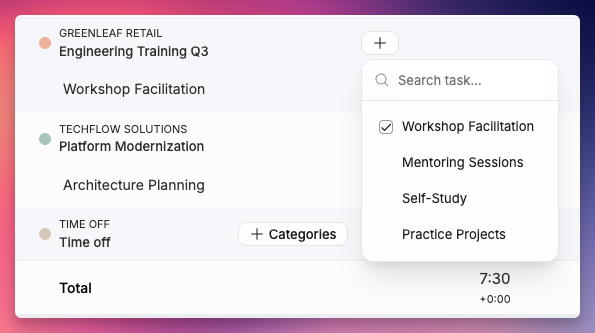
Task-based rates override both the rate card and any position-specific rates for time entries logged against that task. They are the first step of the fallback hierarchy in "Assign a rate card" above.
Task-based rates are especially useful for T&M projects where:
- the client contract specifies different rates for different activities
- certain work (e.g., travel time, internal coordination) should be billed at a lower rate or marked non-billable entirely
Budgets on T&M projects
T&M projects don't require budgets — revenue comes directly from time entries. However, you can optionally add a budget to represent the estimated total project value (e.g., the contract ceiling or SOW estimate). This is useful for tracking whether the project is on pace to hit the expected value, without affecting how revenue is calculated.
When things change
T&M projects are inherently flexible — the scope and team can evolve as work progresses. Common changes and how to handle them:
Rate changes mid-project: Add a new rate card to the project, starting on the date the new rates apply. Time entries before that date keep the earlier rate card's rates. A position-specific rate has no start date, so it applies to all of the position's time. To give a person a new rate from a set date, add a new position for them.
Team changes: Add new positions and allocations as people join, and end allocations when people roll off. The revenue forecast adjusts automatically.
Scope expansion: If the client extends the project or adds more work, extend allocation end dates and update the estimated project end date. No budgets to adjust (unless you're using an optional budget for tracking purposes).
Related articles
Projects in Operating — project metadata fields and identifiers
How to set up rate cards — creating and managing billing rates
How to set up a fixed-price project — setup guide for the other main billing type
Understanding planned vs. actuals — how planned and earned revenue compare
How to staff a project from scratch — positions and allocations setup
How to create and send an invoice — invoicing T&M time entries
How to set up cost rates — setting up costs for margin tracking
Was this helpful?
Still need help? Ask the team