How to add a client
How to create a new client in Operating, with the option to set an owner, mark it internal, and add contacts and tags afterward.
Written By Lauri Eurén
Last updated 4 months ago
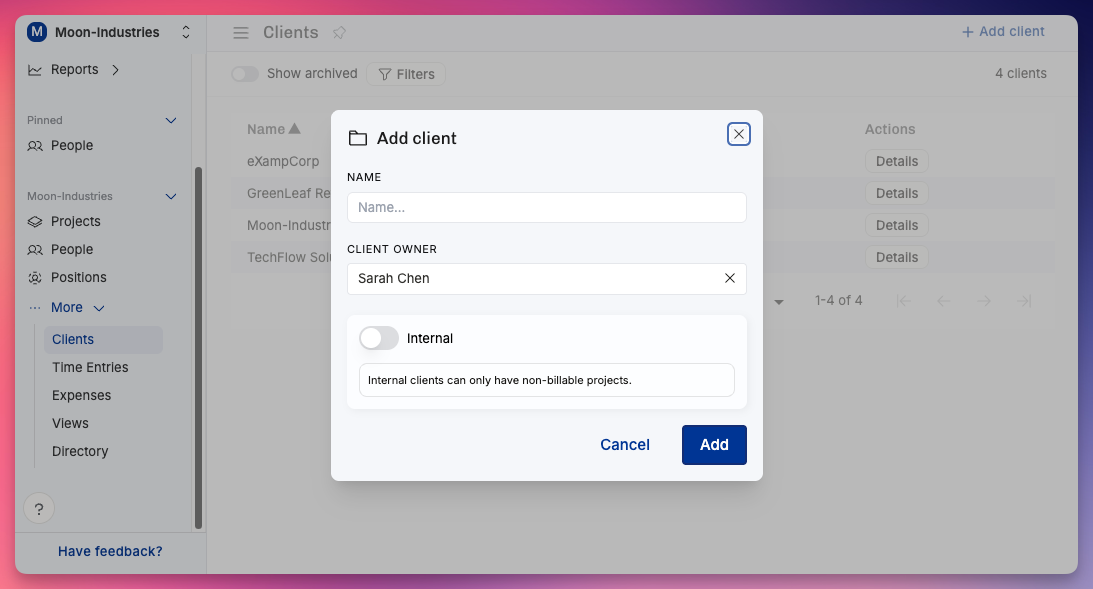
To add a client, open the Clients view, select Add client, enter the name, and select Add.
Go to the Clients view → Add client. Enter the Name (the only required field). Optionally set the Client owner (defaults to you). Optionally turn on Internal (internal clients can only have non-billable Projects). Select Add. Then open the Client to add contacts, address, and Tags.
Shortcut: when creating a Project, type a new name in the Client field to create the Client inline.
Clients are also created automatically when a new Project comes in through a CRM integration — the client name from the deal is used. See Salesforce CRM, HubSpot CRM, and Pipedrive CRM.
Was this helpful?
Still need help? Ask the team