What is a client?
A Client in Operating is a customer company you do billable work for — the entity that groups a customer's projects, invoices, and revenue together.
Written By Lauri Eurén
Last updated 13 days ago
A Client in Operating is a customer company you do billable work for. Every billable Project belongs to a Client, so the Client is how Operating groups a customer's projects, invoices, and revenue together.
What a Client holds — a Client owner (the Person responsible), contact details and address, a VAT ID, and Tags for grouping in reports. You add the name and owner when you create it. You fill in the rest on the Client's page afterward.
VAT ID — the VAT ID sits in the Properties row on the Client's page, beside the client number and the owner. Click VAT, type the number, and save. It shows Not set while it is empty. Only people who can edit the Client can change it.
The VAT ID is also available outside the app:
- Public REST API: you can read it, set it when you create or update a Client, and clear it by sending an empty value.
- MCP tools that AI assistants use: list_clients returns the VAT ID, and manage_client sets it or clears it.
Invoicing — when one of your Companies numbers its invoices per Client, the Client's page shows an Invoicing row. The row holds one tag for each such Company, with the number the next invoice from that Company to this Client will get. If you can edit Companies, click a tag to change the Client's sequence. See How to set up invoice numbering.
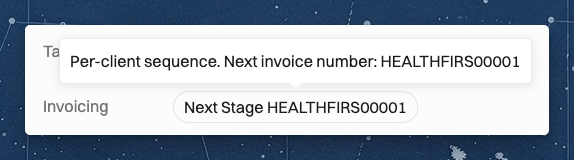
Client vs. Company (opposites, easy to confuse): a Client is the customer you bill. A Company is one of your own legal entities that issues the invoice. A billable Project has a Client and belongs to a Company.
Internal clients — a Client marked Internal can only have non-billable Projects. Use it to organize internal work without mixing it with real customers.
Contact info — the Contact info row on the Client's page holds the Client's addresses and contact persons. Click Add address or Add contact person to add one. When there are several, the row shows their count, such as 2 contacts. Click it to see them all.
Account plan — a text field on the Client's Overview for your notes on the account. It supports markdown. Only people who can edit the Client can change it.
Project history — the Client's Overview lists the Client's Projects, the most recently edited first. Each Project shows its status, the people allocated to it, who edited it last and when its allocations last changed. Archived Projects sit under Archived Projects. Click Show archived projects to see them. A Client without Projects shows No projects yet.
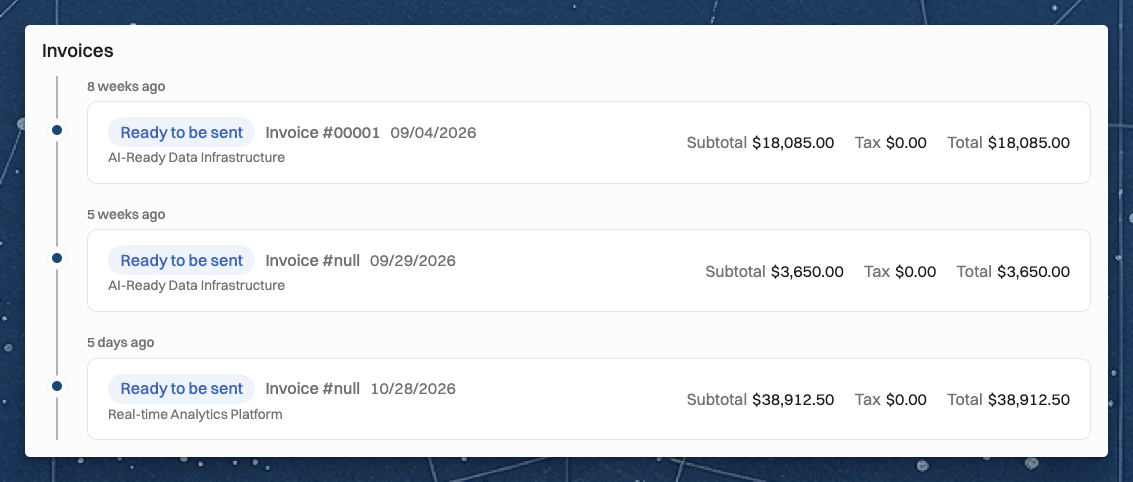
Invoices — the Client's Overview lists the Client's invoices on a timeline, in invoice date order and grouped by date. Invoices dated before today sit on a solid line, and the rest on a dashed line.
Each invoice shows:
its status and a colored dot
the invoice number and the invoice date
the names of this Client's projects on the invoice
Subtotal, Tax and Total
When an invoice also covers projects of other Clients, the card shows this Client's share of the subtotal, for example "1,000 of 3,000 invoice subtotal". A credit note sits under the invoice it credits and carries a Credit note badge. Click an invoice to open it.
You see the timeline when your organization uses invoicing and you can read invoices, or when you are the invoice owner of one of the Client's projects. When the Client has no invoices, the timeline shows No invoices yet.
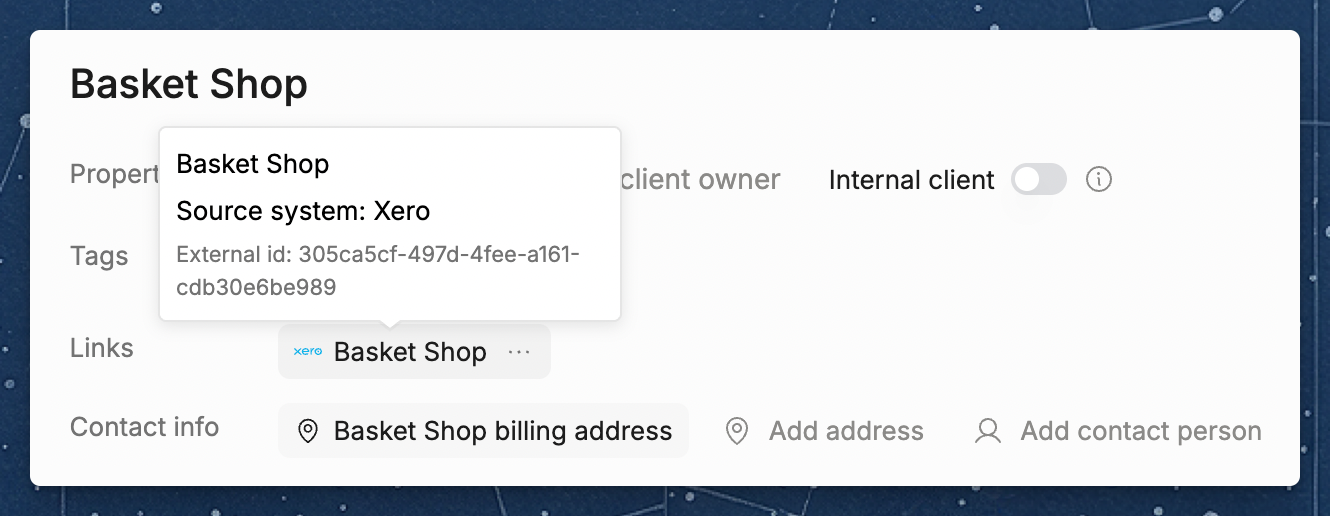
Links to records in other systems — when a Client is connected to a record in your CRM or accounting system, the Client's page shows a Links row with that record. The row only appears when at least one record is linked.
Each record shows the icon of the system it came from and its name. Hover over it to see the full name, the source system, and the external id.
When several external records point at the same Client, the row shows one item with the count, such as 2 clients. Click it to see them all.
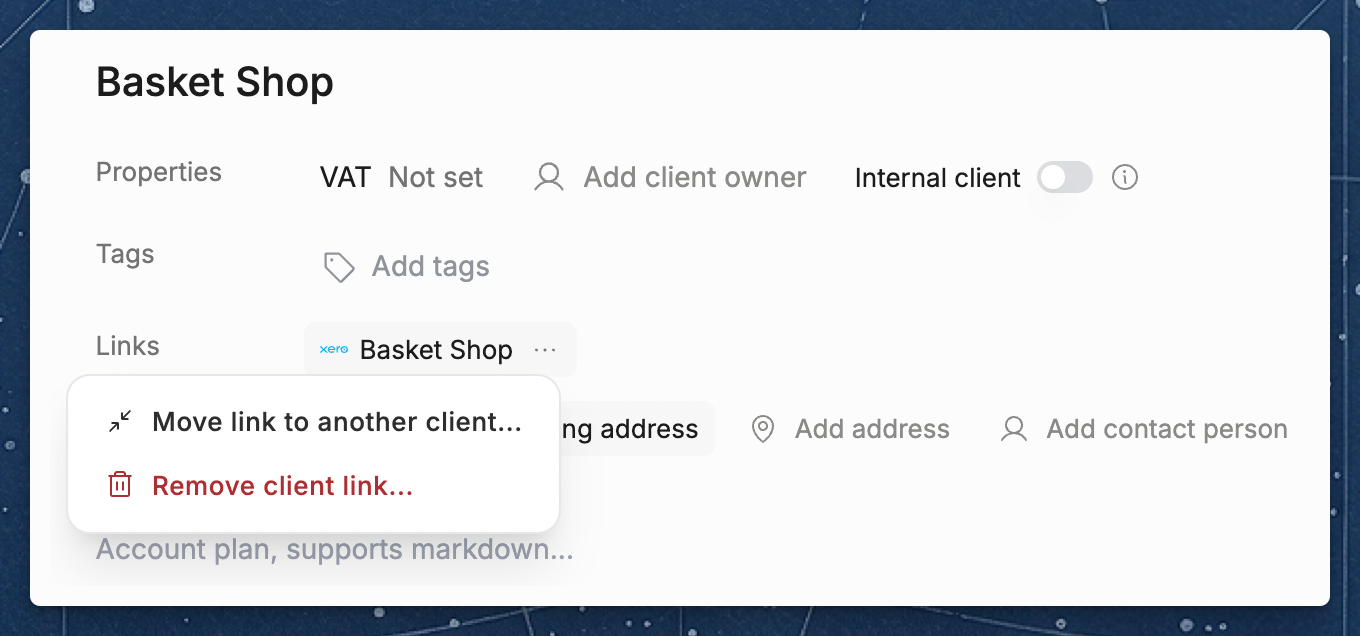
If your permissions let you edit Clients, each record has a … menu with two actions:
Move link to another client — pick a different Client in Operating, and the external record links to that one instead.
Remove client link — break the link between the Client and the external record. Nothing changes in the external system. If you run a data refresh later and the record is still there, Operating brings it in again as a new external client that is linked to nothing.
Was this helpful?
Still need help? Ask the team