How to move, reassign, or remove a position
How to manage Positions after they've been created — changing who fills them, editing their requirements, and moving them between projects.
Written By Lauri Eurén
Last updated 17 days ago
A Position is a Person's role on a Project (see What are Positions and Allocations?). Once it exists, you can change who fills it, edit what it requires, move it to a different Project, or remove the assigned Person, all without recreating it. Creating Positions and assigning people for the first time is covered in How to staff a project from scratch; this guide covers managing them afterward.
Before you begin
Positions live on the Project's Team tab and on the timeline. Allocations — the timing and intensity of the work — are managed separately; see How to manage allocations
Change or remove the person on a position
To change who fills a Position, open it from the Team tab ("…" menu → Edit position) and choose a different Person in Assigned person. To remove the assigned Person and leave the Position open, clear the Assigned person field.
If the Position has Allocations, a note under the field reminds you that the change applies to all of the Position's past and future Allocations. To keep the earlier Person's record intact — for example when someone rotates off a Project — add a new Position for the incoming Person.
The Position stays in place with its role, requirements, and Allocations. An open Position still generates planned revenue and cost through the rate card, so it keeps contributing to the forecast even before someone fills it.
When the new Person works different hours
Allocations are percentages of a Person's working time, so a new Person with different working hours, holidays, or time off would work a different number of hours on the same Allocations. When a change on the Position would do this, Operating opens a dialog — for example Assigning Aino V. to position — that asks which one to keep:
Keep total hours (selected by default) — adjusts the allocation percentages so the planned hours stay the same.
You’ve most likely agreed a fixed amount of hours your consultant works on the project, and that doesn’t change if the person changes.
Keep allocation percentage — the percentages stay the same, and the total hours change.
This is a rare case, where you would’ve tied the work to your people’s internal %-capacity.
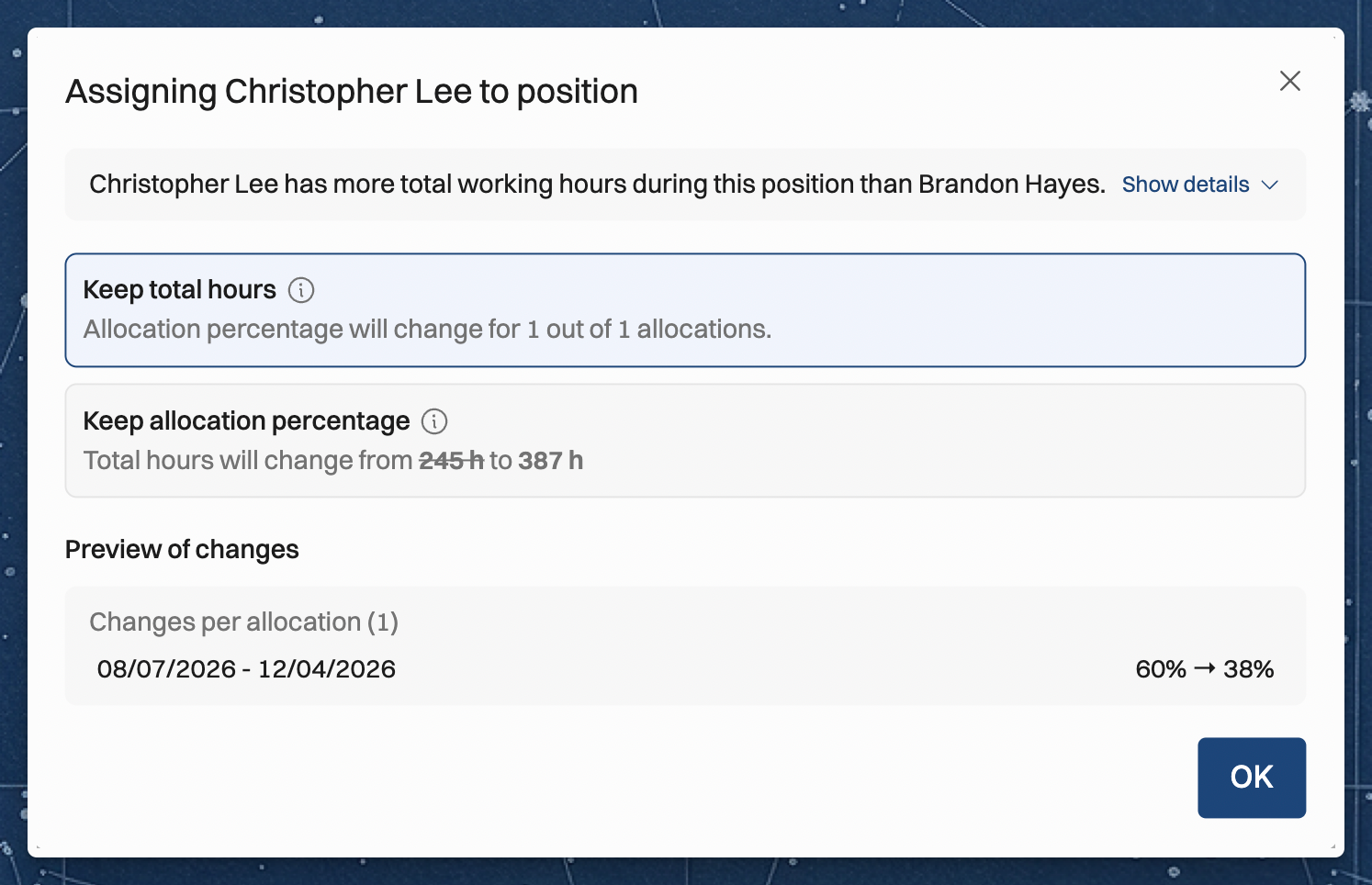
The dialog also shows:
How the two people compare. A sentence at the top says whether the new Person has more or less working time than the current one while the Position runs, for example "Aino V. has fewer total working hours during this position than Jonas L." Click Show details to see each Person's weekly working hours, site, and holidays or days off.
Preview of changes. A list of the Allocations that change under the option you picked, each with its old and new value. It warns you if an Allocation would go over 100%.
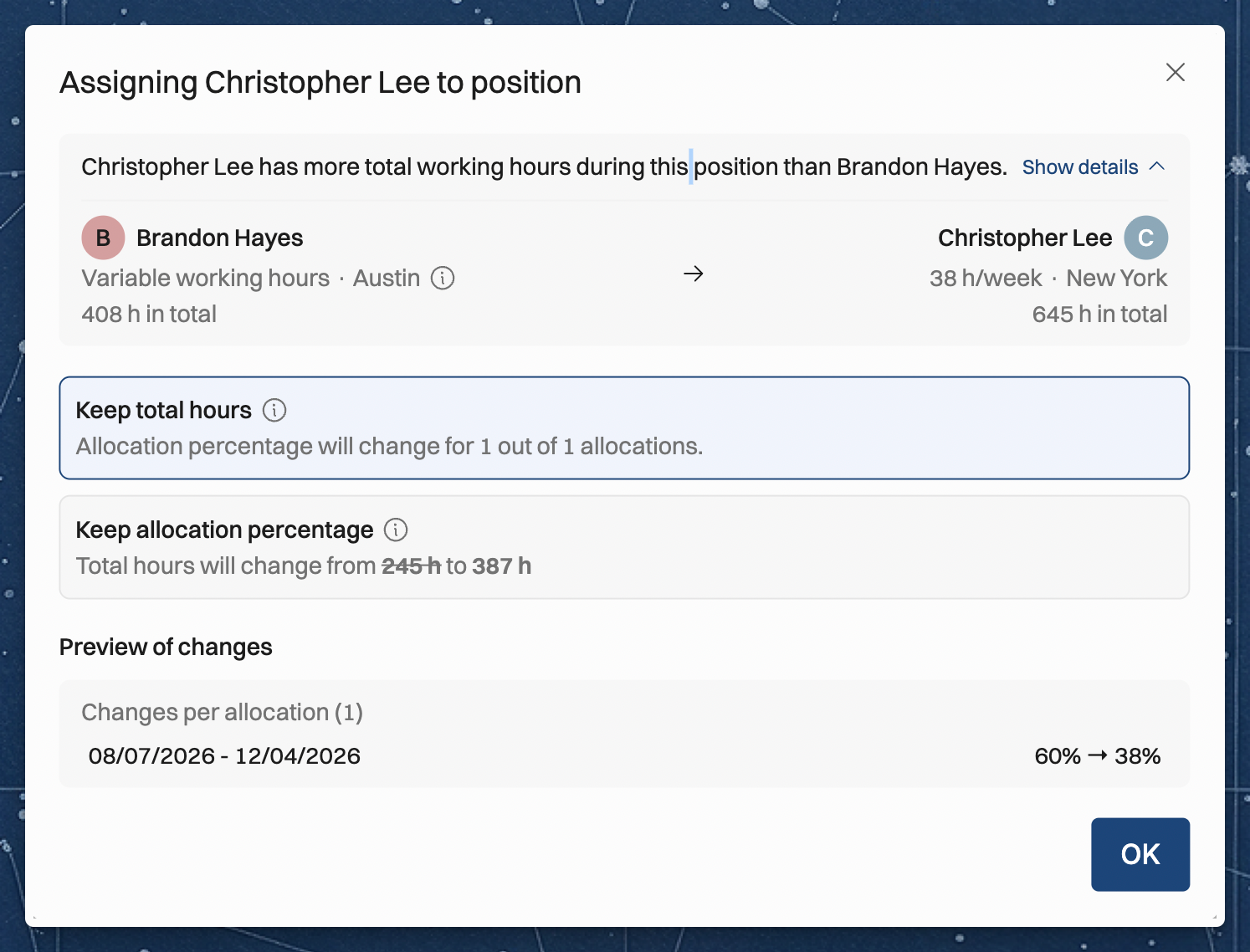
When you remove the Person, the dialog compares them with No assignee, which uses the working hours of the Position's site.
Keep total hours needs the new Person to have some working time during every Allocation. If they have none during one of them, only Keep allocation percentage is available. For example:
Jonas has a 50% Allocation for the week of 6 October, which is 20 hours.
You give the Position to Aino, who joins the company on 1 November. She has no working time in that week, so no percentage can give her 20 hours there.
The dialog says "Aino V. has no working time in these periods, so total hours can't be kept." With Keep allocation percentage, the week stays at 50%, and Aino has no planned hours in it.
Public holidays and full days of time off in a time off category where the Removes from capacity switch is turned on also count as no working time, so a week of leave can lead to the same message.
Click OK to close the dialog. Your choice then shows under the Assigned person field, and Change reopens it. The Allocations update when you save the Position.
Edit a position's requirements
Open the Position to change its role, site, seniority, or required skills. The role and seniority drive the billing rate through the rate card, and site can affect cost and charge-out rates — so editing these changes the Position's planned financials. Required skills help Operating suggest suitable people for an open Position.
Move a position to another project
If a Position and its Allocations were added to the wrong Project, you don't need to recreate them:
One Position: open it, use the "…" menu (top right), and choose to move it to another Project.
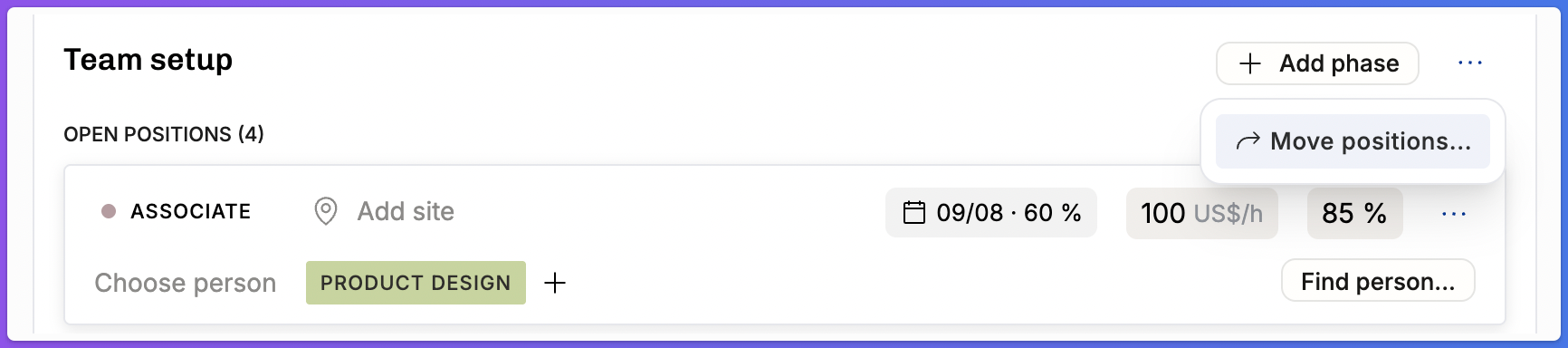
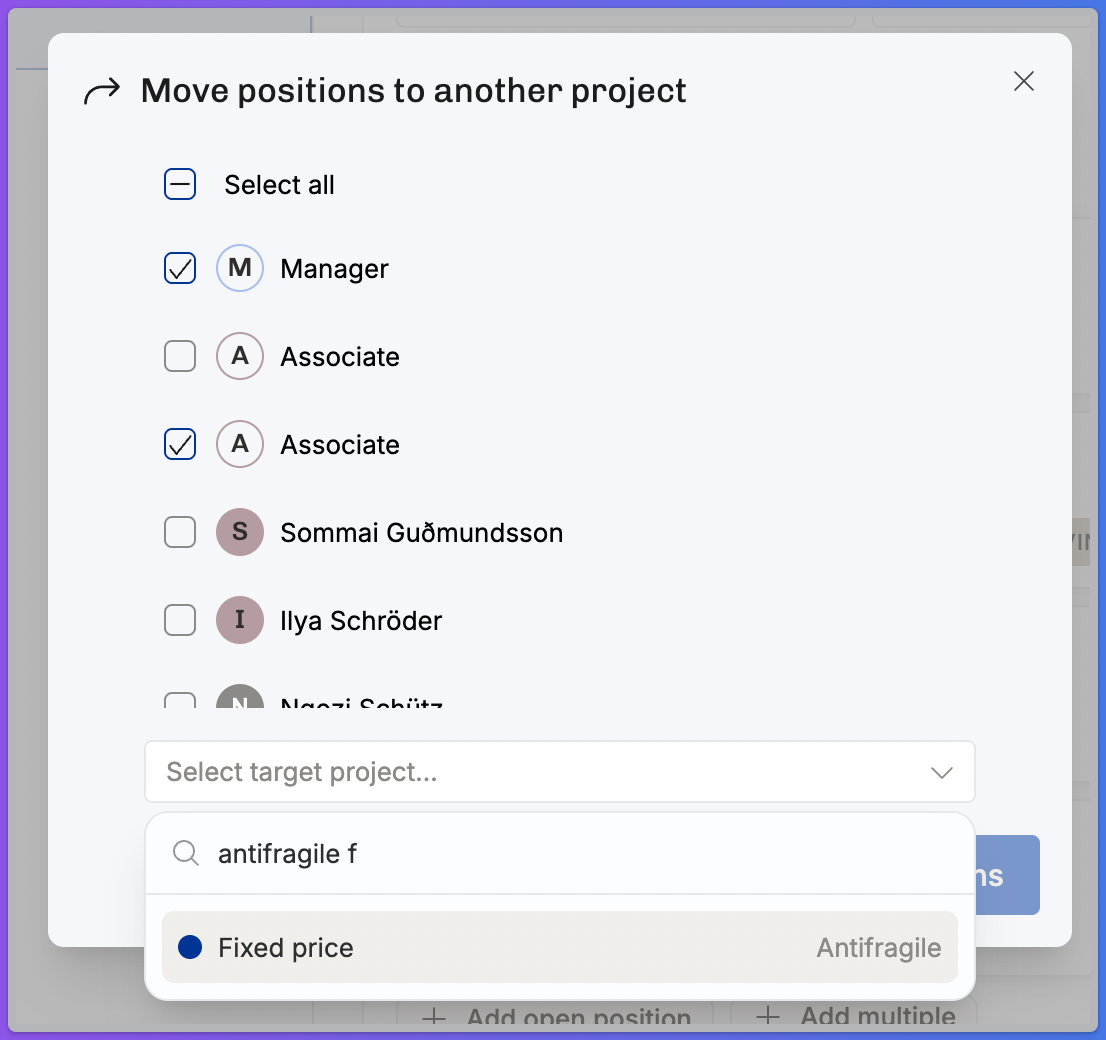
Several at once: on the project detail page, go to Team → "…" menu → Move positions.
After the move, the Positions' financials reflect the target Project's financials (such as its rate card).
Related articles
Was this helpful?
Still need help? Ask the team