Capacity in action: reading time off and overbooking
A worked example of how Operating reads capacity when time off and project work overlap — and how to fix an overbooked week.
Written By Matti Parviainen
Last updated 13 days ago
Example 1: planning the amount of work
Before you start a project, it is common to not know exactly who will be assigned to the team.
As you plan the amount of work, you have to assume how many days a person can do in the time that the project will take.
Then, if you assign people who don’t work exactly as much as you assumed, things start to get interesting:
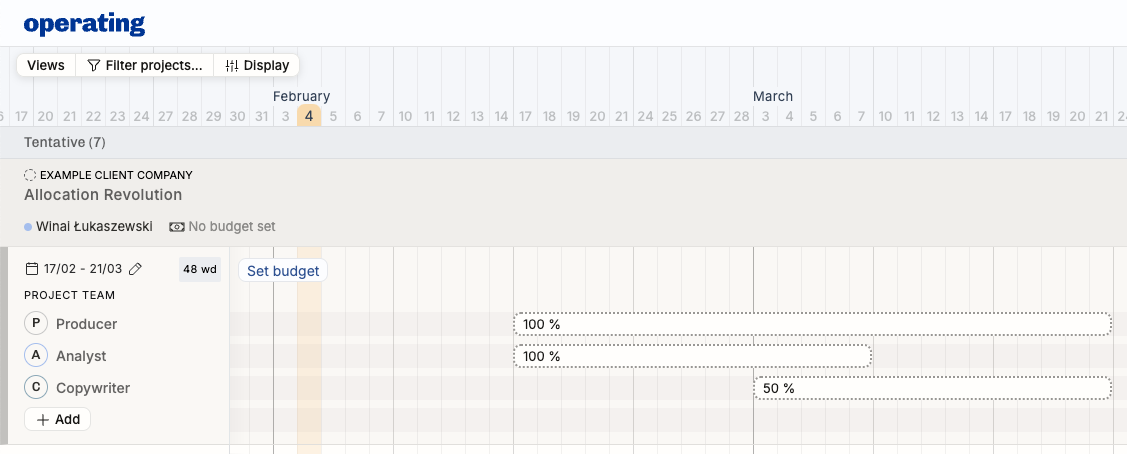
When planning the project below, the positions use unnamed placeholders, e.g. Producer, Analyst and Copywriter. That means no person is assigned to the position yet.
For these placeholders, we calculate the amount of hours based on the Site default working hours (e.g. 40h/w for Toronto). These three blocks of work sum up to ~48 work days.
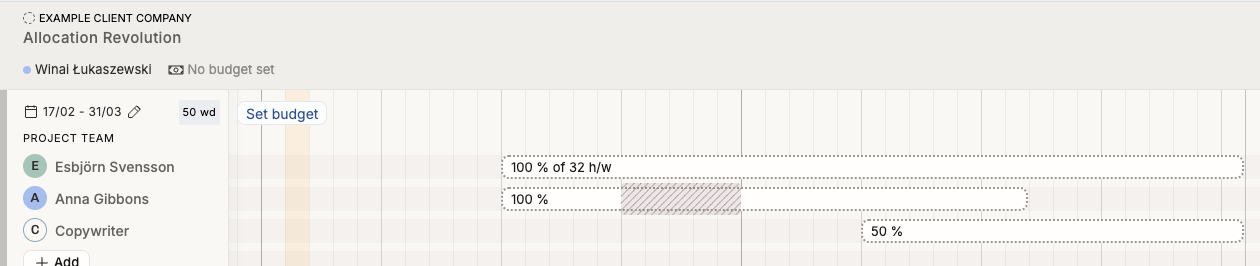
Next, we assigned Esbjorn to the Producer position. He only works 32h/week, and that’s instantly visible on the work effort. You might also notice that the total work day counter changed to 43 days.

What is likely going to happen here is if the project requires closer to 50 work days of effort, having Anna and Esbjorn in the team is not ideal. However, if the project timeline can be a little bit longer, then simply stretch out the allocation blocks and end up with this:
Example 2: how much work does a person have?
Day-by-day visualisation on Timeline – case Anna
Continuing from example 1, let’s look at Anna on the People side of the Timeline.
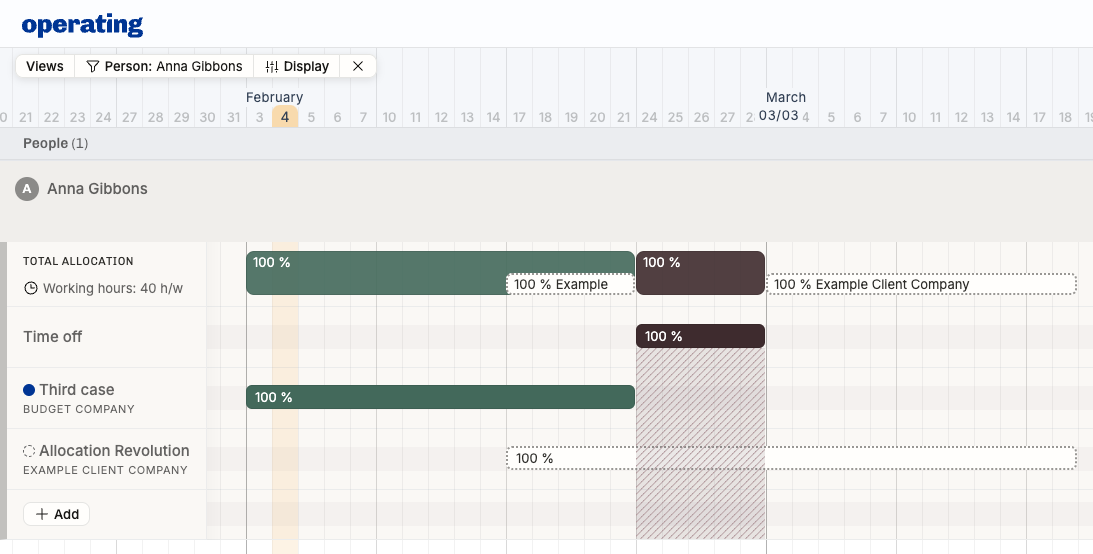
What’s visible here:
Confirmed 100% work from the beginning of February until the 21st
Tentative 100% work from 17th of February through 18th of March – the project we planned in example 1
Time off from 24th through 28th
A month summarised in Capacity – case Anna
When we look at her February in the Capacity report, this is what we see:
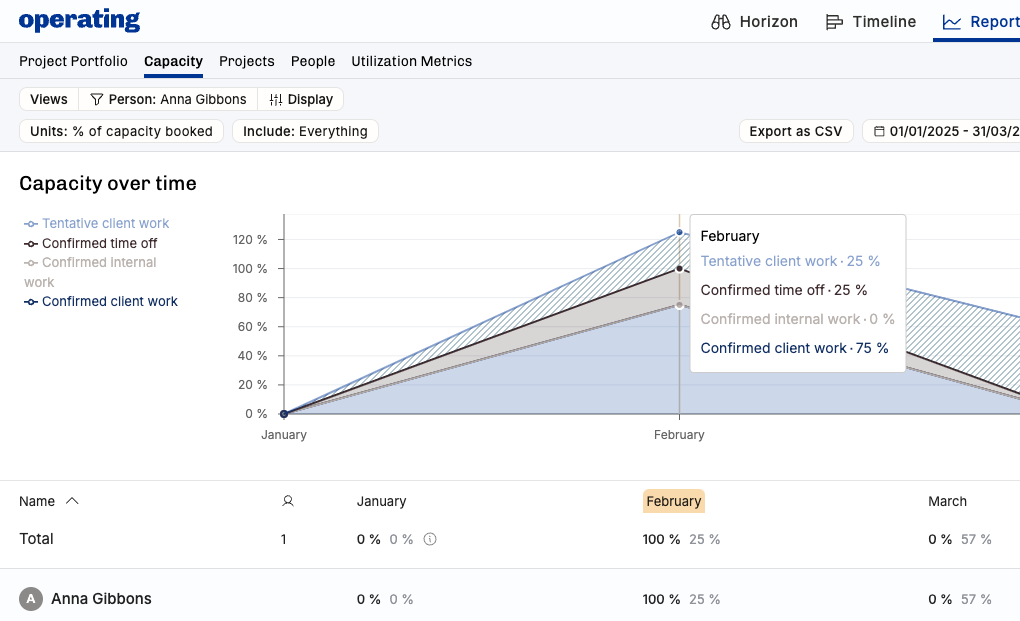
In this example, Anna's time off is in a category with Removes from capacity turned on, so the week of time off is not part of her available time.
Confirmed client work: 100% of her available time.
Time off: 25% of her time.
Tentative client work: 25%, in the third week of February. If this were confirmed, she would be at 125% of capacity, and 200% of the hours on that double-booked week would be very difficult to deliver. The tentative work under the week of time off is ignored.
With the switch turned off, as in the default Time off category, the week stays in her available time and shows as booked time off. The work under the time off is ignored in both cases.
Partial time off – case David
David Rodriguez works 40 hours a week. He has two confirmed allocations that together fill his week: 90% on FinTech Dynamics and 10% on CloudFirst Enterprise. He then takes two weeks of time off: a full week, and the week after it at 50%.
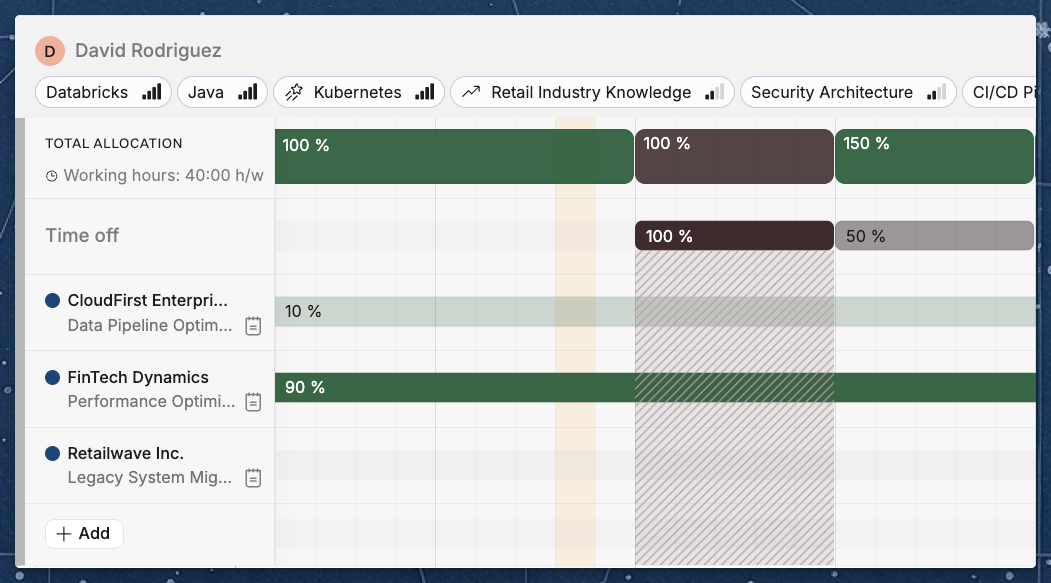
What the total bar shows:
Weeks without time off: 100%, the 90% and 10% allocations together.
The week of 100% time off: 100%. David is away the whole week, so the work under the time off is ignored.
The week of 50% time off: 150%, because the total bar adds the time off and the work together: 50% + 90% + 10%.
The 150% week is not marked as overbooked. Time off never counts toward overbooking, and David's confirmed work is 100%, not more.
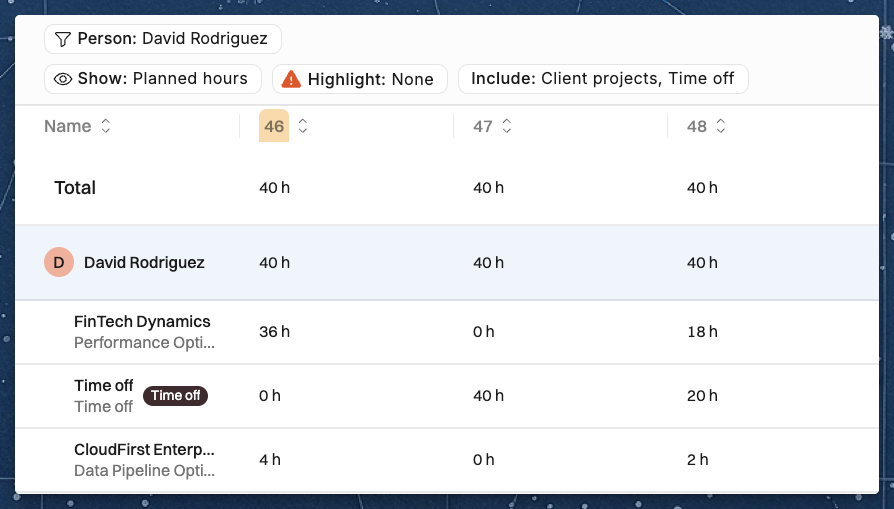
The timeline shows percentages, so the hours behind the 150% week show in the reports. The time off takes half of each day, which leaves David 20 hours that week. His allocations share those 20 hours by their percentages:
FinTech Dynamics: 18 hours (90%).
CloudFirst Enterprise: 2 hours (10%).
In hours, the week is fully booked, at 100%. To see the hours for each project, open the Planned vs Actual People report for that week.
To see weeks like this one on the timeline, turn on Highlight overlapping time off in your View options. The total bar then shows in orange wherever work and time off together come to more than 100%.
Here, stop to consider: is David really 50% away Monday through Friday? Or is he away Monday, Tuesday and Wednesday morning, and back at work for the rest of the week? Which would make more sense on the timeline?
Case David in the Capacity report
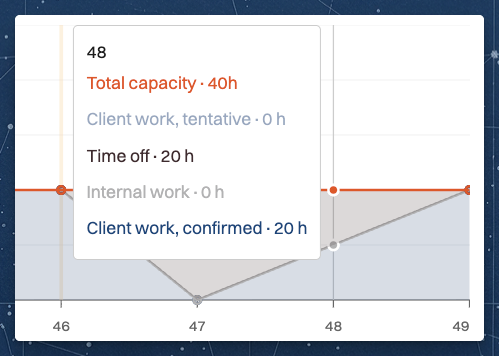
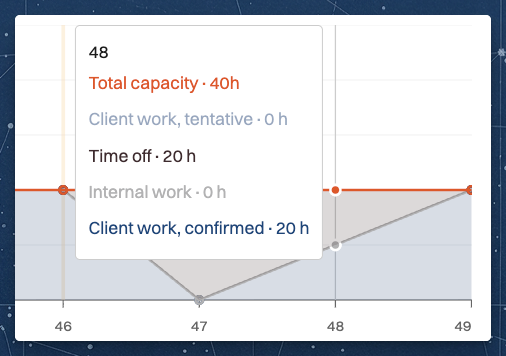
In the Capacity report, set Units to Hours booked to see the same weeks in hours:
Weeks without time off: 40 hours of client work, so 100% booked.
The week of 100% time off: 40 hours of time off. The work under it is ignored.
The week of 50% time off: 20 hours of time off and 20 hours of client work, so 100% booked.
Over these four weeks, David is fully booked. 100 of his 160 hours are client work (62.5%) and 60 hours are time off (37.5%).
Case David, time off adjusted
Here's what happens if the 50% week is planned the way it really goes. David is away on Monday, Tuesday and Wednesday morning, and works from Wednesday afternoon to Friday:
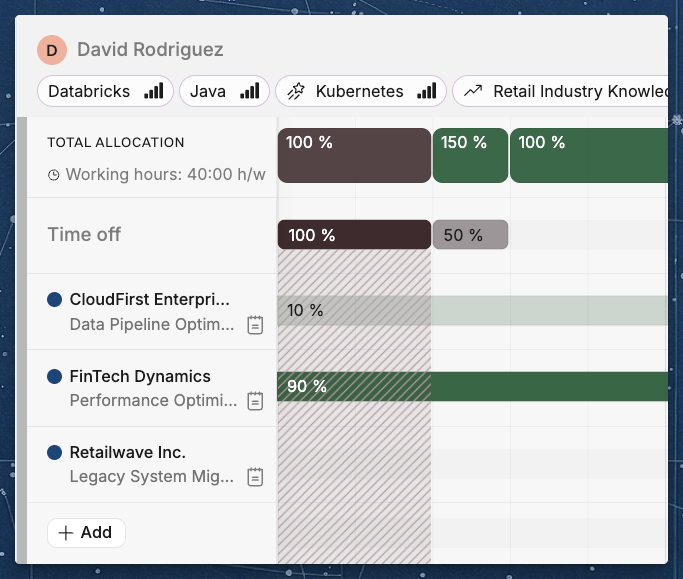
Monday and Tuesday: 100% time off. The work on these days is ignored.
Wednesday: 50% time off. The total bar reads 150%, and the work fills the afternoon.
Thursday and Friday: 100% work.
The week holds the same 20 hours of work and 20 hours of time off, so the Capacity report gives the same figures. What changes is which days the work falls on, so the plan matches the real week.
This is a rather complicated topic and we’re always open for ideas and feedback at support@operating.app – thanks in advance!
Was this helpful?
Still need help? Ask the team