Timeline layout and settings
Resource planning in Operating happens in the timeline view.
Written By Lauri Eurén
Last updated About 17 hours ago
Project timeline and people timeline
Toggling between the project and people timeline
You can toggle between the two timelines from the top right navigation that says
Projects | both side by side | People
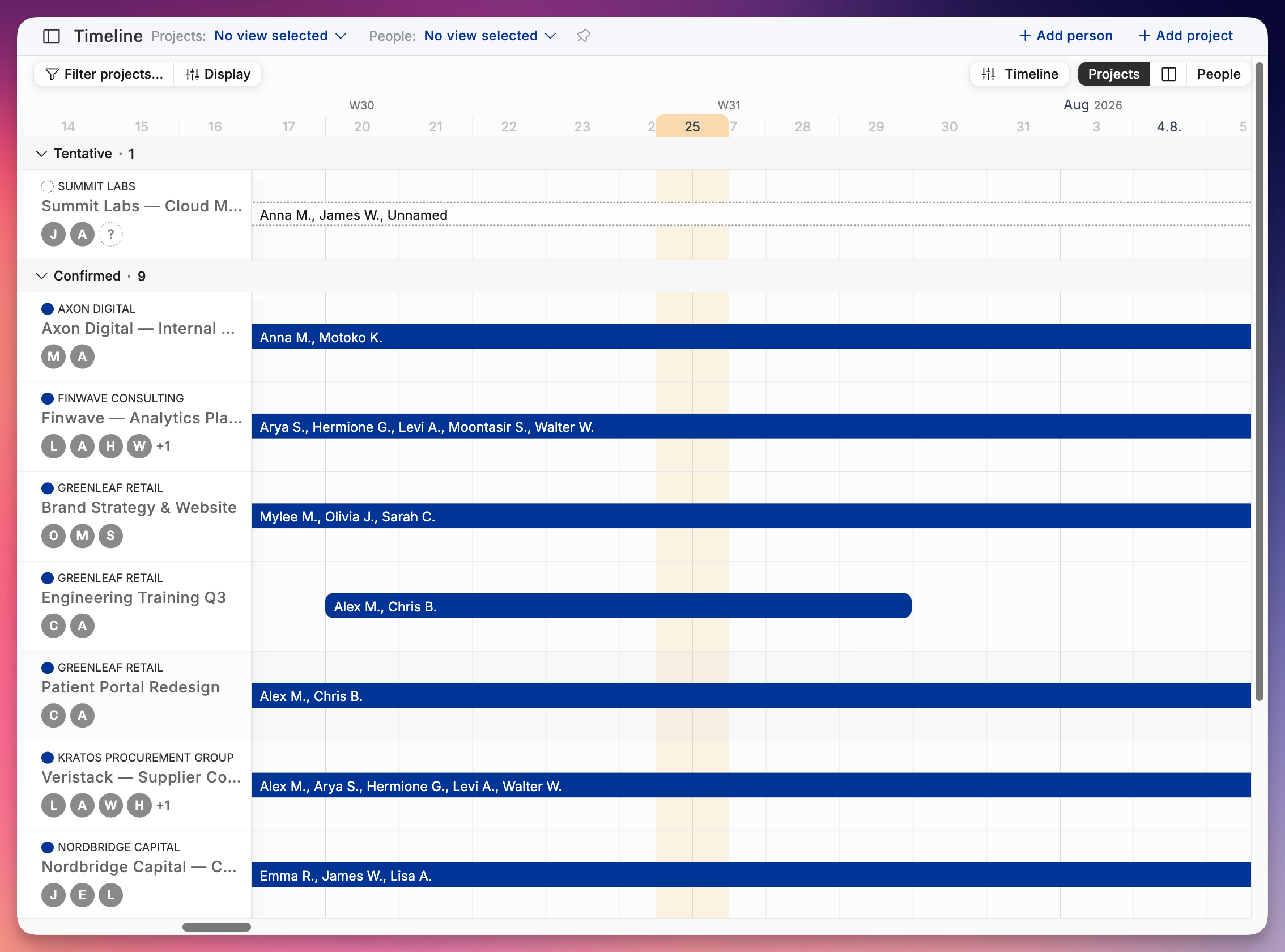
Project timeline shows all your projects: tentative and confirmed ones
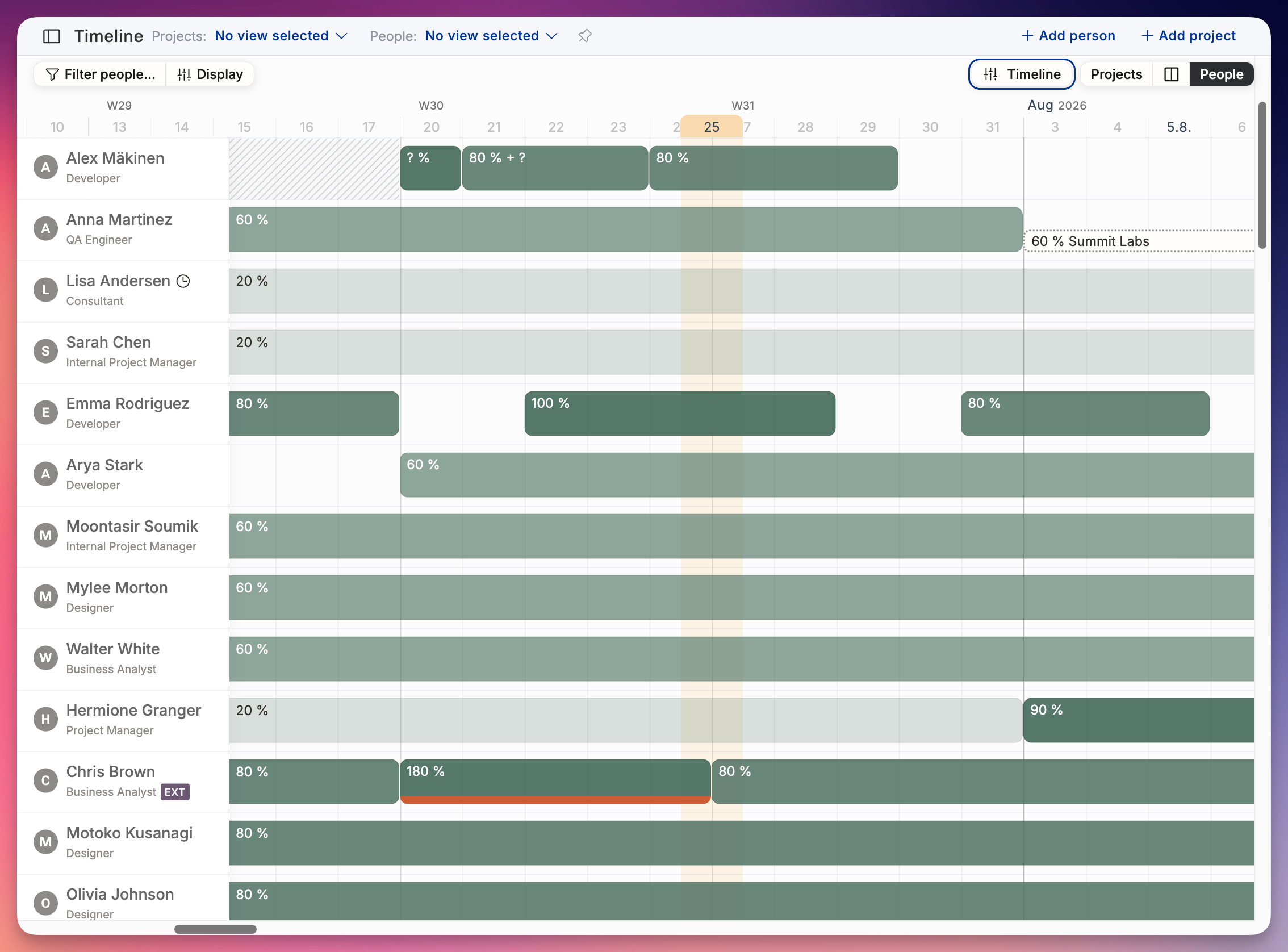
People timeline shows your people and how booked they are on different projects, if they’re available for work, or if they’re having time off.
By default, you see people’s allocation as a summary bar. By hovering on the summary bar, you’re able to see people’s detailed schedule.
Clicking a row open reveals more information about the Person or Project. The expanded mode is where all editing happens: dragging the end of an allocation to extend the work further into the future, for example. Read more about editing allocations and time off.
In an expanded Project row, a Milestones band above the rows shows the Project's milestones, and + Milestone in the row's header adds one. See Project milestones.
Collapsed view for the people timeline - see all allocations at once
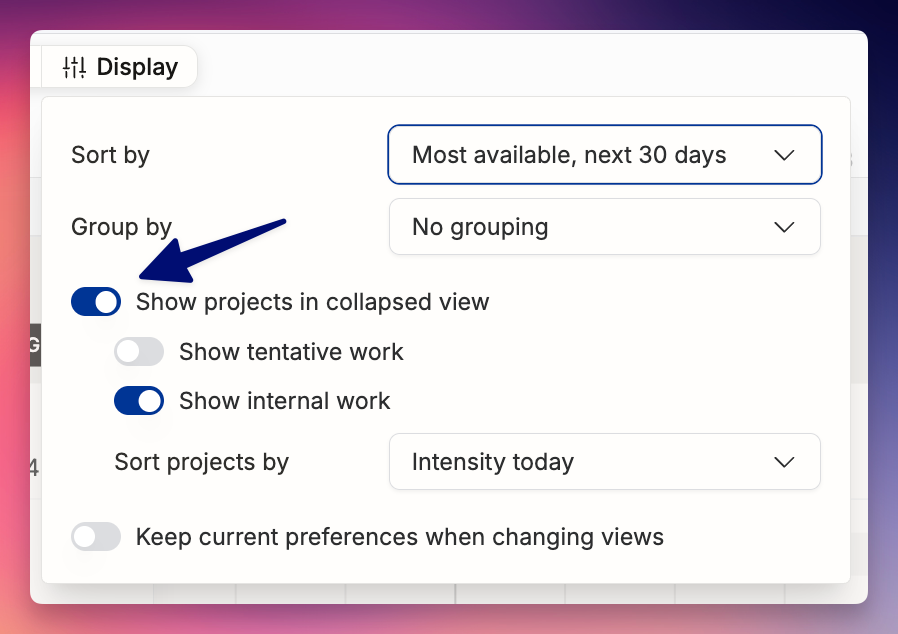
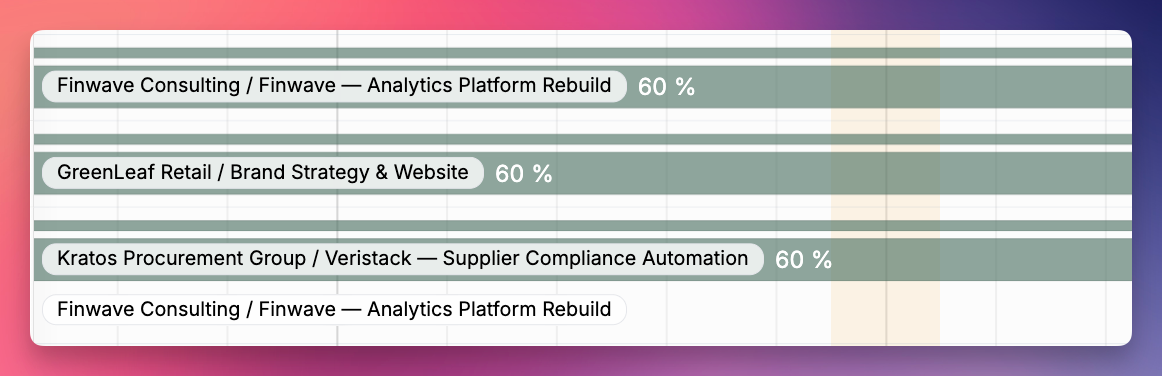
If you’d like to see all projects on the timeline without having to hover or click on the allocation summary bar, you can click display and toggle Show projects in collapsed view. The individual allocations show as separate bars, and above a person’s allocations, is a thin summary bar. By hovering on the summary bar, you see the person’s total allocation.
Show candidacies in the collapsed view
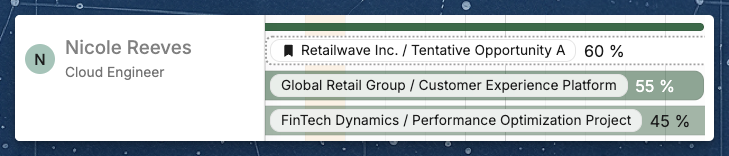
The collapsed view can also show the open positions where a person is a candidate. Each candidacy gets its own lane in the person's row, marked with a bookmark icon. A candidacy shows when one of the position's allocations falls in the dates on screen. Candidacies do not count toward the person's allocation or availability.
To show the candidacy lanes:
Click display.
Turn on Show projects in collapsed view.
Turn on Show candidacies. It is off until you turn it on.
The percentage on a candidacy bar uses the working hours of the project's site, because nobody is assigned to the position yet.
Timeline settings
You can control how much of the timeline you see and where it starts. Timeline settings are available on both the Projects and People timelines in the timeline view.
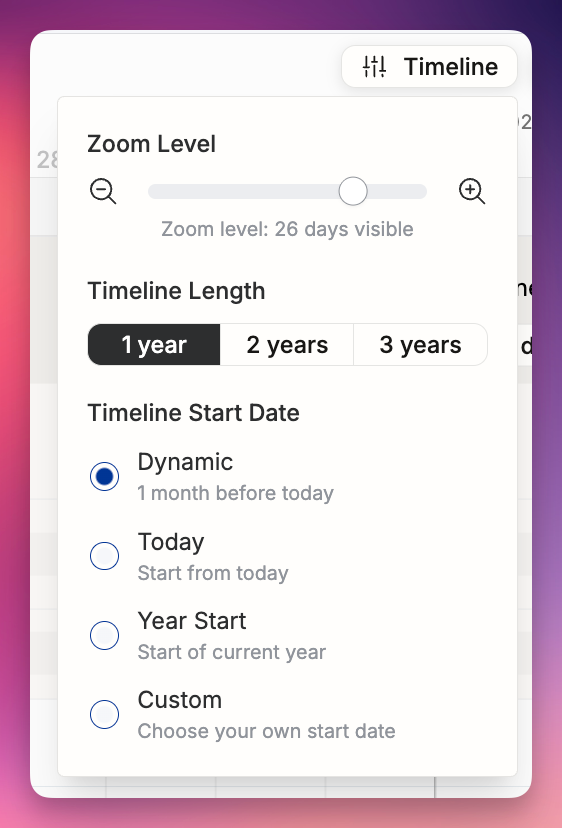
Click Timeline at the top right to open them.
Zoom
Drag the zoom slider to change the level of detail.
Zoom in to see a day-by-day view. The days of the week it shows come from the Visible Days setting. See Visible days below.
Zoom out to view up to 12 months at a time on the screen.
Timeline length
Choose how long the timeline extends into the future:
1 year
2 years
3 years
Where the timeline starts – the start date
Today – choose this option to make the timeline always start from today
Dynamic – starts one month before today.
Year start – starts from January 1 of the current year.
Custom – choose any start date you want.
Visible days
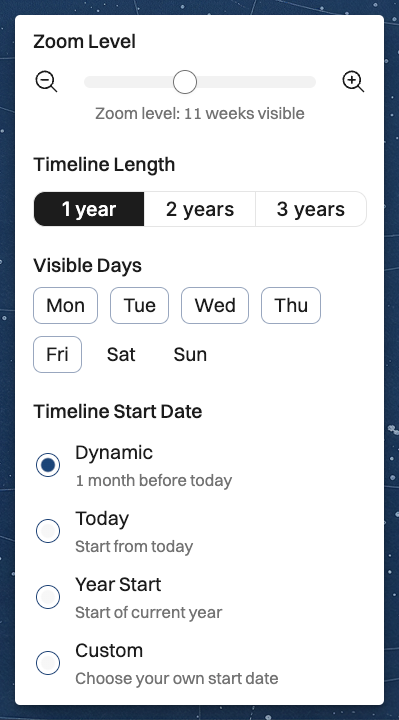
The Visible Days setting decides which days of the week the Projects and People timelines show. Click a day, from Mon to Sun, to show or hide it.
Default: until you choose days, the timeline shows each weekday on which any active Site has working hours. When no Site has any, it shows Monday to Friday.
At least one day: the timeline always shows at least one day, so you can't hide the last one.
Figures: a hidden day is hidden from view only. Allocations, capacity and totals still count it.
Saved views: saved views do not store the visible days.
When you change the visible days, the date at the centre of the screen stays in place.
The Timeline tab on a person's page and on a project's page always shows Monday to Friday.
Planned work on hidden days
On the People timeline, a yellow dot in a person's row marks planned work on a hidden day. The dot sits where the hidden days fold.
A hidden date gets a dot when all of these are true:
Project work: the person has planned project work on the date.
Time off: time off does not take the whole day.
Working time: the person has working time left after public holidays.
Hover over the dot to see the Planned work on hidden days tooltip. It lists each date with its planned hours. A date that also has time off shows the time off hours too. A date where only tentative work is planned is marked (tentative).
When hidden weekdays hold planned work, a button with their names, for example Sat, Sun, also shows next to the person's name. Click it to add those days to the visible days.
[Screenshot needed: a person's row with the yellow dot and its tooltip, and the button with the hidden day names]
Week numbers are visible on the timeline
When on the weekly or daily zoom level, week numbers are visible on the timeline.

Was this helpful?
Still need help? Ask the team