How to find available people for a project
New work incoming – who can do it?
Written By Matti Parviainen
Last updated About 17 hours ago
Overview
When a new project comes in or an existing project needs more people, you need to quickly answer: who is available, who has the right skills, and who could start when?
Operating gives you several ways to find the right person for a position:
People view: filter by a specific availability percentage, for example people with over 20% availability. Use the Display menu to sort people by their average availability, for example over the next 30 days, to see who is most free.
People timeline: for more granular timelines, this is your primary tool for seeing who is free, when.
Prerequisites
People have been added to Operating with their roles, seniorities, sites, and skills. See How to add a new Person .
Skill profiles are set up. See Skills.
You have a permission set that includes Timeline and People tab access. See Permission sets in Operating.
The project you're staffing has positions defined (at least role and seniority). See How to staff a project from scratch.
Approach 1: Use the people timeline to find availability
The people timeline is your primary tool for seeing who is free, when.
Open the people timeline
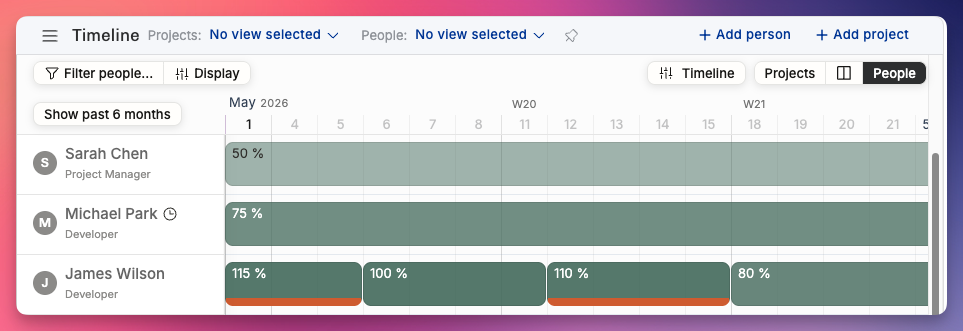
Navigate to the Dual timeline and select People from the toggle in the top-right corner (Projects | both | People). By default, people are sorted by availability — those with the most free time appear at the top.
Filter by role, site, or group
Use the filter bar at the top-left of the timeline to narrow the list. Common filters for staffing:
Role — show only Developers, Designers, or whichever role you need
Seniority — narrow to Senior, Mid, Junior, etc.
Site — filter to a specific office when the project requires on-site presence or a particular time zone
Group — show people in a specific practice or department (e.g., Engineering, Advisory)
Skills — filter by one or more skills the position requires
You can combine filters. For example: Role is Developer + Seniority is Senior + Skill includes TypeScript narrows to senior developers who know TypeScript.
Read the availability bars
Each person's row shows a summary bar indicating how booked they are. The color and fill tell you:
Empty / light — the person has free capacity during that period
Fully filled — 100% allocated, no room for additional work
Exceeding 100% — the person's work adds up to more than 100%. The person is overbooked only when their confirmed allocations alone come to more than 100%, so tentative work can take the bar past 100% without overbooking them.
Hover over a person's summary bar to see the breakdown by project. Click the row to expand it and see all their individual allocations.
Look at the right time period
Use the timeline zoom and date controls to focus on the period when you need someone. If the project starts in three months, scroll or set the start date so you can see who has capacity at that time — someone fully booked today may be free by then.
Approach 2: Use Suggest on an open position
If you have a position in a project that doesn't have a person assigned yet, Operating can suggest people based on the position's requirements.
Open the project and go to its Team tab, or open the Positions list in the left-hand main navigation.
Find the open position (no person assigned to it yet).
Click Choose person on the position in the Team tab, or Suggest on the position's row in the Positions list.
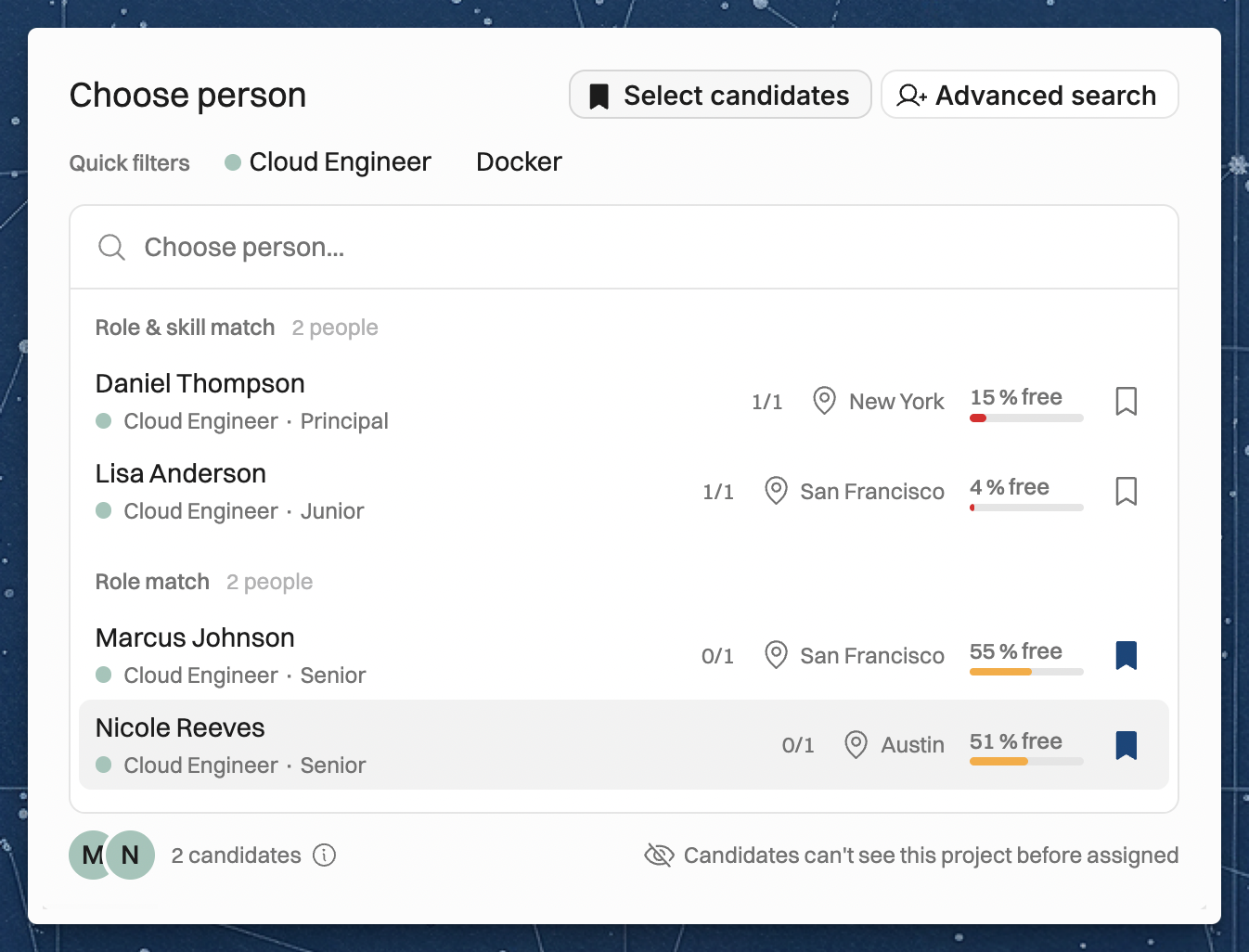
Operating groups people by how well they match the position's role, seniority, site, groups, and skills, with the best matches first. It also shows how free each person is during the allocation period. See What are Positions and Allocations? for how the matching works.
Select a person to assign them to the position.
If the person's working time differs from what the position's plan assumes, Operating opens a dialog first, for example Assigning Aino V. to position. Choose Keep total hours (the default) or Keep allocation percentage and click Assign. Click Cancel to leave the position open. See How to move, reassign, or remove a position for how the two options work.
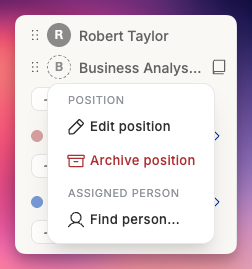
On the project timeline, expand the project, click the open position's name and then click Find person....
When the position has candidates you can see and you can manage the position, this menu item reads Review candidates....
Below the timeline, a caption counts the public holidays that fall on weekdays during the position, for example "2 public holidays during the position". When you choose a person for a whole project, the caption reads "during the project". The caption appears only when there is at least one public holiday.
This approach works best when the position already has a role, seniority, and optionally skills defined — the more information on the position, the better the suggestions.
Tip: If the suggestion list doesn't show who you're looking for, check whether external people are being excluded. Under Settings → View Options → External People, you can control whether external contractors appear in suggestion lists by default. See View options.
Shortlist candidates before you choose
A candidate is a person you shortlist for an open position while you decide who fills it. An open position can have several candidates. Being a candidate gives the person no access to the project.
You shortlist candidates in Choose person. It opens on an open position from any of these places:
Team tab: Choose person on the position's card.
Project timeline: click the open position's name, then Find person....
Positions list: Suggest on the position's row, or on its card in card mode.
To add or remove candidates, your permission set must let you manage the position (Manage positions). You can shortlist only people you could also assign to it. See Permission sets in Operating.
Open Choose person on the open position, as in step 3 above.
Click Select candidates. A bookmark button appears at the end of each person's row.
Click the bookmark of each person you want to shortlist. Its hover text is Add as candidate.
To take a person off the shortlist, click their bookmark again. Its hover text is then Remove as candidate.
Clicking the person's row, not the bookmark, still assigns them to the position. The first time you click Select candidates, a dialog titled Shortlist candidates for open positions explains this. Click Got it to close it.
After you shortlist the first candidate, a strip under the list shows the candidates' profile pictures and their number, such as 2 candidates. Hover over the pictures to see the candidates' names. The strip also reads Candidates can't see this project before assigned. Hover over the information icon next to the number for a short explanation of candidates.
Review the candidates and assign one
On the Team tab, an open position with candidates moves to the top of the team, under Candidates selected. Its card shows the candidates' profile pictures and a count, such as 1 candidate or 3 candidates, where it would otherwise show Choose person.
On the project timeline, the open position's row shows the candidates where it would otherwise show the role. The row shows up to three profile pictures and the number of candidates, such as 1 candidate or 5 candidates. The number counts every candidate you can see, also when only three pictures show.
Hover over the pictures or the number to open the row's tooltip. It shows the position's role and seniority, and under them the names of all the candidates you can see.
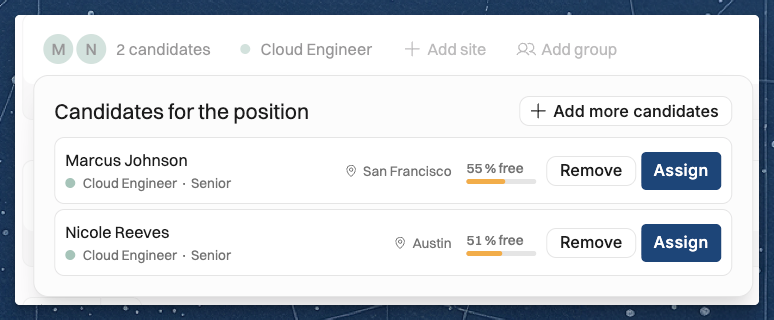
Click the candidate count on the position's card on the Team tab, or Suggest on its row in the Positions list. On the project timeline, click the open position's name and then Review candidates.... Choose person opens on the list Candidates for the position.
Click Assign on the person you choose. Operating can ask about the allocations first, as in step 6 above.
Click Remove on a person to take them off the shortlist. When you remove the last candidate, the list closes.
Click Add more candidates to see everyone again and shortlist more people.
When the position gets an assigned person, its shortlist ends. The position then has no candidates, also if you later clear the assigned person.
Shortlist candidates in Edit position
You can also change an open position's candidates in Edit position, without opening Choose person. Edit position is in the menu on the open position's name on the project timeline. It is also in the "…" menu of the position on the Team tab and in the Positions list.
Open Edit position on the open position.
If the Candidates field does not show, click the button under the fields that starts with Add candidates, note. The extra fields start open when the position already has candidates.
In Candidates, choose the people to shortlist. Clear a person to take them off the shortlist. The field shows how many there are, such as 3 candidates.
Click Save.
The Candidates field shows only while Assigned person is empty. It does not show on the time off project. When you pick a person in Assigned person, the Candidates field closes and your unsaved changes to it are discarded.
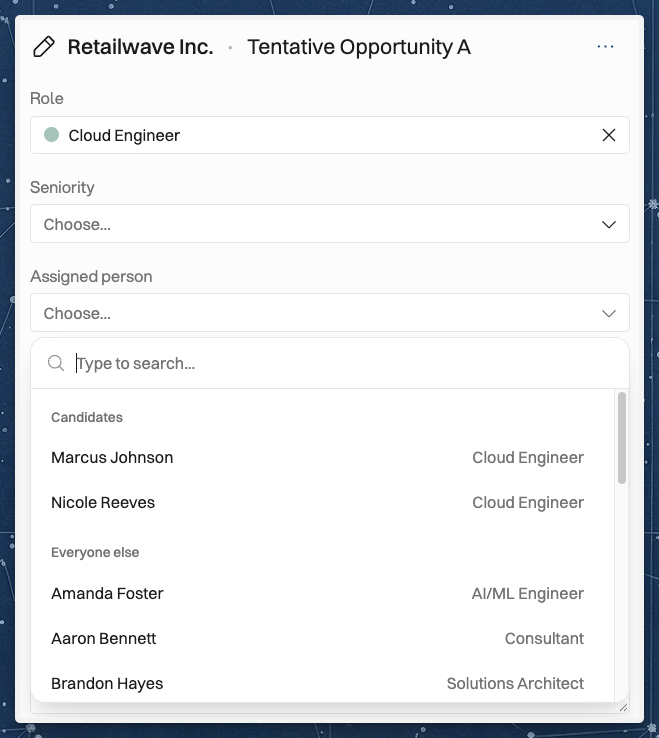
When the Candidates field holds people, the Assigned person list puts them first under Candidates. All other people you can assign follow under Everyone else.
Approach 3: Use the Positions list to see all open needs
For a broader view of all staffing needs across the organization:
Navigate to the Positions list.
Filter with Person is None to show only positions that haven't been assigned to anyone yet.
This gives you a list of all open positions across all projects — your staffing to-do list.
From this list, you can use Suggest on each position to find matching people.
Tip: Save this as a view (e.g., "Open Staffing Needs") and pin it to your sidebar for quick access.
If multiple people handle staffing, each person can create their own view by adding a filter for Staffing Owner is me. This requires the Secondary Project Owner feature to be enabled in Settings → Projects. Name it "Staffing Owner" or similar.
Save and share views for repeated use
Staffing is a recurring activity — you'll come back to the same filters regularly. Rather than rebuilding filters every time, save them as views.
Set up the filters you use most (e.g., Role is Developer + Person is None, or Group is Engineering sorted by availability).
Click the Save view option that appears in the filter bar.
Give the view a name and optional description.
Share it with relevant groups in your organization (e.g., share your "Engineering Bench" view with the Engineering group so all staffing managers in that practice can use it).
Saved views are personal by default but can be shared with groups. See How to create, pin, share, and edit views for details.
Useful saved views for staffing
Here are some views that staffing teams commonly create:
"On the bench" — People timeline filtered to people with 0% allocation in the current or upcoming period. These are the people who need work most urgently.
"Open positions" — Positions list filtered to Person is None. Your active staffing to-do list.
"My staffing needs" — Open positions where Staffing Owner is me. Your personal to-do list.
"Tentative pipeline" — Projects filtered to Project Status is Tentative. All projects that haven't been confirmed yet — these represent upcoming staffing demand.
"Overbooked people" — People whose confirmed allocations exceed 100%. These need attention. People whose tentative work takes them past 100% are not overbooked, but the conflict becomes real if the deal is won.
Deciding between suggested people
Once you've found a shortlist of available people, consider these factors:
Skill match — Open a person's profile (click their name → Open Full Profile) to see their full skill list, including levels and feelings. Someone marked "Expert, Tired of" on a skill is available but may prefer different work.
Confirmed vs. tentative load — A person with 100% tentative allocation might still be available if that deal falls through. A person with 100% confirmed allocation is truly booked. See How to manage allocations for more on this distinction.
Employment dates — Check that the person's employment covers the project period. Someone with an upcoming employment end date may not be suitable for long-running work.
Cost implications — If you have access to cost rates, compare the margin impact of different people. A more senior person costs more internally but may also command a higher billing rate.
What to do next
Once you've found the right person:
Assign them to the position — either from the Suggest flow or by adding them to the position directly.
Create allocations — plan their time on the project with the right dates, percentage, and status (confirmed or tentative). See How to manage allocations.
Communicate — let the person and relevant stakeholders know about the assignment. Operating makes the plan visible, but staffing decisions often need a conversation alongside the system update.
For a complete walkthrough of the staffing process, including building the team setup and handling changes, see How to staff a project from scratch and the How to run a staffing routine with Operating.
Related articles
How to staff a project from scratch — full staffing workflow including positions, allocations, and team setup
How to manage allocations — creating, editing, and managing allocations
How to run a staffing routine with Operating — weekly meeting rhythm for effective resourcing
Skills — setting up skill profiles for people
How to create, pin, share, and edit views — saving and sharing filtered views
View options — personal display settings including external people visibility
Timeline layout and settings — navigating the project and people timelines
Was this helpful?
Still need help? Ask the team