Understanding tasks and task lists
Written By Lauri Eurén
Last updated 8 days ago
Tasks and Task lists let you tag time entries with a more specific label than the Project they belong to — useful for grouping work by activity, charging different billing rates for different kinds of work, or marking certain work as non-billable. This article explains the model so you can decide whether and how to use them.
What a Task is
A Task is a named label for a kind of work that can be attached to a Time entry. When someone tracks time on a Project, they can optionally pick a Task to describe what the time was spent on (for example, "Design", "Code review", "Workshop facilitation").
Tasks are optional. A Project can run with no Tasks at all — every Time entry just rolls up to the Project. Tasks add a second dimension of categorization on top of that.
A Task carries two pieces of financial behavior:
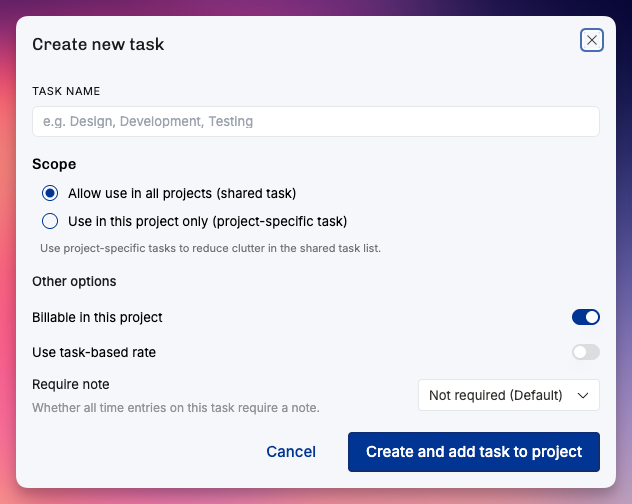
Billable by default. A Task can be marked non-billable, which forces any Time entry tagged with it to a zero rate, regardless of the Person's Position rate.
Task-specific rate. A Task can carry its own hourly rate. When set, it overrides the Position's rate for any Time entry tagged with the Task. This is how you charge a different rate for, say, "After-hours support" without changing anyone's Position rate.
What a Task list is
A Task list is a named group of Tasks. It exists so you don't have to manage hundreds of loose Tasks: you cluster them into themed lists ("Standard delivery work", "Internal time", "Client X custom activities") and apply the relevant lists to the Projects that need them.
A few rules to keep in mind:
A Project can have more than one Task list applied to it.
A Task can belong to more than one Task list.
You can choose a default Task list in Settings → Projects. Operating applies it to each new project, whether you create the project manually or from a CRM deal. You can leave the setting empty, and you can add or remove Task lists on any project afterwards. Operating skips a default Task list that you have archived.
Task lists can be archived when no longer needed.
Shared Tasks vs. project-specific Tasks
Tasks come in two scopes, and this is the distinction that confuses people most often.
Shared Tasks are organization-wide. They aren't tied to any single Project. If other Tasks report as a shared Task, you must clear those Reported as references before you can make it project-specific. You create them once and reuse them across as many Projects as you like by adding them to Task lists that get applied to those Projects. Shared Tasks are how you keep activity categories consistent across the organization — so "Design" means the same thing in every Project's reports.
Project-specific Tasks are scoped to a single Project. They exist for situations where one Project needs its own bespoke categories that don't make sense anywhere else — for example, a deliverable name that's unique to one engagement. Project-specific Tasks don't appear on other Projects and don't pollute the shared list.
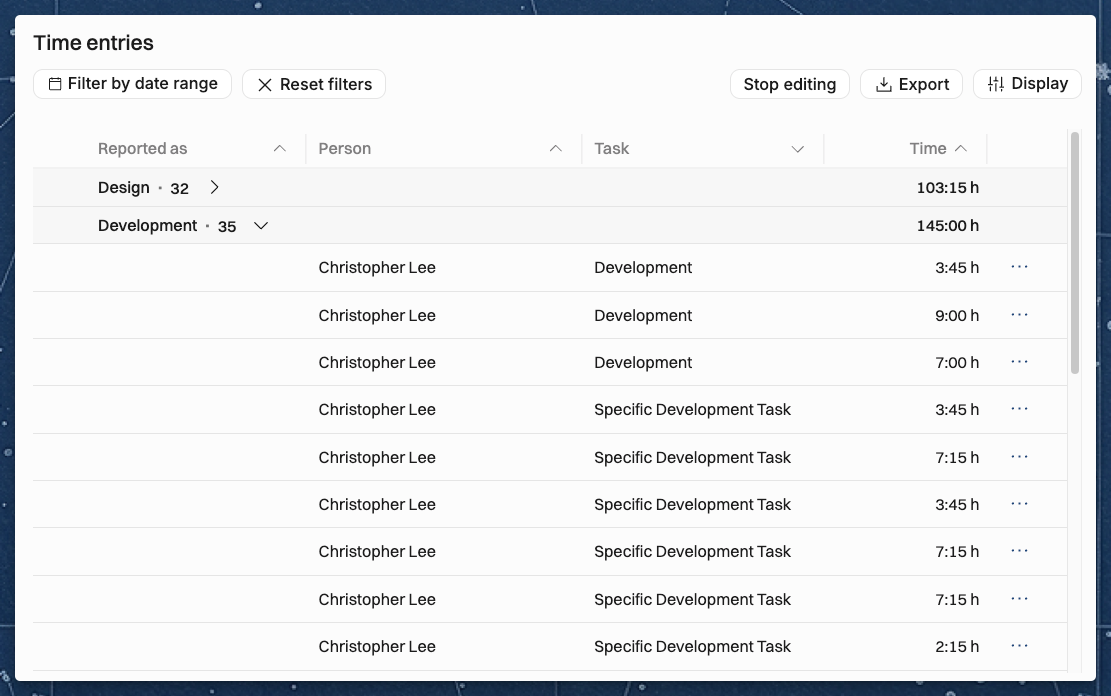
A Task can report as a shared Task, which you set in its Reported as field. Use this when work is tracked on a more specific Task than you want in reports, for example several project-specific Tasks that should roll up as one shared Task like "Design".
Each Time entry keeps its own Task, and you can still see the consolidated view. The Task you report as must be a shared Task. Shared Tasks can report as other shared Tasks, which forms a chain. Operating rejects any change that would make the chain loop back on itself.
To see that view, open Display on a time entry list and group by Reported as. Each entry goes into a group based on its Task:
A Task that reports as a shared Task goes into that shared Task's group. Operating uses the shared Task it points to directly, so if that shared Task reports as another one in turn, the entries stay in the first group.
A shared Task that doesn't report as another Task has its own group, which also holds the entries of the Tasks that report as it.
A project-specific Task that doesn't report as a shared Task goes into a group called Not reported as.
Entries with no Task form their own group, shown as No task.
The Reported as column shows the same value for each entry. It is hidden by default, and you turn it on under Display → Show columns.
How Tasks affect billing and time tracking
When a Person logs a Time entry, Operating works out the hourly rate by checking, in order:
If the Time entry came from an integration with its own rate, that rate is preserved.
If the Task is non-billable, the rate is zero.
If the Task has a task-specific rate, that rate is used.
Otherwise, the Position's rate (or the Rate card fallback chain) is used.
So the Task can override the Position's rate, but only when you explicitly set a Task rate or mark the Task non-billable. So tasks can also control billing for specific kinds of work.
Tasks vs. project phases
Tasks and project phases are independent of each other. They answer different questions:
A project phase is a stage of the Project ("Discovery", "Build", "Rollout"). It groups time by when in the Project life the work happened. Phases don't carry their own budgets —
budgets sit on the Project (and can have their own date ranges).
A Task groups time by what kind of work was done, regardless of phase.
One subtlety worth knowing: a Time entry isn't tagged with a phase directly. The phase association flows through the Position — Positions can be assigned to a phase, and the Time entry inherits the phase from the Position it's tracked on. The result feels the same in reports, but it's why you assign Positions to phases rather than tagging Time entries with phases.
so in short: you can link time entries to a phase – but it happens via the position.
Tasks are not a project management feature
Operating is not a backlog or task-management tool. Tasks here are about labelling time and controlling billing — they're not deliverables you assign to People, prioritize, move through statuses, or close. If you want a backlog, keep using your project management tool of choice and use Operating Tasks to mirror the activity categories you care about for time tracking and reporting.
Permissions
Creating, editing, and archiving Tasks and Task lists requires the Manage tasks permission, which is organization-wide. This is typically given to admins. Once Task lists are applied to a Project, anyone tracking time on that Project can pick from the available Tasks; they don't need the Manage tasks permission to use them, only to manage the catalog.
Related articles
Was this helpful?
Still need help? Ask the team