Timesheet view and time entries list view
There are two views for entering time in Operating: the timesheet view and the list view.
Written By Lauri Eurén
Last updated 7 days ago
Timesheet view
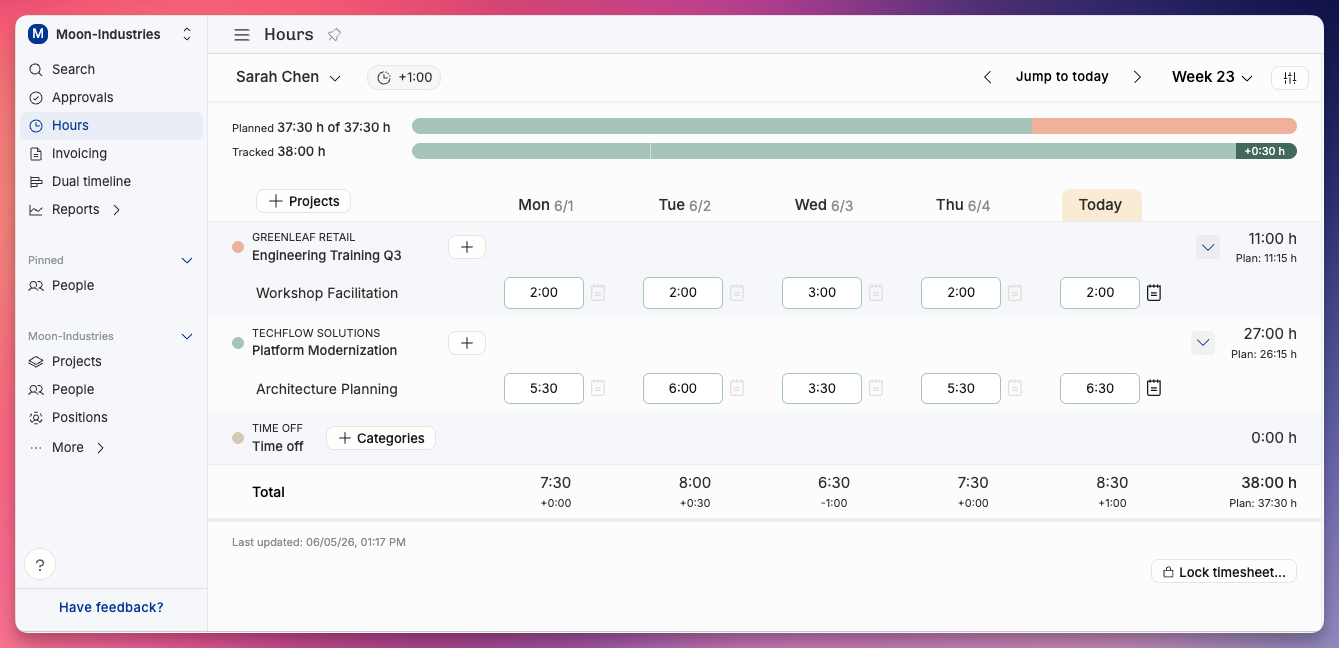
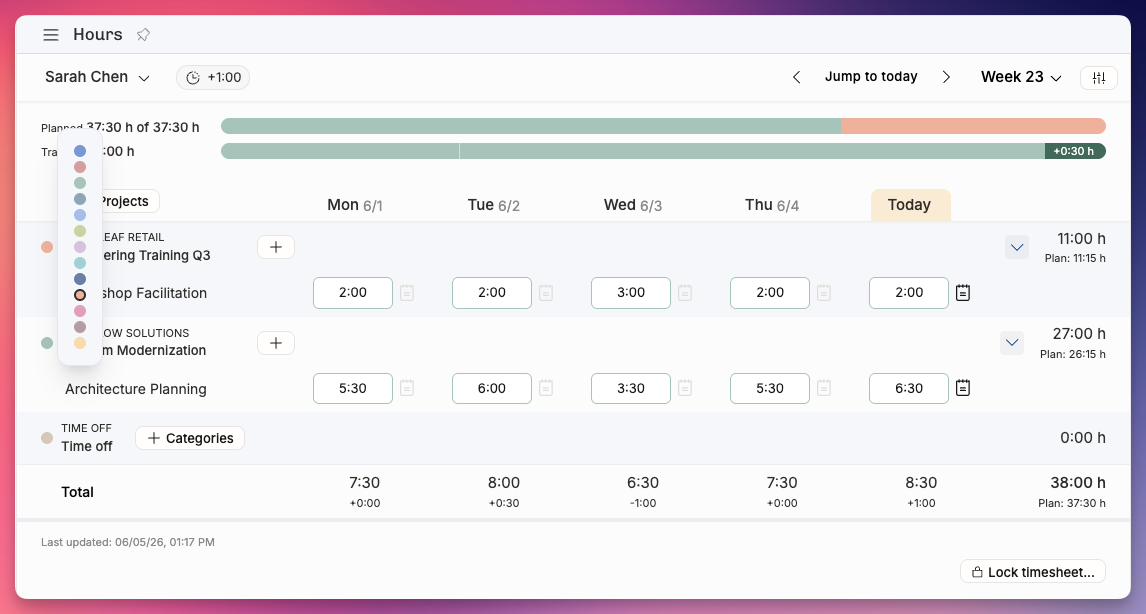
The timesheet view is great for entering hours for the whole week at once. You’ll see your projects underneath one another. For each project, the consultant sees their expected hours, based on how much work has been allocated for them on the timeline.
When an allocation has a task, the task's row shows its planned hours too, as Plan: X h in the last cell. The task plan counts confirmed allocations only. A task row without planned hours shows no plan, and the plan does not show on a phone.
You can also log time on days after today. These time entries stay in your timesheet, but the project's tracked hours, costs and revenue count them only from their date.
The list view
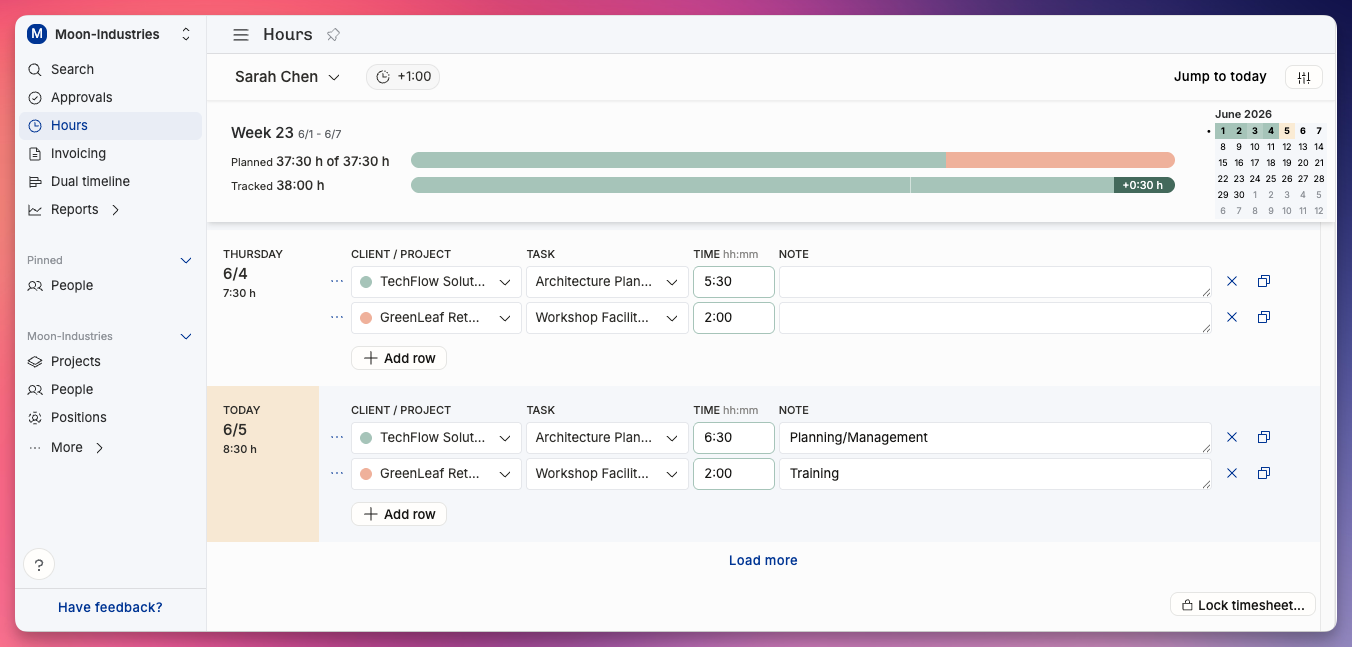
The list view is great for the following situations:
There’s work on the same tasks multiple times in a day → Time entries can be duplicated
Work is repetitive over consecutive days → the tasks for the previous day can be copied
Clients want descriptions on all time entries → descriptions are always visible
Copy previous day copies the previous day's entries onto a day that has no entries yet. Operating checks each entry against the same rules as an entry you add by hand. It copies the entries that pass and skips the rest.
When it skips entries, Operating shows one warning for each reason. The examples below are for one entry. For several entries the warning starts with the number, for example "3 entries weren't copied because their projects or tasks are archived."
1 entry wasn't copied because its project doesn't accept time entries. The project's status takes no new time entries. To log time on it, the project needs a status that does. See Project Statuses: customizing and use.
1 entry wasn't copied because its project or task is archived. Log the time by hand on another project or task, or ask for the project or task to be restored.
1 entry wasn't copied because its task is archived for the project. The task is no longer active on this project. Log the time by hand with another task.
1 entry wasn't copied because it needs a task. The entry has no task, but the project needs one. Log the time by hand and choose a task.
1 entry wasn't copied because its project requires a position. The person has no position on the project. Ask the person who manages the project for a position, or log the time on another project.
1 entry wasn't copied because it can't be logged anymore. Another time entry rule refuses the entry. Add the entry by hand to see which rule.
When Operating can copy none of the entries, the Copy previous day button is grayed out. Point at the button to see why.
Adding work on weekends
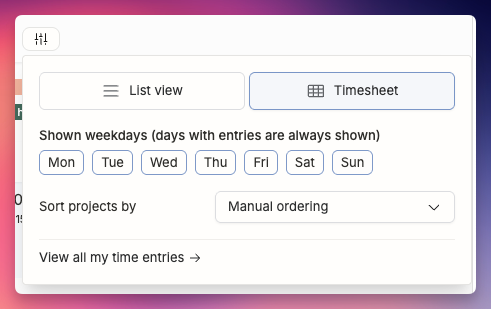
Use the view settings in the top right corner to choose which days the view shows. The setting Shown days (days with entries are always shown) has two options:
Their working days (the default): the working days of the person whose hours you view.
Chosen weekdays: the weekdays you turn on under Shown weekdays.
If you've done some work on a Saturday or Sunday, select Chosen weekdays and turn on Sat and/or Sun. A day that already has time entries always shows.
Everything is auto-saved, so all of your tracked time will be in the system as soon as you’ve entered the Project, Task (if tasks are used in the Project), and time.
Saving the location where the work was done per time entry
Would you like to use Sites as Location information for time entries? You may have to do that if your team travels a lot and you need to report their location information to government / tax authorities. Read more about it here: Location information for time tracking.
How to sort projects in the weekly timesheet view
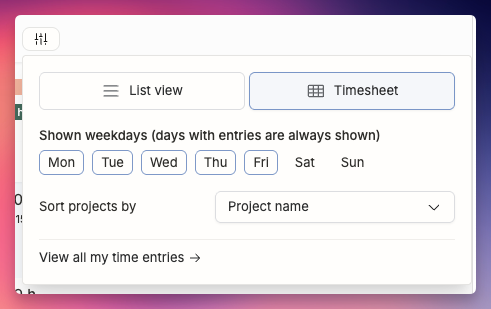
In the weekly timesheet view, you can choose how your projects are organized by clicking the settings icon in the top right corner of the view.
From there, use the Sort projects by menu to sort projects:
Project name: arranges them alphabetically.
Client name: arranges them alphabetically.
Manual ordering: lets you drag and drop projects into the sequence that best fits your workflow. This helps you keep your most important or frequently used projects at the top for easier access.
Color-coding the projects on your timesheet
Click the colour circle next to a project’s name to change its colour. The colour also marks the project in the Tracked bar on the Hours page, which shows the hours you tracked this week by project. Time off shows in the bar with a striped pattern.
FAQ
When is the time entry auto-saved? (There’s no save button!)
When you have entered the time amount (hours, minutes) and move away from the time field. This is required information for a time entry, so if you skip entering the time and just add a note, you may lose the input.
Where can I see all of my time entries?
On your own profile page. Click your organization name at the top of the left sidebar → My profile, then go to the Time tracking section. You can also click your name anywhere in the app’s people lists.
How often should I fill my timesheet?
People forget easily, so it’s best practice to enter your hours at the end of each workday
How often should I lock my timesheet?
We feel that closing the week on Friday afternoon is a good moment to review the past five days. Add or move around a few hours if that’s reasonable. Then lock until the end of Thursday or Friday, depending on whether you need to do more hours on Friday evening.
How often should the locked timesheets be approved?
Ideally with similar cadence as the locking is done. If all timesheets are locked on Friday afternoon, the approval should happen on Monday – it only takes a moment if everything is OK, and if there are errors, you can resolve them ASAP.
Was this helpful?
Still need help? Ask the team