How to edit timesheets on behalf of someone else
Sometimes the employee can't create or modify their own time entries and an admin needs to step in
Written By Matti Parviainen
Last updated 13 days ago
For admins, it’s possible to edit other people’s timesheets. If you have people reporting to you, you can also edit their timesheets.
When you edit someone else's hours, the project lists in Hours follow that person's Positions, not yours. If your permission set lets you track time only on projects people are members of, you can pick the projects where the person holds a Position and the projects open to everyone. See Who can track time on a project?.
Follow the steps here:
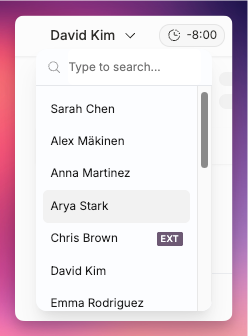
Pick the person from the person name menu on top right
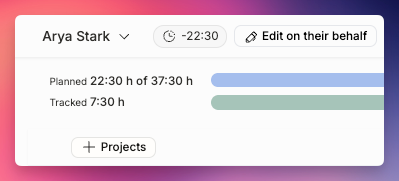
Choose Edit on their behalf
Make the edits, e.g. add new rows and hours
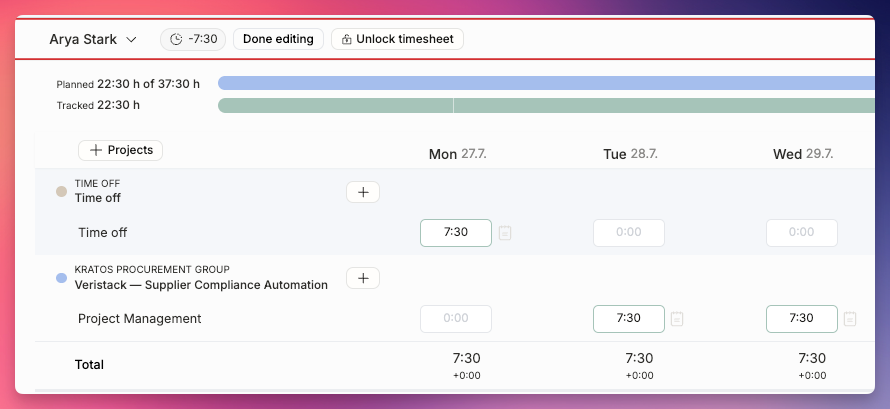
Just to make sure that you don’t forget that you’re changing someone else’s time tracking history, Operating highlights the top part of the screen with red. Changes are auto-saved but it’s still a good idea to exit the edit-mode with a click of the Done editing button after you’re done. That way you don’t accidentally make more changes to the other person’s sheet.
Make sure you know what you’re doing. Changing history has many consequences:
Time entry data may be exported or synced somewhere else – is this change also included in that export? If not, it needs to be exported again.
Have you sent an invoice with the previous data? Should you issue a credit invoice related to the changes?
The person in question may have strong feelings about what they did with their time.
Was this helpful?
Still need help? Ask the team