How to fill timesheets automatically with time off and public holidays
Time Off management made automatic
Written By Matti Parviainen
Last updated 9 days ago
Operating can add time off to people's timesheets for them, so nobody has to log a public holiday or a day of vacation by hand. Each time off category has a Fills timesheets switch. When it is on, confirmed time off in that category becomes time entries on the Person's timesheet. On the Public holidays category, the switch also adds the public holidays from your holiday calendars.
Turn it on
Go to Settings → Time tracking → Time off, or open https://use.operating.app/settings/time-tracking/time-off.
Edit the time off category, for example Public holidays or Vacation.
Turn on Fills timesheets and save.
Only people who can manage company-wide settings can change this switch. A category with the switch on can't be archived, so turn it off first if you want to archive the category. The Attributes column in the category list shows a Fills timesheets pill on each category where it is on.
[Screenshot needed: the edit dialog of the Public holidays category with the Fills timesheets switch on]
How the time entries are made
Operating adds the time entries early in the morning of each day, for active people only. It looks at the Site the Person belongs to on that day, so after a move to another Site the new Site's holiday calendar applies from the move date.
Each weekday gets the Person's daily working time multiplied by the share of the day that their confirmed time off in the category covers.
Weekends, full-day public holidays and days outside the Person's employment get no entry.
A day never gets more than a partial public holiday leaves free, minus the time off the Person has already logged that day. Categories that fill the same day share what is left.
If the Person already has an entry in the category on that day, Operating keeps it and adds nothing.
Entries that Operating has added stay as they are if the time off changes later.
The entries are non-billable, with the description "Automatically added - " and the category name.
Add time entries for past dates
The daily run only covers the day it runs on. To fill in time off from before you turned the switch on, use Add missing time off entries. The button shows under Time off automation on the same settings page when at least one category fills timesheets.
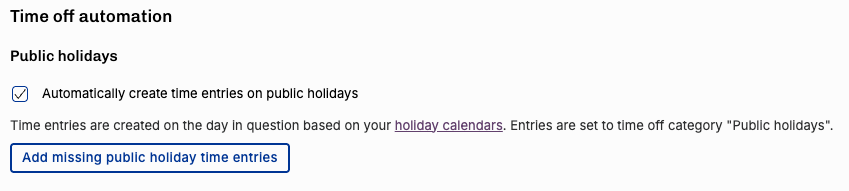
[Screenshot needed: recapture the Time off settings page with the Add missing time off entries button under Time off automation]
Choose a date range in the dialog. Operating then adds time entries for that period from your holiday calendars and from confirmed time off in categories that fill timesheets. The same rules apply as for the daily run, so existing time entries in those categories are not duplicated and weekends get no entry.
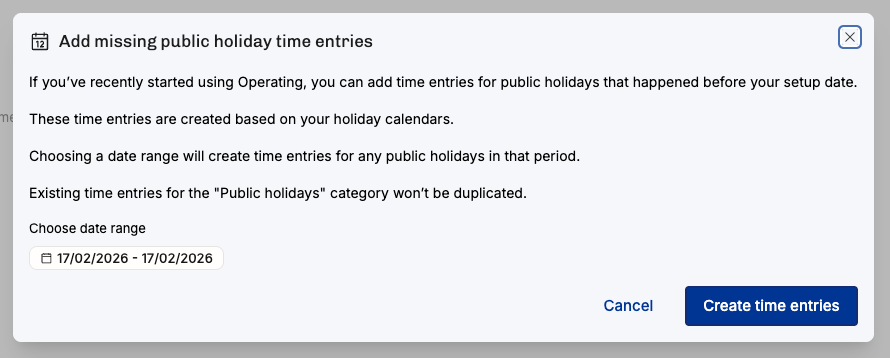
[Screenshot needed: recapture the Add missing time off entries dialog]
Was this helpful?
Still need help? Ask the team