How to track time against a project phase
Written By Lauri Eurén
Last updated 13 days ago
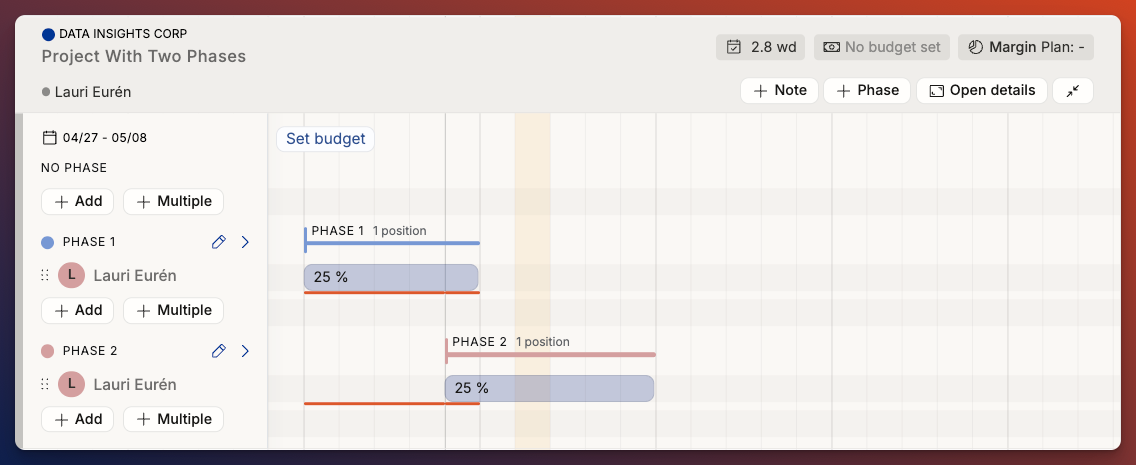
To track time against a phase, add the position to that phase on the project's Team tab or on the timeline. Any time logged on that position then counts toward the phase, and you can see the totals per phase in the Time Entries report.
Scope a position to a phase
Open the project and go to the Team tab or go to Projects and toggle on the timeline view
Create the phase if it doesn't exist yet using + Phase.
Add a new position into the phase by clicking + Add Open Position on the Team tab or + Add on the timeline
From now on, all time logged on this position will count toward that phase.
Log time against a phase from the timesheet
If a task has positions in more than one phase, the task shows up once per phase on the timesheet, with the phase name next to it. Pick the row for the phase you worked on and enter your hours. Note that this happens only if the phase is active on the week on the timesheet.
Open your timesheet.
Find the task row under the project you worked on.
Enter hours in the day's cell
The timesheet shows a label on every row of a project when you have more than one position on that project. The label names what tells your positions apart, usually the phase. It also shows in a week where only one of the phases has allocations. An archived position counts only when it has time entries in that week.
In this case Phase 1 and Phase 2 are overlapping on one day during the week, so the timesheet shows the task for both phases.

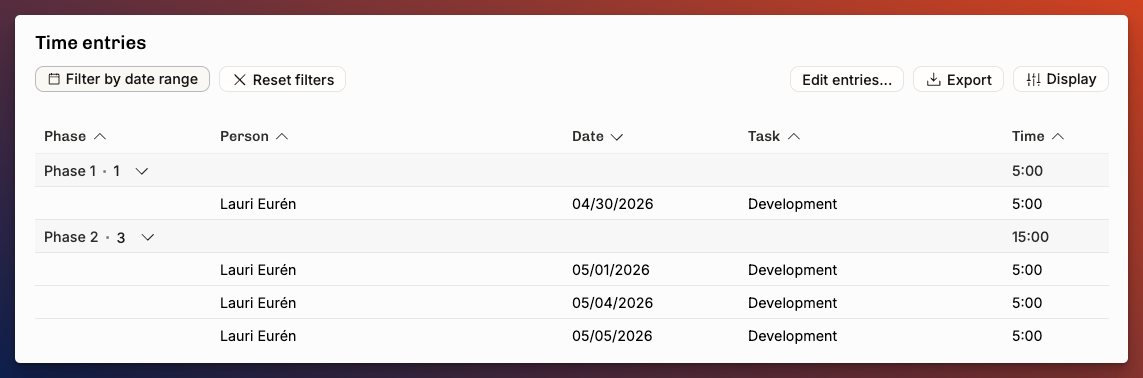
View and export time tracked by phase
Go to Project Details Page → Time Entries.
Click Display and turn on the Phase column.
Group or sort by Phase to see totals per phase.
Click Export to download as CSV.
Can I pick a phase directly when logging time?
No. The phase comes from the position you're logging time on. If you want time to count toward a different phase, log it on a position that's in that phase.
What if a position isn't in any phase?
Time logged on that position has no phase. The Phase column will be empty for those entries, even if other positions on the same project are in phases.
On the timesheet, the row of a position that has no phase is labelled Not in a phase when your other positions on the project are in phases. Pick that row to log time on it.
What if the project has no phases at all?
Time tracking works as normal — entries just don't have a phase.
Can two phases overlap?
Yes. On overlapping days, the timesheet shows both phase rows so you can split your hours between them.
Was this helpful?
Still need help? Ask the team