How to submit a timesheet
In Operating you can submit timesheets (or lock timesheets) in the Hours tab, in the timesheet view
Written By Lauri Eurén
Last updated 7 days ago
Submitting timesheets
People can submit their timesheets from the Hours tab in both timesheet views:
Weekly view
List view
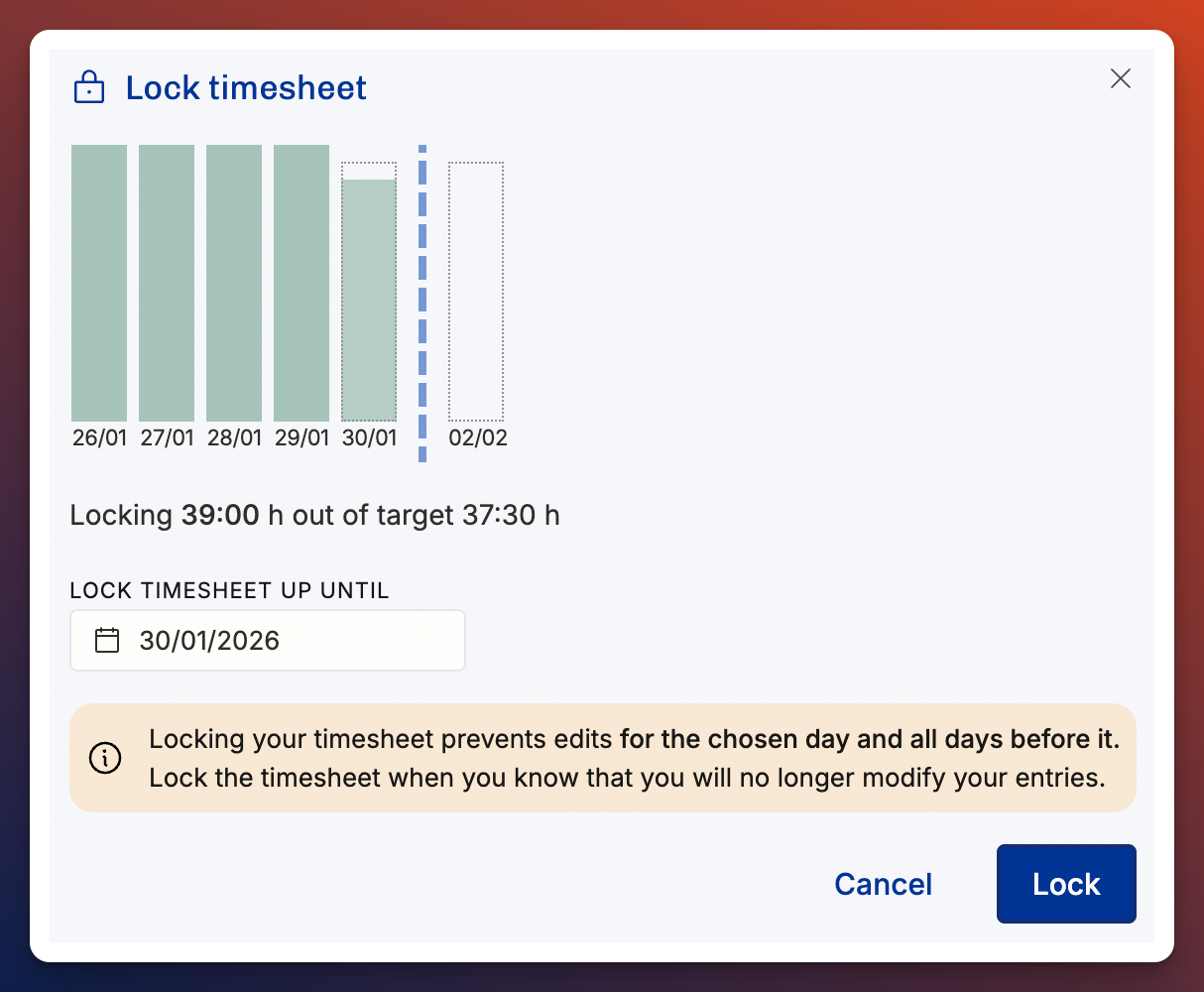
To submit hours, click Submit timesheet.... In the dialog, choose the date to submit up until, then click Submit.
When submitting, the person selects the end date up to which they want to submit their time entries. Once submitted, all days up to that date become uneditable (locked).
If the timesheet has a time entry on a closed project (a project with a Completed or Cancelled status), the Submit button in the dialog is disabled. The button in the Unsubmit timesheet dialog is disabled too. Hover over a button to see the reason. To submit or unsubmit the timesheet, reopen the project first.
Days with no hours
When the dates you submit include a working day with no hours, the dialog shows You are about to submit days with no hours - are you sure? Tick Yes to submit anyway.
Time off you track by hand counts as hours for this check when its time off category removes capacity and no confirmed time off already covers those hours. For example, a day with 6 hours of such time off tracked by hand is not an empty day. To learn how time off categories work, see What is time off?.
Editing submitted timesheets
Users with the appropriate permissions can edit locked hours submitted by other people. If you’d need to unlock someone’s submitted hours, read this article: How to unlock a submitted timesheet.
Viewing submission status
In all time entry lists, such as:
the Project details page (for a specific project), and
the All time entries list (Sidebar → More → Time entries),
you can:
filter time entries by Submitted / Not submitted
show the Submitted column, which is called Status when approval flows are in use, from the display options
Tip:
You can create and pin a saved view to your sidebar, for example:
All unsubmitted time entries, grouped by person
This keeps outstanding timesheets always readily available.
Approval flows (if enabled)
If approval flows are in use for the project, the submitted hours need approval by the designated approver before they are final. See How to set up approval flows for timesheets.
If approval flows are not enabled for the project, submitted timesheets are automatically accepted and simply marked as Submitted.
Was this helpful?
Still need help? Ask the team